Console Transfer
Move profiles, play hours, save backups, screenshots, homebrew and other files from one console to another over your home network. The sending console shares its files; the receiving console (or a PC or phone browser) downloads them.
Where: on the sending console Tools → Console Transfer. For profiles and play hours, the receiving console uses Tools → Tools → Users.
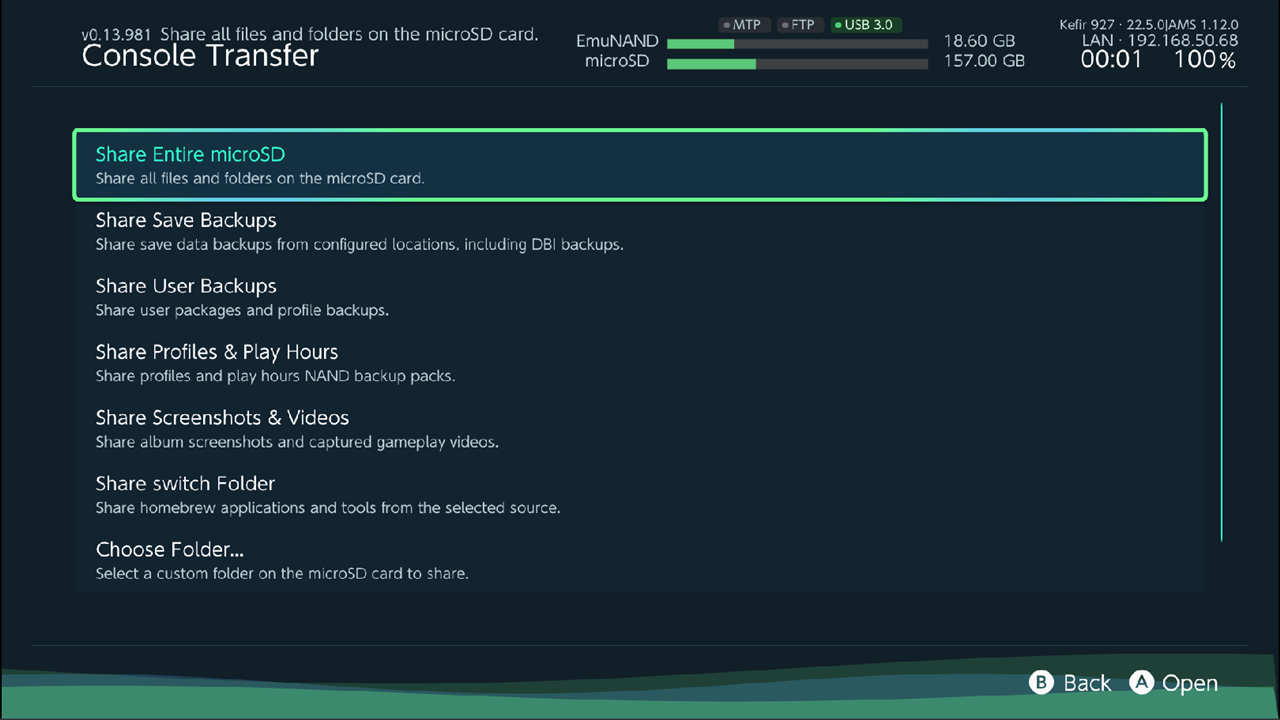
What you can move
| What | Sending console | Receiving console |
|---|---|---|
| All profiles and their play hours | Share Profiles & Play Hours | Users → Restore from another console or Receive from another console |
| Save backups | Share Save Backups | Download the files, then restore them in Saves |
| Screenshots and videos | Share Screenshots & Videos | Download in a browser |
Homebrew apps (/switch) |
Share switch Folder | Download in a browser |
| The whole memory card | Share Entire microSD | Download in a browser |
| One folder you choose | Choose Folder... | Download in a browser |
What is not moved:
- Installed games. Console Transfer shares files, not installed titles. Install the games on the new console from your files, see Install games.
- Game saves. Copying them with the profiles would take too long. Back them up in Saves and move the backups with Share Save Backups, see Move save backups.
- Share User Backups shares the profile backups in
/config/kefir/account_backups/. Restoring them on the receiving console is not available yet.
Before you start
- Both consoles are on the same local network (the same Wi-Fi, not a guest network).
- Both consoles run Kefir with Kefir Hub.
- To restore profiles and play hours you also need hekate and TegraExplorer. Kefir Hub copies its own
TegraExplorer.binto/bootloader/payloads/when needed. - Make a SYSTEM backup in hekate on the receiving console before restoring profiles.
Start sharing on the sending console
- Open Tools → Console Transfer.
- Choose what to share and press A. If the console is offline, Kefir Hub asks you to connect first.
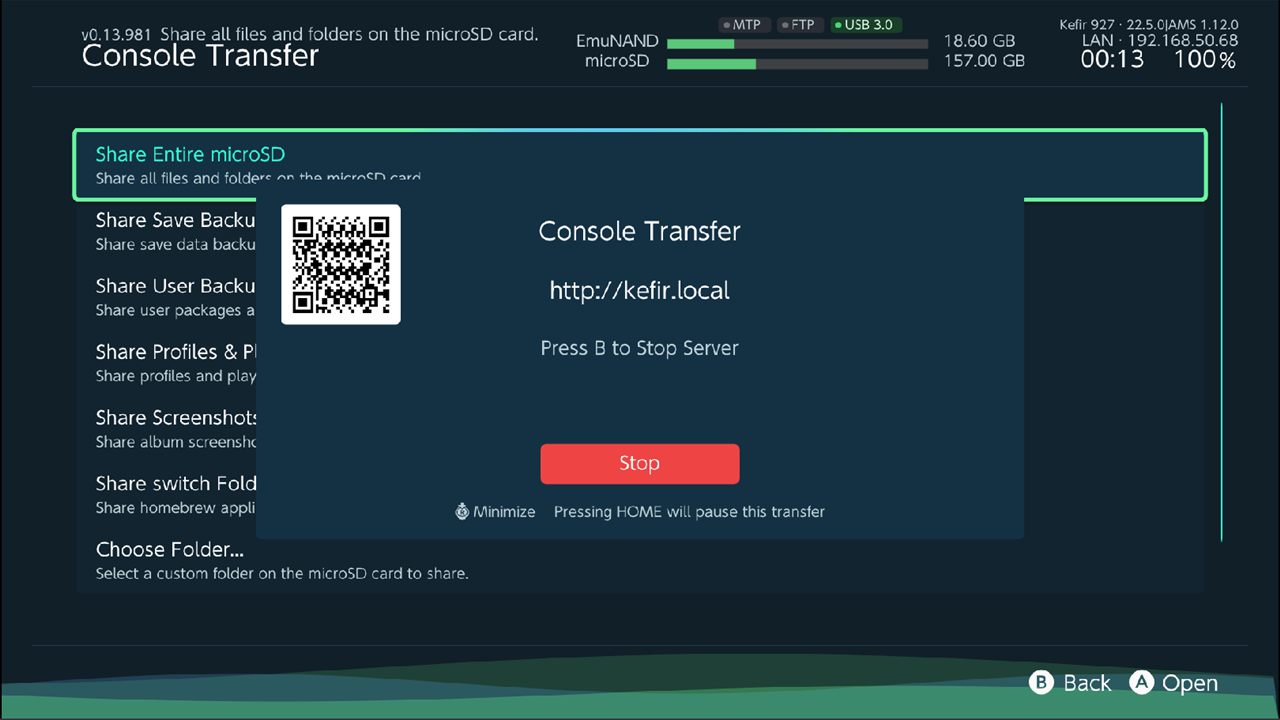
- The server screen opens with the address (for example
http://192.168.1.20) and a QR code. Write down the IP address: you type it on the receiving console. - Keep this screen open until the receiving side has finished. Press B to stop sharing.
If a folder that should be shared does not exist (for example, you have no save backups yet), Kefir Hub shows "Failed to start folder server". If a server is already running, Kefir Hub switches it to the new folders and shows a short notice with the address.
The server stops by itself when the console loses its network or its IP address changes.
Move profiles and play hours
This copies every profile on the sending console, with the same user IDs, and optionally its play hours. Game saves are not copied: move them separately, see Move save backups. Because the user IDs stay the same, save backups from the old console restore to the same profiles on the new one.
Warning
The receiving console loses all its own profiles: they are replaced by the ones from the sending console. With play hours, its play history is replaced too. Make a SYSTEM backup in hekate first.
On the sending console:
- Open Users, press A, choose Backup profiles & play hours, confirm with Backup. If the console restarts into TegraExplorer, let it finish; then start Kefir and open Kefir Hub again. See Back up.
- Open Tools → Console Transfer → Share Profiles & Play Hours. You can also use Send to another console in Manage Backups.
On the receiving console:
- Open Users, press A, choose Restore from another console. To only download the backup and restore later, choose Receive from another console instead.
- Type the sending console's IP address. The keyboard already holds the first part of your network address.
You can add a port (
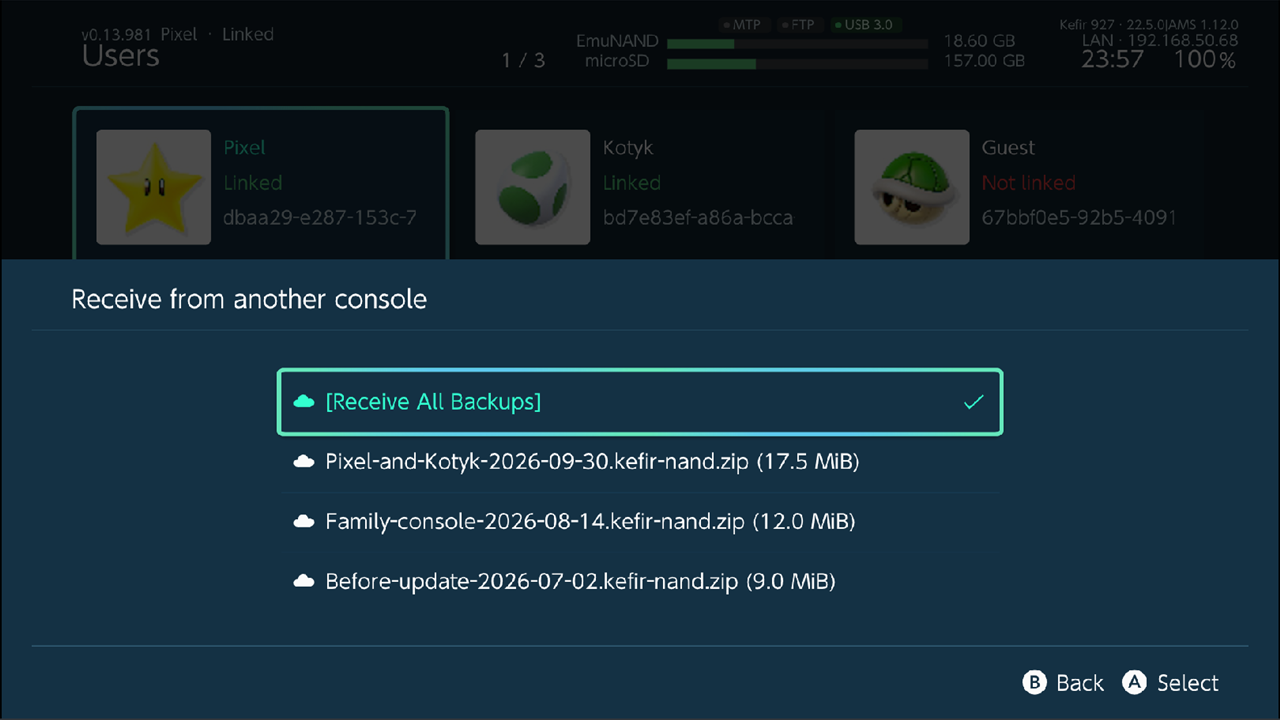
192.168.1.20:8080); without one, Kefir Hub tries the usual ports itself. - Kefir Hub tests the connection, then lists the backups on the sending console. Choose one. With Receive from another console and several backups, the first line downloads all of them.
- The backup is saved to
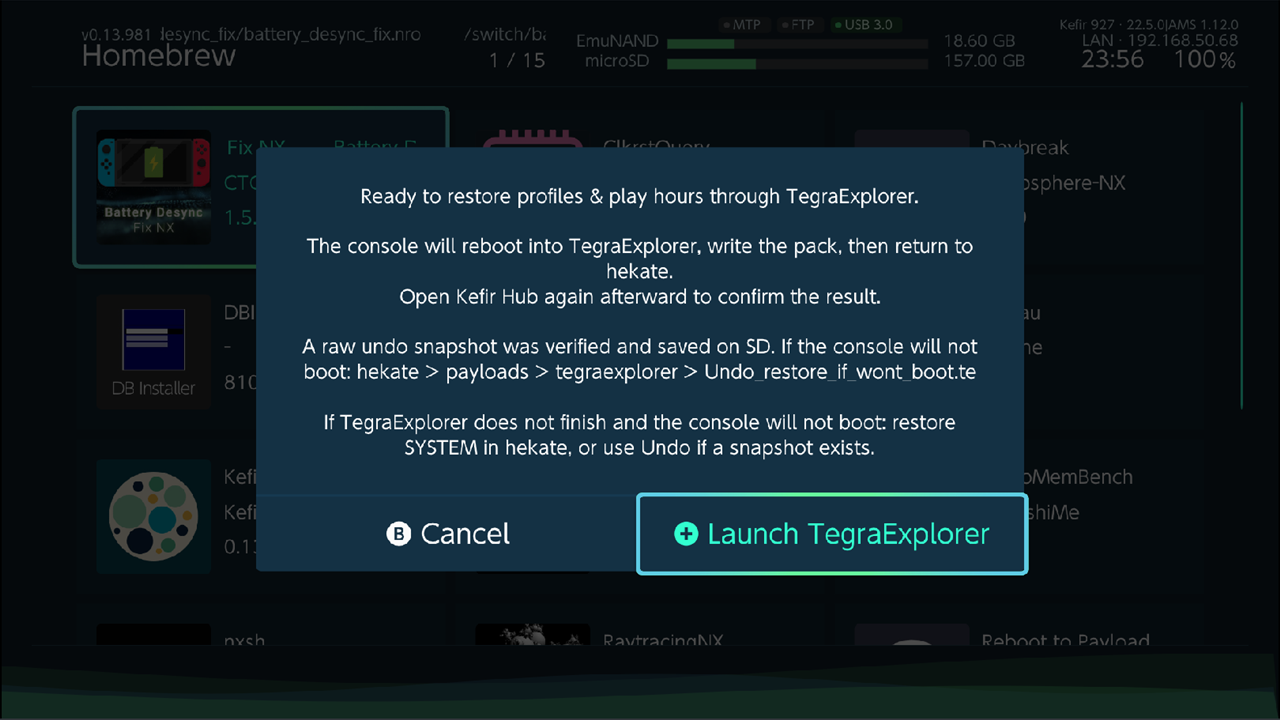
/config/kefir/nand_transfer/. With Restore from another console, Kefir Hub then asks what to restore: Profiles only or Profiles + play hours. - Press Launch TegraExplorer. The console restarts into TegraExplorer, writes the backup, and returns to hekate. Do not touch the console while it works.
- Start Kefir and open Kefir Hub. It shows whether the restore finished.
Tip
Without a network: copy the .kefir-nand.zip file from /config/kefir/nand_transfer/ on the sending console's
memory card to the same folder on the receiving one, then use Restore profiles & play hours in Users.
Move save backups
- On the sending console, back up the saves you need in Saves. See Saves.
- Open Tools → Console Transfer → Share Save Backups. Kefir Hub shares your save backup folders:
/dumps, the DBI save folders and any extra backup folders you added in Saves. - Get the files onto the receiving console's memory card, either way:
- open the address in a PC or phone browser, download the backups, then upload them to the receiving console (see Sharing);
- on the receiving console, open File Browser → Sources → Add network location, choose HTTP and
the sending console's address, then copy the backups to the same folder (for example
/dumps).
- On the receiving console, restore the saves in Saves. See Saves.
Move screenshots, homebrew and other files
- On the sending console, open Tools → Console Transfer and choose Share Screenshots & Videos, Share switch Folder, Share Entire microSD or Choose Folder.... With Choose Folder..., go into the folder and select Select current folder.
- Open the shown address in a browser on a PC or phone and download what you need. See Sharing.
On emuMMC, Share Screenshots & Videos shares the album of the emuMMC you booted.
Undo a profiles restore
Before writing, Kefir Hub and TegraExplorer save a copy of the receiving console's profile and play-hours data on the memory card. If the console does not boot after a restore:
- Enter hekate, open Payloads → TegraExplorer.
- Run the script
Undo_restore_if_wont_boot.te. TegraExplorer is controlled with the power and volume buttons. This puts the old profiles back. - If the undo copy is missing or the console still does not boot, restore your SYSTEM backup in hekate.
Problems
"Could not connect to the remote console". Check that both consoles are on the same network and that the sending console still shows the server screen. Check the IP address on that screen.
"No profiles & play hours backups found on the sending console". The sending console shares something else, or has no backup yet. Make a backup there and start Share Profiles & Play Hours.
"Failed to start folder server". The folders to share do not exist yet on the sending console.
"Could not start TegraExplorer". Copy TegraExplorer.bin to /bootloader/payloads/ and try again.
"TegraExplorer did not finish restoring profiles & play hours". The restore did not complete. If the console boots, run the restore again. If not, see Undo a profiles restore.
The server stops during the transfer. The sending console lost its network or got a new IP address. Reconnect, start sharing again, and use the new address.