Install over the network
Install games, updates and DLC without a cable: from a browser on a PC or phone, from an FTP program, from your own Ownfoil server, or from a network share. The console and the other device must be on the same network.
| Method | You need | Shows percent and time left | Section |
|---|---|---|---|
| Browser | Any browser on a PC or phone | Yes | Install from a browser |
| FTP | An FTP program on a PC (for example FileZilla or WinSCP) | No | Install over FTP |
| Ownfoil | An Ownfoil server on your PC or NAS | Yes | Install from an Ownfoil server |
| Network share | An SMB, NFS, WebDAV, FTP or HTTP server | Yes | Install from a network share |
Before you start
- Turn installing on. See Turn installing on.
- Connect the console to Wi-Fi or a LAN adapter. The top of the screen shows the network name and the console's
IP address, for example
MyWiFi · 192.168.1.5. Without a connection it shows No Internet. - Use the same network on both devices. A guest Wi-Fi usually keeps devices apart, so the PC cannot reach the console.
- Start Kefir Hub in Title Mode if you can. In Applet Mode memory is limited and NSZ files are unlikely to install (see Supported files).
- Where each game goes (microSD card or system memory) is set by Install location. See Where games go.
Install from a browser
Kefir Hub runs a small web server. You open its page in a browser and upload game files to it.
Where: Tools → + → Install & Share → Web Server
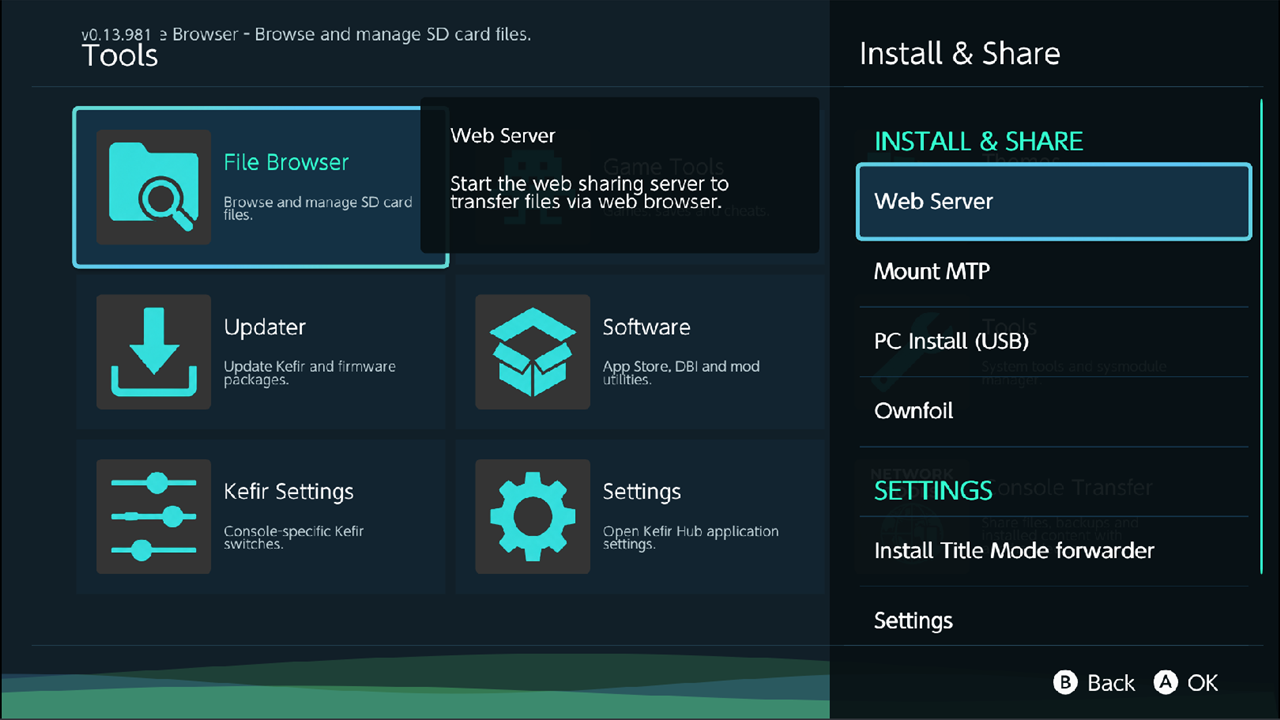
- Open Tools and press +. The Install & Share panel opens.
- Select Web Server. In Applet Mode the panel Web Server — Applet Mode opens first. Choose Start anyway, or select Install Title Mode forwarder to add a Kefir Hub icon to the HOME Menu and start Kefir Hub from it next time. How to enter Title Mode shows the other way to start in Title Mode.
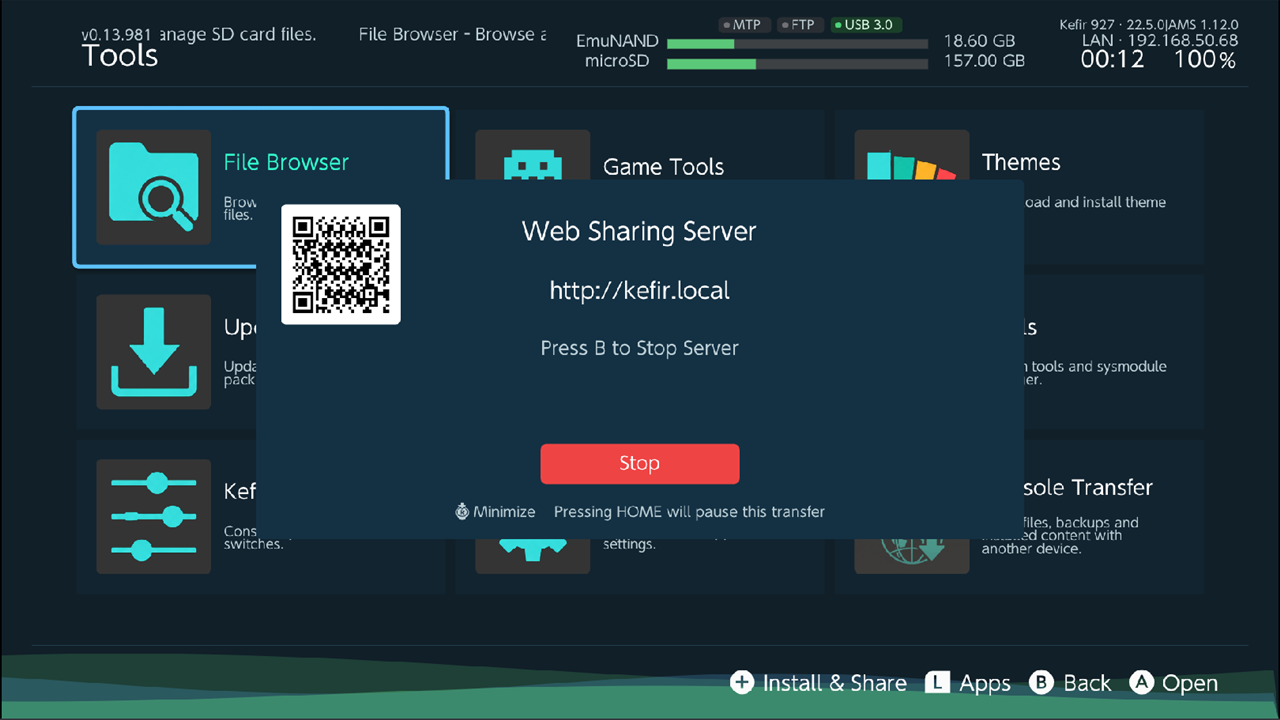
- The Web Sharing Server window opens with a QR code and an address, for example
http://kefir.localorhttp://192.168.1.5:8080. - Scan the QR code with a phone, or type the address into a browser on a PC.
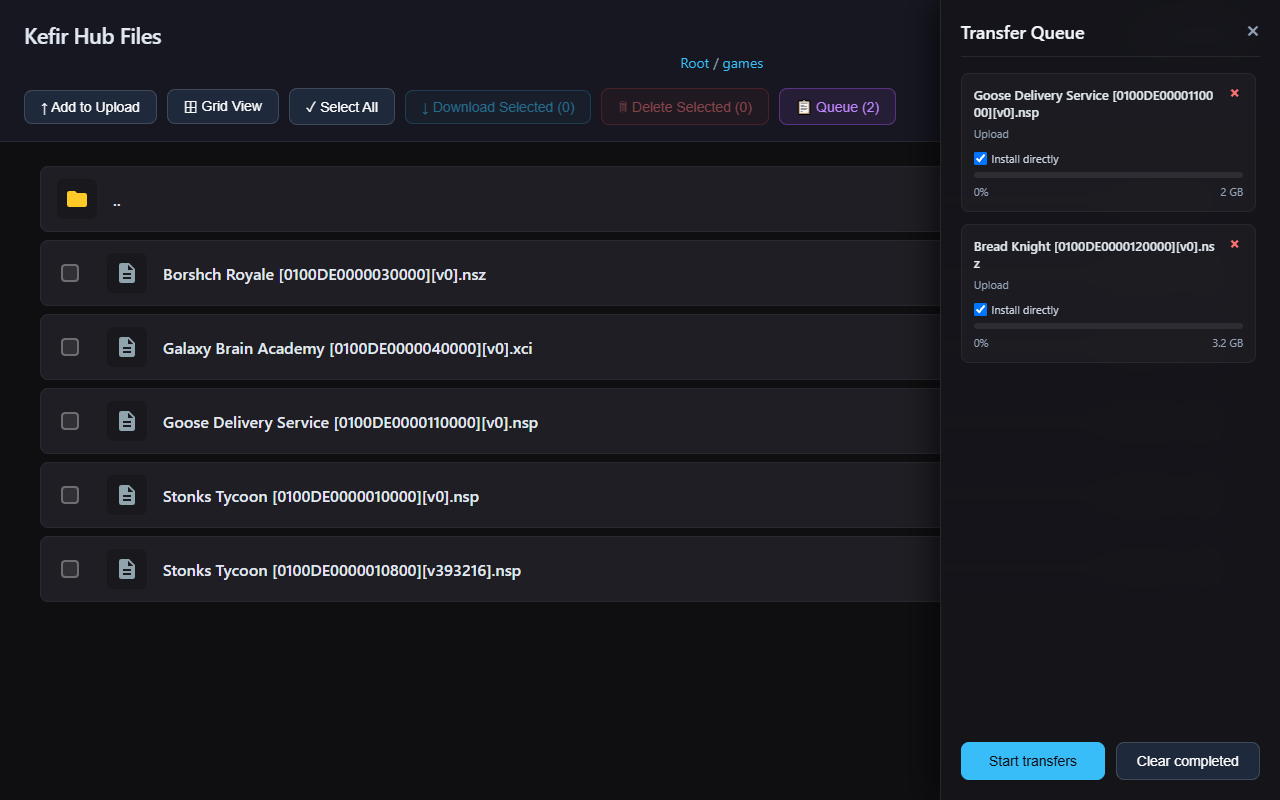
- The page Kefir Hub Files opens. Go into the folder where other files should go. For game files the folder does not matter.
- Click Add to Upload and choose the files.
- Click Queue. The queue panel lists the files. Game files (
.nsp,.nsz,.xci,.xcz) have Install directly ticked. - Click Start transfers.
- The console shows the install screen Web install with the package count, the percent done and the time left. When a game is installed you see Web install success!, and the server window shows Installation completed.
- When you are done, press B on the server window to stop the server.
What happens to each file:
| File | What Kefir Hub does |
|---|---|
.nsp, .nsz, .xci, .xcz with Install directly ticked |
Installs it while it uploads. The file is not stored on the microSD card. |
.nsp, .nsz, .xci, .xcz with Install directly unticked |
Saves it into the folder that is open in the browser. |
.nro (homebrew) |
Saves it to /switch/<name>/<name>.nro, replacing an older copy. It appears on the Homebrew tab. |
| Any other file | Saves it into the folder that is open in the browser. If a file with that name exists, the new one gets a number: name (1).ext. |
Tip
Press R3 to shrink the server window to a badge in the corner and keep using Kefir Hub. Press R3 again to bring it back. In Applet Mode keep the window open: the server has less memory there.
The server stops by itself when the console loses its network (Web server stopped: the console went offline) or gets a new IP address (Web server stopped: the console's IP address changed). Start it again; the address may have changed.
The web page also lets you download, delete and view files. See Share files with a PC.
Install over FTP
Copy game files to the console with an FTP program. Each file is installed while it is copied and is not stored on the microSD card.
Where: Tools → Settings → Network → FTP
- Turn FTP on. The FTP server now runs in the background while Kefir Hub is open, and starts again with Kefir Hub until you turn it off.
- Note the console's IP address at the top of the screen.
- In the FTP program, connect to that address on port
5000. With the default settings any user name and password are accepted. To change this, see FTP settings. - Open the folder
installon the server. - Copy
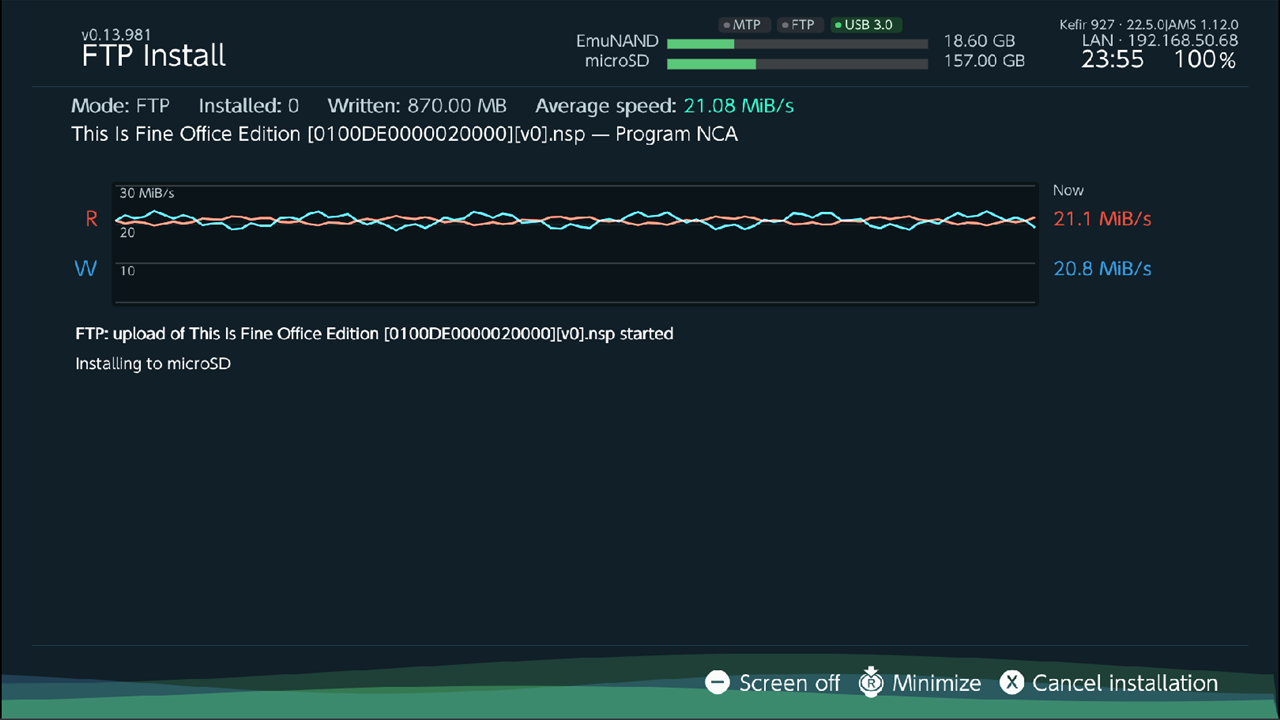
.nsp,.nsz,.xcior.xczfiles into it. You can copy several at once; they are installed one after another. - The console shows the install screen FTP Install. After each file you see FTP install success!.
A .nro file copied into install is not installed as a game: it is saved to /switch/<name>/<name>.nro and
appears on the Homebrew tab.
Warning
A game file copied to the top level of the server is installed too, not saved. To keep a game file on the microSD card, copy it into a subfolder.
What the progress shows
An FTP program does not tell the console how big a file is. So the FTP Install screen shows no percent and no time left. It shows:
- Mode:
FTP. - Installed: how many files are finished.
- Written: how much data has been written so far.
- Average speed.
Shrunk to a badge with R3, it shows -- instead of a percent. When the FTP program has nothing more to send,
the screen changes to Session summary (see When the queue finishes).
To cancel on the console, press X (Cancel installation) and confirm Cancel installation?. B does nothing during the install. Files still waiting in the FTP program's queue keep coming, so stop the queue in the FTP program too.
To cancel in the FTP program, stop the upload. The console shows Install cancelled: the source stopped sending data.
Install from an Ownfoil server
Ownfoil is a game library server that you run on your own PC or NAS. Kefir Hub shows its catalog and installs from it.
Where: Tools → + → Install & Share → Ownfoil, or Tools → Software → Ownfoil
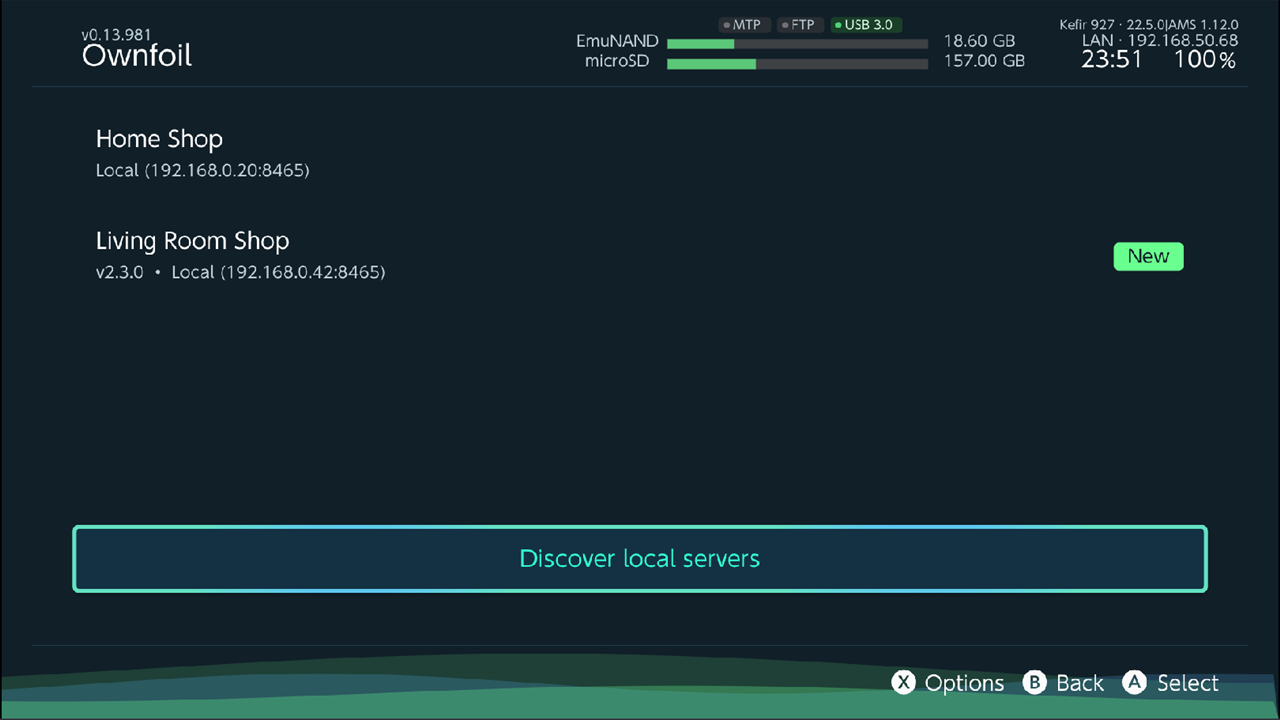
Add a server
Find it on the network:
- Highlight Discover local servers and press A. The button shows Searching the network... for a moment.
- Servers that are found but not saved yet are tagged New. Select one.
- Kefir Hub says whether the shop needs a login: This shop is public. Set up a login anyway? or This shop is private. Set up a login now?. Yes opens the server form, No saves the server without a login and connects.
Or add it by hand: press X (Options) and select Add server. Fill in the Ownfoil Server form and select Save.
| Field | What to enter |
|---|---|
| Name | Any name. It is replaced by the name the server reports after the first connection. |
| Local address | The address in your home network, for example 192.168.1.10:8465. |
| Remote address | The address from the internet, for example shop.example.com. A name without http:// is opened with https://. |
| User, Pass | Optional login for the shop. |
You need a name and at least one address. Kefir Hub tries the local address first, then the remote one.
To change or remove a saved server, highlight it, press X and select Edit server or Delete server.
Install a game
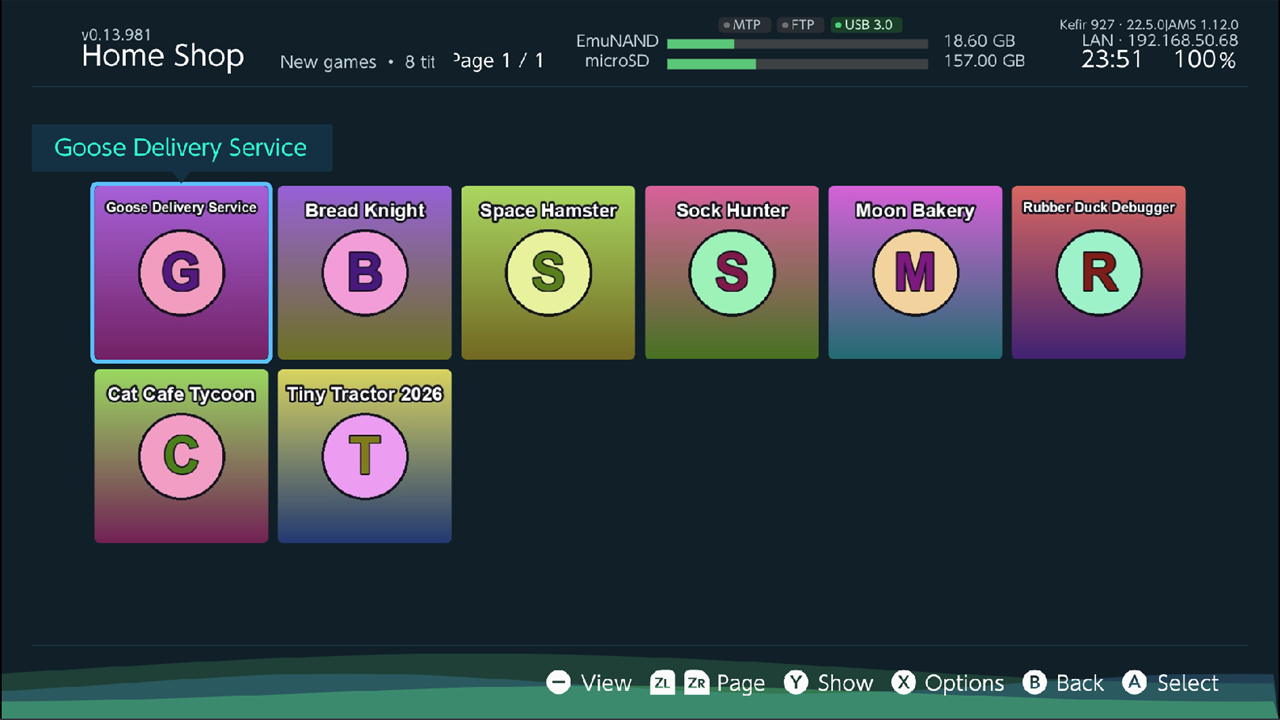
- Select a server and press A. Press B to stop connecting.
-
The catalog opens on New games. Press Y (Show) to choose what to list:
Entry What it lists New games Games on the server that are not on this console. Updates Updates for games on this console. DLC DLC for games on this console. All games The whole catalog. Search Asks for a name or title ID and lists the matches. -
Press ZL / ZR to change pages, − to change the view.
- Select a game. Its page shows details and screenshots; Y (Full screen) opens the screenshots.
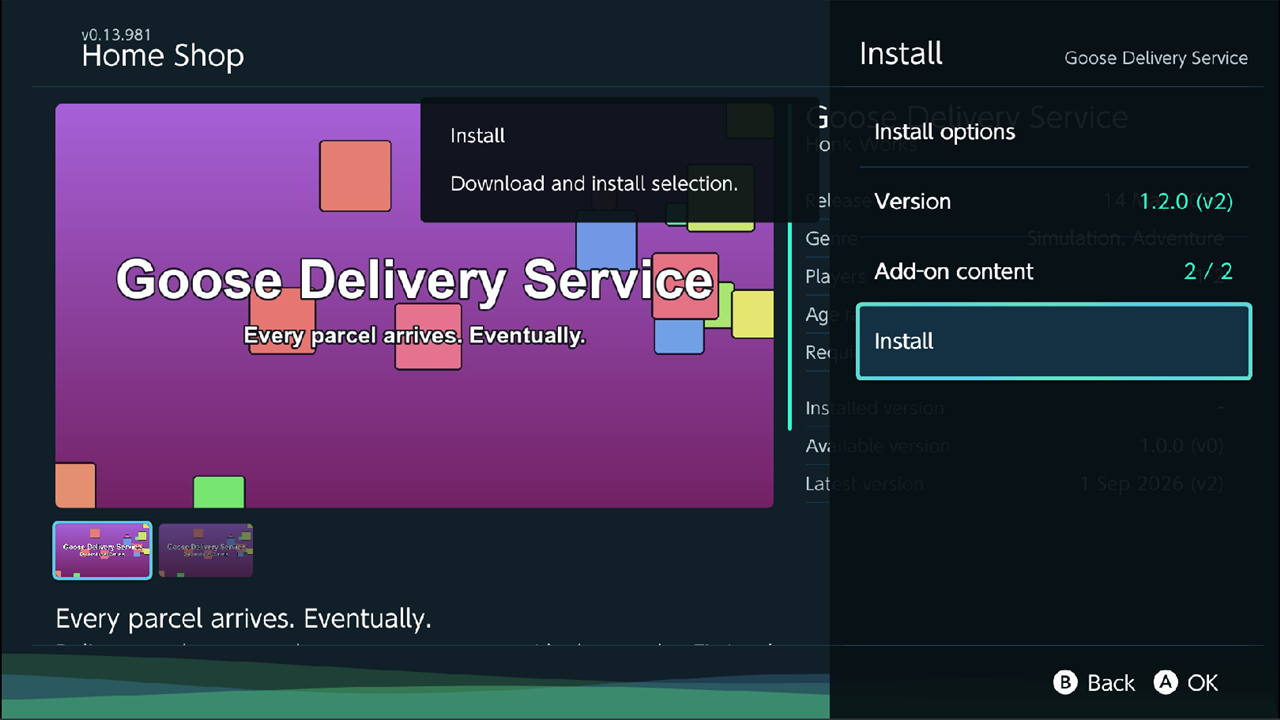
- Press A (Install). A panel opens:
- Install options: the install settings (see Install options).
- Version: which version to install.
- Add-on content: tick the DLC to install with it.
- The last entry starts the job. It reads Install, Update or Downgrade, depending on the version you chose. It is grey when there is nothing to install.
- A progress window shows the download and install.
Catalog options
Press X (Options) in the catalog.
| Option | What it does | Default |
|---|---|---|
| View | Icon, Banner or Detail. − cycles them too. | Icon |
| Per page | How many titles one page shows. | 24 |
| Sort | Name, date added or release date. | Name |
| Order | Ascending or Descending. | Ascending |
| Servers list | Back to the server list. | |
| Clear cache | Deletes the cached game artwork from the microSD card. |
Install from a network share
Kefir Hub can open folders on an SMB, NFS, WebDAV, FTP or HTTP server and install from them like from the microSD card.
- Open Tools → Settings → Sources → + Add network location and set up the server. See Settings.
- Select the location. It opens in the File Browser.
- Select the game files, press + and choose Install (or Install recursively for a whole folder).
- The install queue opens. Continue as in Review the queue.
Problems
Web Server is grey. The console is not connected. Press it anyway: Kefir Hub says The console has no internet connection. and offers to connect.
The browser cannot open kefir.local. Some phones and PCs do not find .local names. Type the IP address
shown at the top of the console screen instead, with the port if the address had one (http://192.168.1.5:8080).
The page does not open at all. Check that both devices use the same network and that it is not a guest Wi-Fi. If Kefir Hub showed Web listener started, but its local self-test failed; check the log or use Title Mode, start Kefir Hub in Title Mode and try again.
The queue shows "Error: Another transfer is already in progress". Only one upload or install runs at a time. Wait for the other one to finish.
Install failed: another installation is in progress. Another install (USB, MTP, FTP or browser) is running. Wait for it to finish.
Install cancelled: the source stopped sending data The browser or FTP program stopped sending, for example because the PC went to sleep or the connection dropped. Start the copy again.
The FTP program cannot connect. Check that FTP is on and that you use port 5000 (or the port set in
FTP settings). If the login is refused, see FTP settings.
A game file copied over FTP did not install. It was copied into a subfolder, so it was saved as a file. Copy it
into install.
NSZ files fail. Start Kefir Hub in Title Mode (see Supported files).
Ownfoil shows Network access required. The console is not connected to a network.
Ownfoil says This account has no shop access. The user in the server form has no access to the shop. Change User and Pass with Edit server.
Discover local servers finds nothing. Add the server by hand with its IP address and port.