Install over MTP
Connect the console to a PC with a USB cable and it shows up in the PC's file manager like a phone. Copy a game file into the install drive and the console installs it while the file is being copied. The file itself is not stored on the console.
Where: on the PC, the drive named Install (NSP, XCI, NSZ, XCZ)
Turn installing on first (see Turn installing on).
Start MTP
MTP starts by itself when you connect the console to a PC in handheld mode (not docked) and no USB drive is mounted. After about two seconds you see Computer connected — MTP started.
To start it yourself:
- Tools → press + (Install & Share) → Mount MTP. The item changes to MTP: Active; select it again to stop MTP.
- Or turn on Tools → Settings → Network → MTP to keep MTP running all the time.
MTP and USB storage use the same USB port. Turning MTP on turns USB storage off (USB storage turned off to free the USB port).
When the PC opens the connection you see MTP connected.
Install a game
- On the PC, open the console in the file manager.
- Open the drive
Install (NSP, XCI, NSZ, XCZ). - Copy one or more NSP, NSZ, XCI or XCZ files into it.
- The console opens the MTP Install screen and installs the file as it arrives.
- Several files are installed one after another in the same session.
- When a file is done you see MTP install success!. About three seconds after the last file, when nothing more is coming, the Session summary opens. Press B (Back) to close it.
If you copy a game file to the microSD card drive instead, it is only stored on the card. You can install it later from the File Browser (see Install from the microSD card).
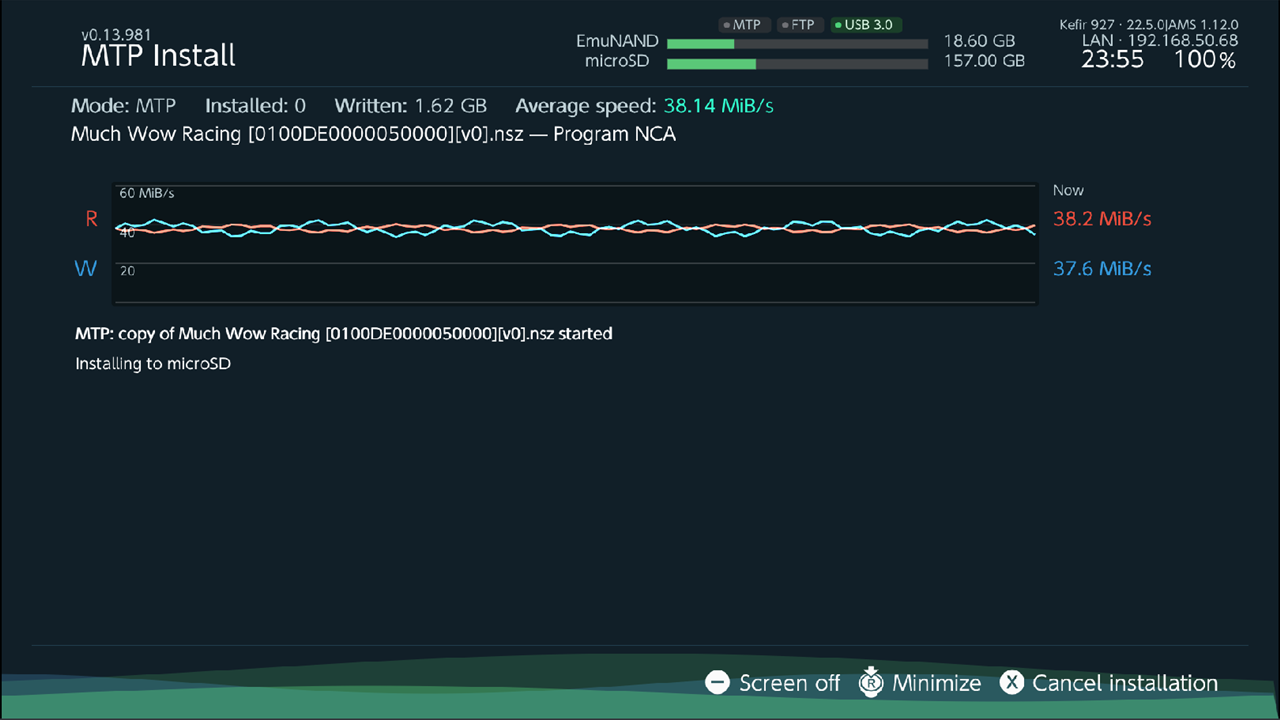
What the progress shows
The PC does not tell the console how big the file is, so the console cannot show a percentage for the whole copy. The top row shows Mode MTP, how many files are Installed, how much was Written and the Average speed. Remaining appears only when the size is known. Use the copy window on the PC to see how far the copy is.
You can press R3 (Minimize) to hide the screen while it installs, and − (Screen off) to turn the screen off, as in the install queue.
On Windows the copy window closes at about the time the install finishes.
Cancel
On the console: press X (Cancel installation) and confirm Cancel installation?. The console stops receiving the file.
On the PC: cancel the copy in the file manager. The console shows Install cancelled: the source stopped sending data and restarts MTP (Restarting MTP service...). The console disappears from the PC for a moment and comes back.
In both cases files that finished stay installed, and the file that was being installed is removed.
When you cancel on the console, Windows shows no error: the copy window closes.
Things that work differently over MTP
- Skip if already installed is not used: a game that is already installed is installed again.
- Convert to standard crypto and Re-encrypt to master key 0 are not applied.
- Install location and the reserve settings are used as usual (see Where games go).
- A
.nrohomebrew file copied into the install drive is not installed as a game. It is saved to/switch/<name>/<name>.nroand appears in the Homebrew tab.
MTP storages
Where: Tools → Settings → Network → MTP storages
| Option | What it does | Default |
|---|---|---|
| Show microSD card | Shows the microSD card drive. | On |
| Show Install folder | Shows the install drive. | On |
| microSD card name | Your own name for the microSD card drive. | microSD card |
| Install folder name | Your own name for the install drive. | Install (NSP, XCI, NSZ, XCZ) |
The other drives on this page (saves, games) are described in Sharing. If every drive is turned off, MTP does not start and you see No MTP storages enabled.
Problems
The console does not appear on the PC. MTP starts by itself only in handheld mode and only when no USB drive is mounted. Start it with Mount MTP. MTP is also off while PC Install (USB) is open.
The copy fails at once. The console shows Install failed: another installation is in progress.: another install or file transfer is running. Wait for it to finish.
NSZ files fail. In Applet Mode memory is limited; when the PC connects, the console warns about it. Start Kefir Hub in Title Mode (see Supported files).
The copy is refused with "Please launch MTP install menu before trying to install". This can only appear for a moment right after MTP starts. Wait a few seconds, or turn MTP off and on, then copy again.