Saves
Back up game saves to the microSD card (or a USB drive), restore them, delete them, and keep a copy on a WebDAV server. Kefir Hub also finds and restores backups made by DBI, JKSV and Checkpoint.
Where: Tools → Game Tools → Saves
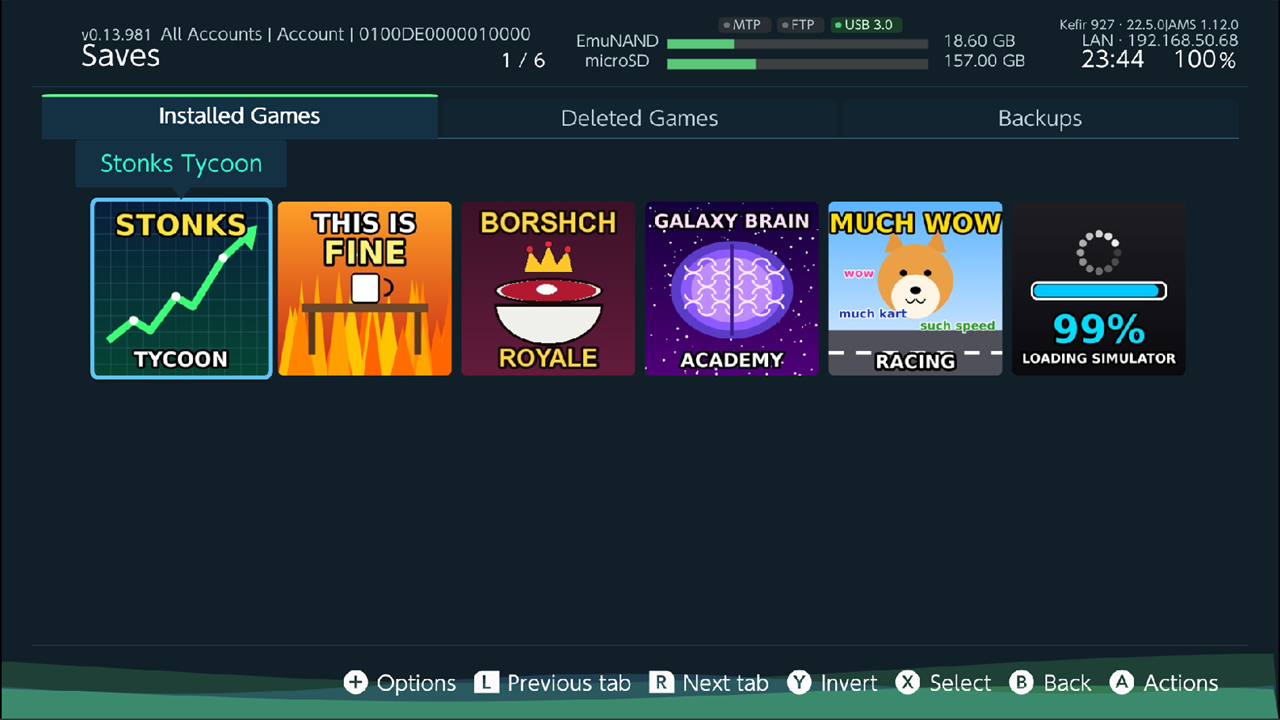
Find your way around
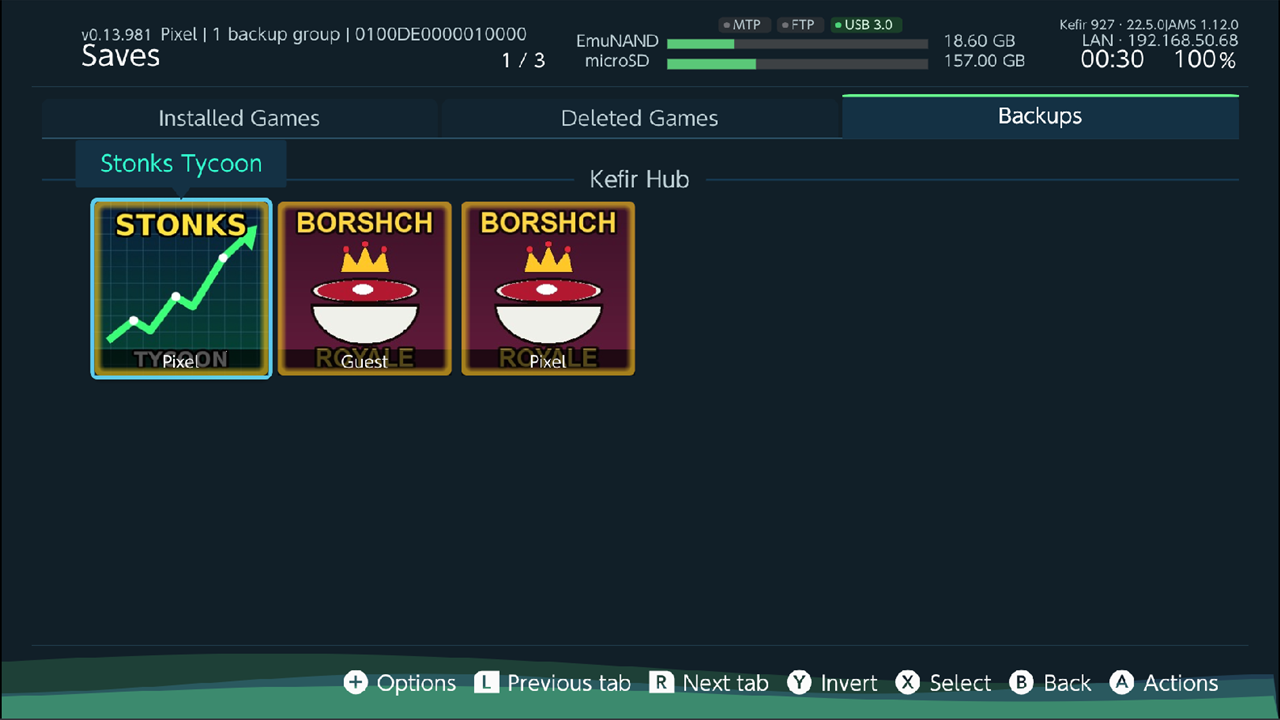
The screen has three tabs. Switch with L and R, or tap a tab.
| Tab | Shows |
|---|---|
| Installed Games | Every installed game, with or without a save. |
| Deleted Games | Saves that are still on the console for games you have uninstalled. |
| Backups | Backups found on the microSD card, grouped by the app that made them: Kefir Hub, DBI, JKSV, Checkpoint, Other. |
The line under the title shows which users and which save types are listed. By default you see only the current user's normal game saves (Account type).
Buttons:
- A — actions for the focused save (or for all selected saves).
- X — select or unselect; Y — invert the selection; B — clear the selection, then leave.
- + — Save Options.
Opened from a game's details (Backup and restore, see Games), the screen shows only that game, for all users and all save types, without tabs.
Choose users and save types
- Press +.
- Accounts: tick All Accounts, or tick single users.
- Data Types: tick the save types to show. System saves are shown on their own; ticking System hides the other types.
Back up a save
- On Installed Games or Deleted Games, focus the game (or select several with X).
- Press A and choose Create backup. (Or press + → Backup.)
- Backup Options opens:
- Location — where to write.
sd://dumpsis the default. Choose Folder... lets you pick another folder on the microSD card or on a USB drive; the last 5 picked folders are remembered. - Auto-sync after backup — also upload the new backup to WebDAV (see Sync with WebDAV).
- ACCOUNTS — which users' saves to back up (shown when the console has more than one user).
- SAVE TYPES — which save types (shown when the game has more than one).
- Location — where to write.
- Choose Start Backup at the top.
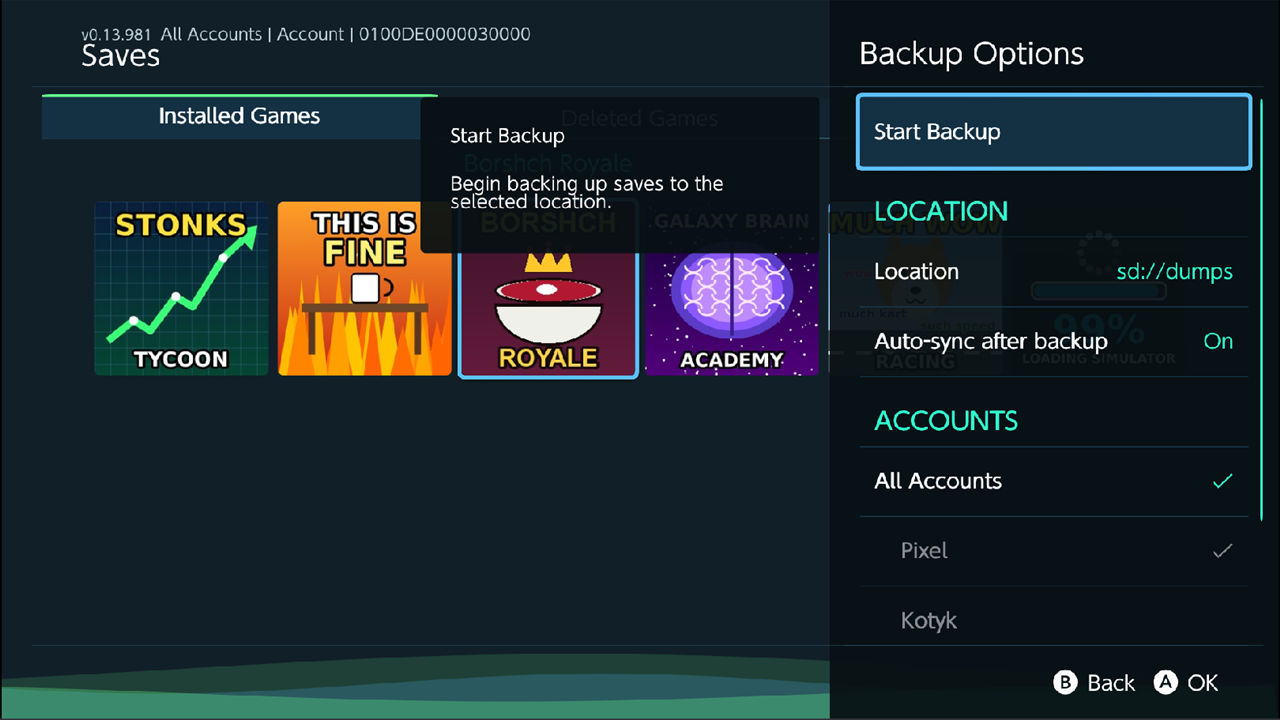
When it finishes you see Backup successful!. A save with no files in it is skipped; if nothing was written you see No save data found for this title.
Back up only saves that changed
- Select the games, press A, choose Create backup if newer.
- For each save Kefir Hub compares it with its newest backup. Saves that have not changed are skipped; the others are backed up.
This always writes to /dumps on the microSD card, whatever Location you used before. If nothing changed you see All selected saves are already up to date.
Where backups are stored
Default folder: /dumps on the microSD card.
| Save | File |
|---|---|
| Game saves (all types except system) | /dumps/<Game name>/<YYYYMMDD>/<Title ID>_<type letter>_<YYYYMMDDHHMMSS>_<slot>.zip |
| System saves | /dumps/Save System/<Save ID>/<YYYY.MM.DD @ HH.MM.SS>.zip |
| Safety copies made during a restore | /dumps/recovery/<date>_<time>_<Save ID>_<number>/recovery.zip |
The type letter is A (user save), B (BCAT), D (device), T (temporary) or C (cache). Game saves use the same ZIP layout as DBI, so DBI can restore them and Kefir Hub can restore DBI backups.
If you pick another Location, the same layout is created inside that folder.
Backups made by other apps
The Backups tab and every restore look in these folders on the microSD card:
| App | Folders |
|---|---|
| Kefir Hub | /dumps |
| DBI | /switch/DBI/saves, /DBISaves |
| JKSV | /JKSV, /switch/JKSV |
| Checkpoint | /switch/Checkpoint/saves, /Checkpoint/saves |
DBI and Kefir Hub backups are ZIP files. JKSV and Checkpoint backups are folders; they are restored the same way. JKSV, Checkpoint and old DBI backups do not record the save size, so restoring one for a user who has no save of that game yet needs the game installed: Kefir Hub then takes the size from the game.
To make Kefir Hub look in another folder too:
- Open Tools → Settings → Saves → Save Backup Search Paths.
- Choose Add folder and pick a folder on the microSD card. Only microSD folders can be added.
Tip
Backups on a USB drive do not appear in the Backups tab. To restore one, start the restore from Installed Games and set Location to that drive.
Restore a save
Warning
Close the game before restoring. A restore is refused while MTP (USB file transfer to a PC) is running; turn MTP off first.
- On Installed Games (or Deleted Games), focus the game and press A → Restore. (Or + → Restore.)
- Restore Options opens. Check Location — backups are looked up there, plus in the DBI, JKSV and Checkpoint folders. Choose Start Restore.
- For a user save, Restore for user asks which user gets the save. You can restore one user's backup to another user.
- If that user already has a save, confirm the target. If the game has several slots, pick one in Select restore target slot.
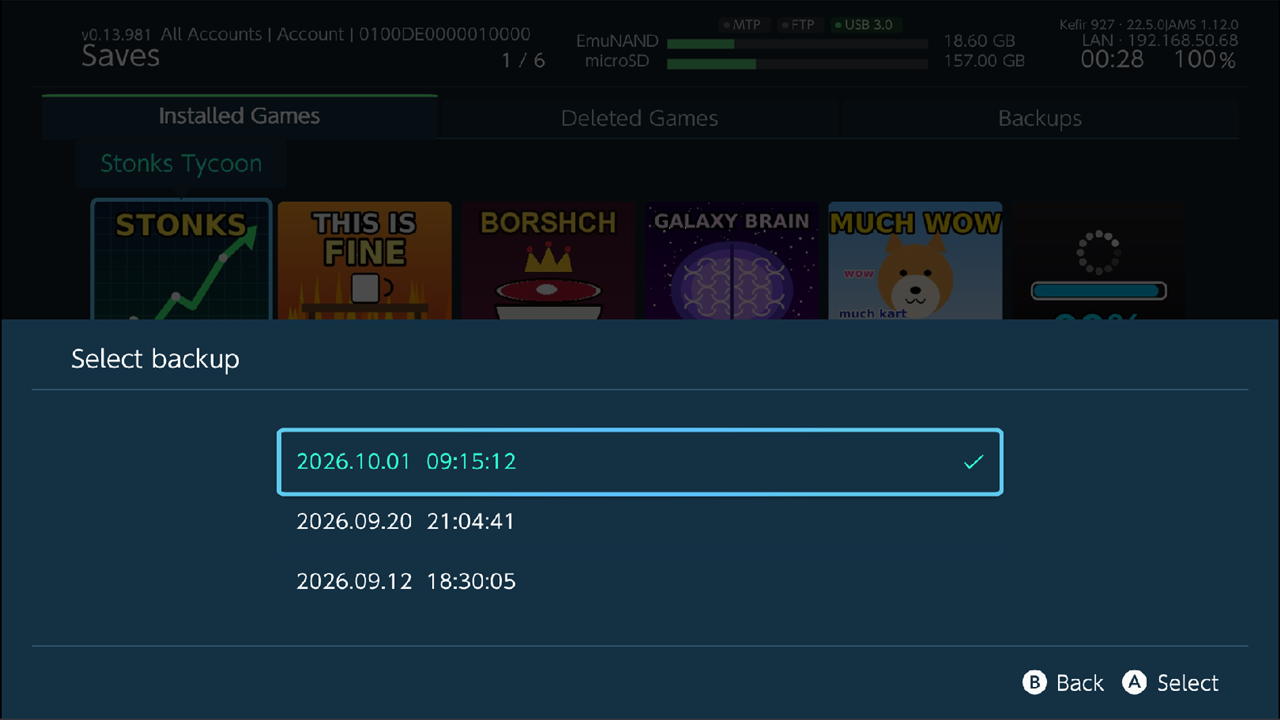
- If there is more than one backup, pick it in Select backup. Backups are listed newest first by date and time.
- Confirm the last dialog with Yes.
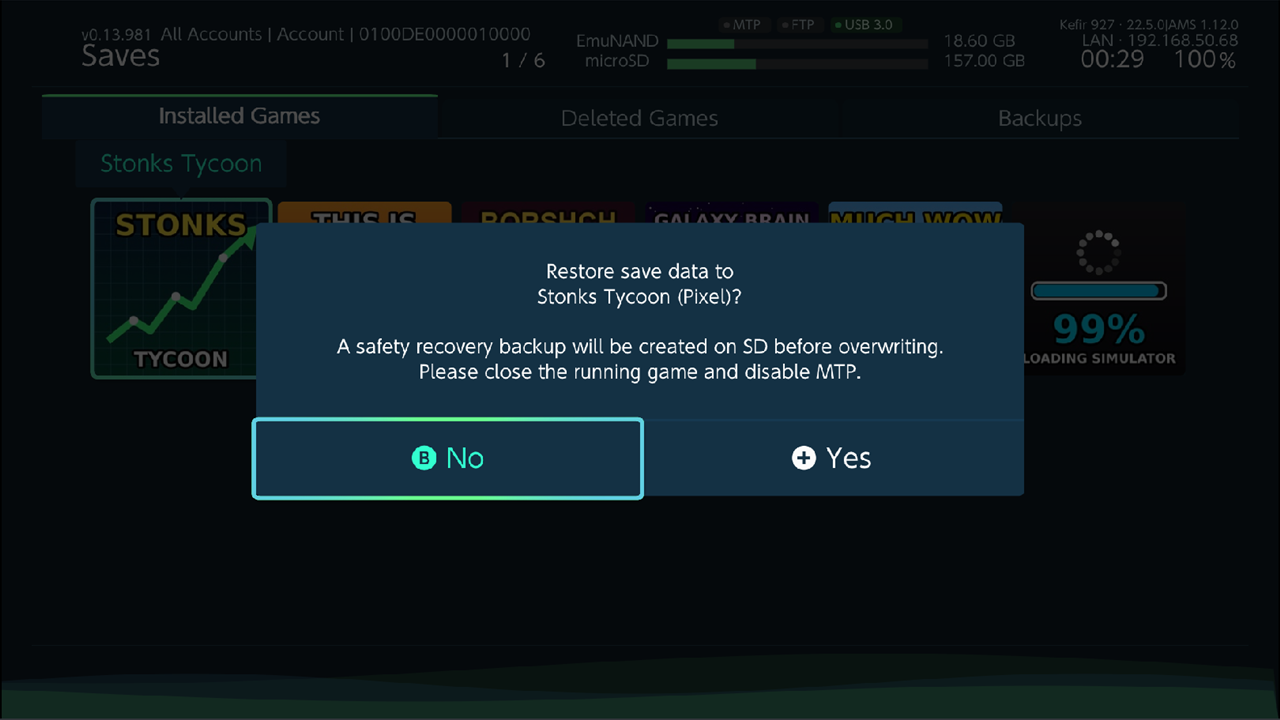
Before overwriting, Kefir Hub saves the current save as a safety copy in /dumps/recovery/. After the restore a dialog shows where it is. When it finishes you see Restore successful!.
Restore from the Backups tab
- Open the Backups tab. A game has one tile for each user whose backups it holds; the user's name is on the tile, also for a user of another console (the name saved in the backup). Device and BCAT backups of a game share a tile of their own.
- Focus a tile and press A. Backup Action opens. If the tile holds more than one save (several slots, or Device and BCAT), a list comes first: one line per save with the source app, number of archives and the newest date; choose one.
- In Backup Action choose Restore and continue as in Restore a save from step 3.
Backup Action also has:
| Action | What it does |
|---|---|
| Verify integrity | Checks every ZIP of this group and lists damaged ones. Folder (RAW) backups cannot be checked. |
| Delete older backups | Deletes all but the newest backup of each group. |
| Open in file browser | Opens the folder that holds the newest backup. |
| Select all backups for this user | Selects this user's backups of all games. |
| Select all backups for this game | Selects every backup group of this game. |
| Delete | Deletes all backups of this group from the microSD card. |
Restore when the game has no save yet
If the user you pick has no save for the game, Kefir Hub creates one and restores into it. This works only:
- for user saves (Account type), main slot;
- when the game is installed (the console needs the game's data to create the save).
If the game is not installed, the restore stops with a message that names the game and asks you to install it.
Device and BCAT saves are not created automatically: start the game once so it creates its save, then restore.
To restore a save for a game you have uninstalled, either keep the console's save (it stays under Deleted Games and can be restored there), or install the game again first.
Restore several saves at once
Select several saves (or several backup groups), then choose Restore. Restore for user asks once which user gets all of them; pick Choose for each save there to answer for every save separately. If two of the selected backups are the same game from different users, it asks for each save; the question names the game, whose backup it is and its date. Give each backup a different user, or restore just one of them. Then one dialog lists every save and where it goes; confirm it with Yes. The saves are restored one by one: if one fails, the ones before it stay restored.
Undo a restore
The safety copy from /dumps/recovery/ is an ordinary save ZIP of the save as it was before the restore.
It shows up on the Backups tab as one more archive in the Kefir Hub group of that game.
- Open the Backups tab and press A on the game.
- Find the safety copy in the Kefir Hub group. Its date is when the save was last written before the restore, not the time of the restore, so it may not be at the top.
- Restore it as any other backup, see Restore from the Backups tab.
Delete a save from the console
Note
Before deleting, Kefir Hub makes an automatic backup of each save (AUTO - <user> - <date>.zip, on the Backups
tab), so a save deleted by mistake can be restored. If that backup fails, the save is not deleted.
- On Installed Games or Deleted Games, focus the game (or select several), press A → Delete.
- In Delete Options pick the users and save types, then Delete Saves.
- Confirm with Delete.
Delete backups
- One game: on the Backups tab, A on the game → choose a line → Delete.
- Old backups only: Delete older backups keeps the newest one of each group.
Deleting backups removes the ZIP files from the microSD card, including DBI backups of that game.
Sync backups with WebDAV
You need a WebDAV network location. Add one in Tools → Settings → Saves → Save sync location → + Add network location, or in the file browser (see File browser).
Two-way sync:
- Select the games whose backups you want to sync.
- Press + → Sync with remote. With more than one WebDAV location, pick one in Select Sync Location.
- Backups missing on the server are uploaded; backups missing on the microSD card are downloaded. Files with the same name are never overwritten.
Only the backup library on the microSD card is synced: /dumps and /switch/DBI/saves. On the server the backups go to the folder sphaira-saves. Downloaded backups are not applied: use Restore afterwards.
Automatic upload after each backup: turn on Auto-sync after backup (in Backup Options or in settings). Only the new backup ZIP is uploaded, to the location set in Save sync location (or the first WebDAV location if none is set).
Use server backups when restoring: turn on Include remote backups (in Restore Options or in settings). Before the backup list is shown, backups that exist only on the server are downloaded. This works when one save is selected on Installed Games or Deleted Games.
Options
+ → Save Options:
| Option | What it does | Default |
|---|---|---|
| Backup / Restore / Delete | Same as A → Create backup / Restore / Delete. On Backups only Restore is shown. | — |
| Layout | Grid, HB Menu or List. | Grid |
| Sort / Order | Sort by Updated, Descending or Ascending. | Descending |
| Accounts | Users whose saves are listed. | Current user |
| Data Types | Save types that are listed. | Account |
| Show saves | Which groups are listed when the screen is opened from a game's details. | — |
| Sync with remote | Two-way WebDAV sync, see above. | — |
| Advanced → Compress backup | Compresses the files inside the backup ZIP. Off makes larger, faster backups. | On |
| Advanced → Auto backup on restore | Has no effect: a safety copy is always made before a ZIP restore. | On |
Tools → Settings → Saves:
| Option | What it does | Default |
|---|---|---|
| Installed game saves, Deleted game saves, Backups | Same as Show saves. | On, On, Off |
| Default location | The Location preselected for backup and restore. | sd://dumps |
| Compress backup | As above. | On |
| Auto backup on restore | As above. | On |
| Save Backup Search Paths | Extra microSD folders searched for backups. | none |
| Auto-sync after backup | Upload each new backup to WebDAV. | On |
| Include remote backups | Download server-only backups before restoring. | Off |
| Save sync location | The WebDAV location used by auto-sync. | None |
Problems
Please select only live saves or only backups. Your selection mixes saves from the console and backups. Select only one kind.
No backups found for selected saves. No backup for that game and user was found in Location or the other apps' folders. Check Location in Restore Options, or add the folder to Save Backup Search Paths.
Selected backup archive has changed or is no longer available. The file was moved, deleted or does not belong to this save. Reopen Saves and pick again.
Application control data not found for installed title. Kefir Hub cannot create a save for a game that is not installed. Install the game, or start it once.
Device and BCAT saves cannot be created automatically. Please launch the game to create the live save slot first. Start the game once, then restore.
RAW container restore is unsupported. The backup is a raw save image, not a ZIP or a folder. Kefir Hub cannot restore it.
Live save filesystem browsing is not currently supported. Open in file browser works only for backups, not for saves on the console.
No WebDAV network location configured for sync. Add one in settings. Add a WebDAV location, see Sync backups with WebDAV.
Auto-sync failed! The backup was made, but the upload failed. Check the network and the WebDAV location, then run Sync with remote.
MTP message when restoring. Turn off MTP (USB file transfer) and close the game, then try again.