Software
Get homebrew apps: the Homebrew App Store, DBI builds, mod downloaders and direct downloads from a link.
Where: Tools → Software
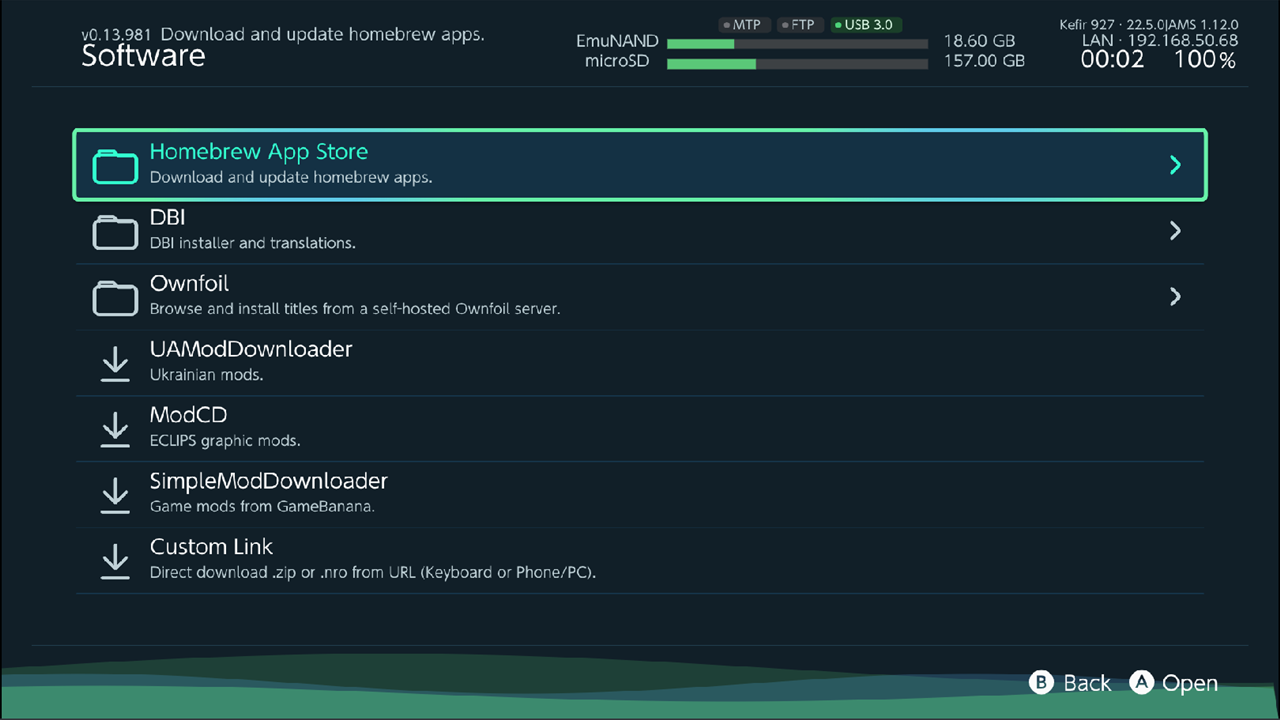
| Item | What it is |
|---|---|
| Homebrew App Store | Browse, install, update and remove homebrew apps. |
| DBI | Download DBI builds, its config and fan translations. |
| Ownfoil | Install titles from your own Ownfoil server. See Install over the network. |
| UAModDownloader | Downloads the UAModDownloader app (Ukrainian mods). |
| ModCD | Downloads the ModCD app (ECLIPS graphic mods). |
| SimpleModDownloader | Downloads the SimpleModDownloader app (game mods from GameBanana). |
| Custom Link | Download a .zip or .nro from any direct link. |
All items need an internet connection.
Homebrew App Store
The app list comes from the Homebrew App Store (fortheusers.org).
Where: Tools → Software → Homebrew App Store
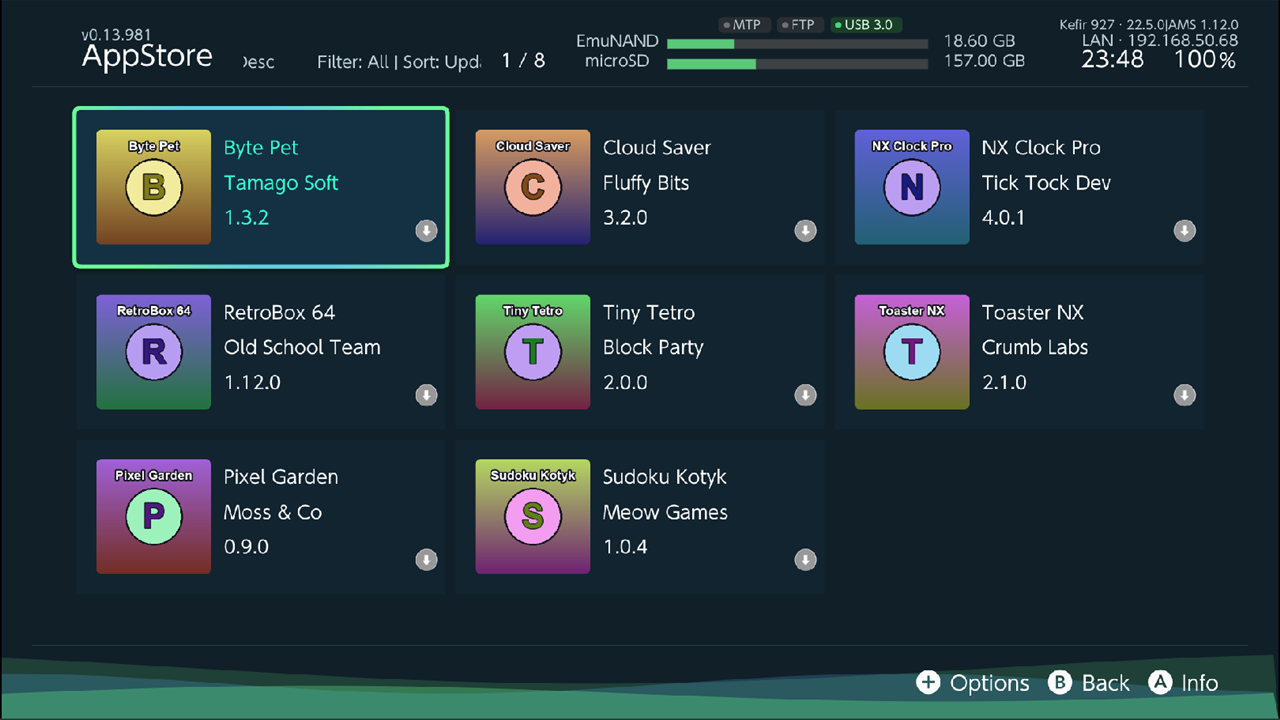
A small icon on each tile shows the app's status: not installed, installed, update available, or found on the memory card but not installed through the store.
Install, update or remove an app
- Select an app and press A (Info). The app page opens with the description, version, size and downloads.
- The available actions depend on the app's status:
- Install — the app is not installed.
- Update — a newer version is available, or the app was found on the memory card without store data.
- Launch — start the installed app.
- Remove — delete the app's files ("Completely remove …?").
- Use D-pad up/down to choose an action, then press A. Launch and Remove ask for confirmation.
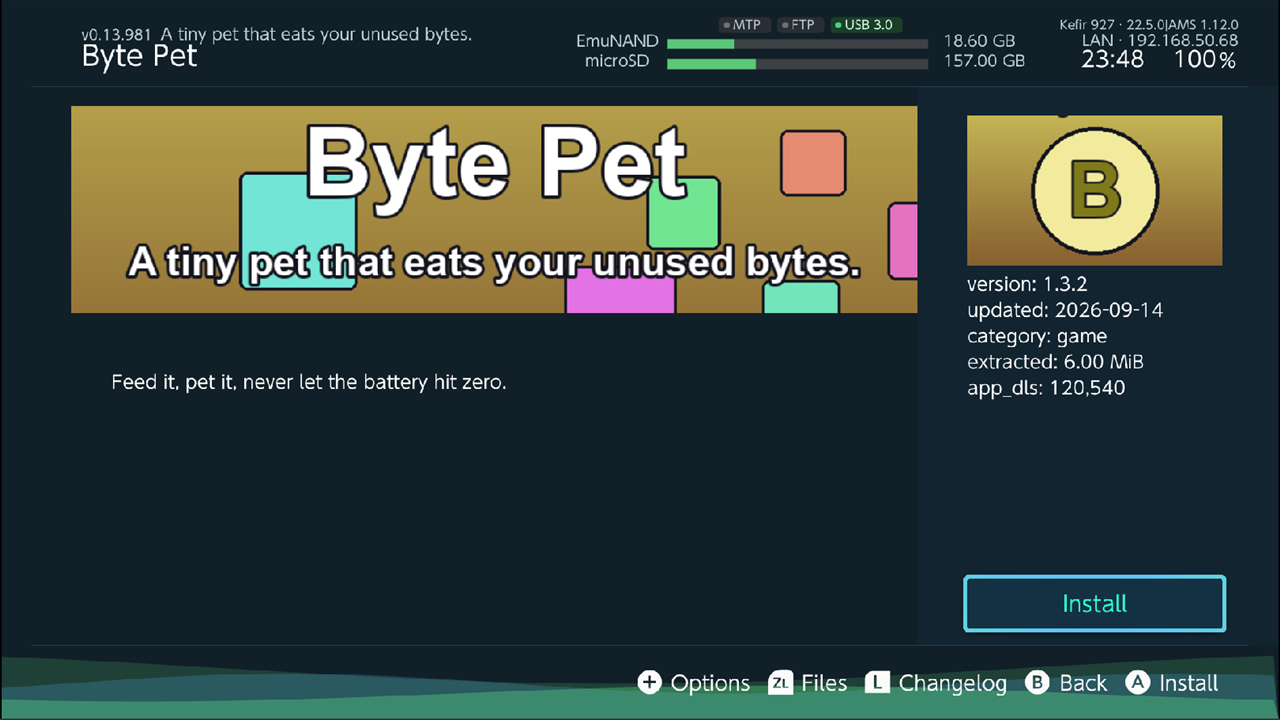
On the app page:
| Button | Action |
|---|---|
| L | Changelog / Details — switch between the changelog and the description |
| ZL | Files — list the files the app installs |
| + | Options: More by Author, Leave Feedback, Visit Website |
| B | Back |
Visit Website is shown only when the app has a website and Kefir Hub runs as a full application (not from the Album).
Find an app
Press + (AppStore Options) in the list.
| Option | What it does | Default |
|---|---|---|
| Filter | Show one category: All, Games, Emulators, Tools, Advanced, Themes, Legacy, Misc. | All |
| Sort | Updated, Downloads, Size or Alphabetical. | Updated |
| Order | Descending or Ascending. | Descending |
| Layout | Icon, Grid or HB Menu. | Grid |
| Search | Search by name or keyword. Press B to leave the search results. | — |
More by Author on an app page shows all apps by the same author. Press B to return to the full list.
DBI
DBI is a separate installer app. This menu only downloads DBI and its files; installing games with DBI is described in Install over USB.
Where: Tools → Software → DBI
| Item | What it does |
|---|---|
| Download DBI translations list / Update DBI translations list | Downloads the list of DBI fan translations. The translations then appear below the line. |
| Russian latest DBI | Downloads the latest Russian DBI build to /switch/DBI/DBI.nro. |
| Reset DBI config | Replaces your DBI config (/switch/DBI/dbi.config) with the default Kefir config. Hold A to confirm. |
| a translation | Downloads DBI with that fan translation to /switch/DBI/. |
Warning
Russian latest DBI and every translation replace /switch/DBI/DBI.nro. Reset DBI config overwrites your DBI settings.
Mod downloaders
UAModDownloader, ModCD and SimpleModDownloader each download the latest version of that app from GitHub.
- Select the item and press A.
- When the download finishes, "Done" appears. The app is saved to
/switch/<name>/<name>.nroand shows up in the homebrew list. - Start the app from the homebrew list (Homebrew) to download mods.
Selecting the item again updates the app to the latest version.
Download from a link
Custom Link downloads a .zip archive or an .nro app from a direct link.
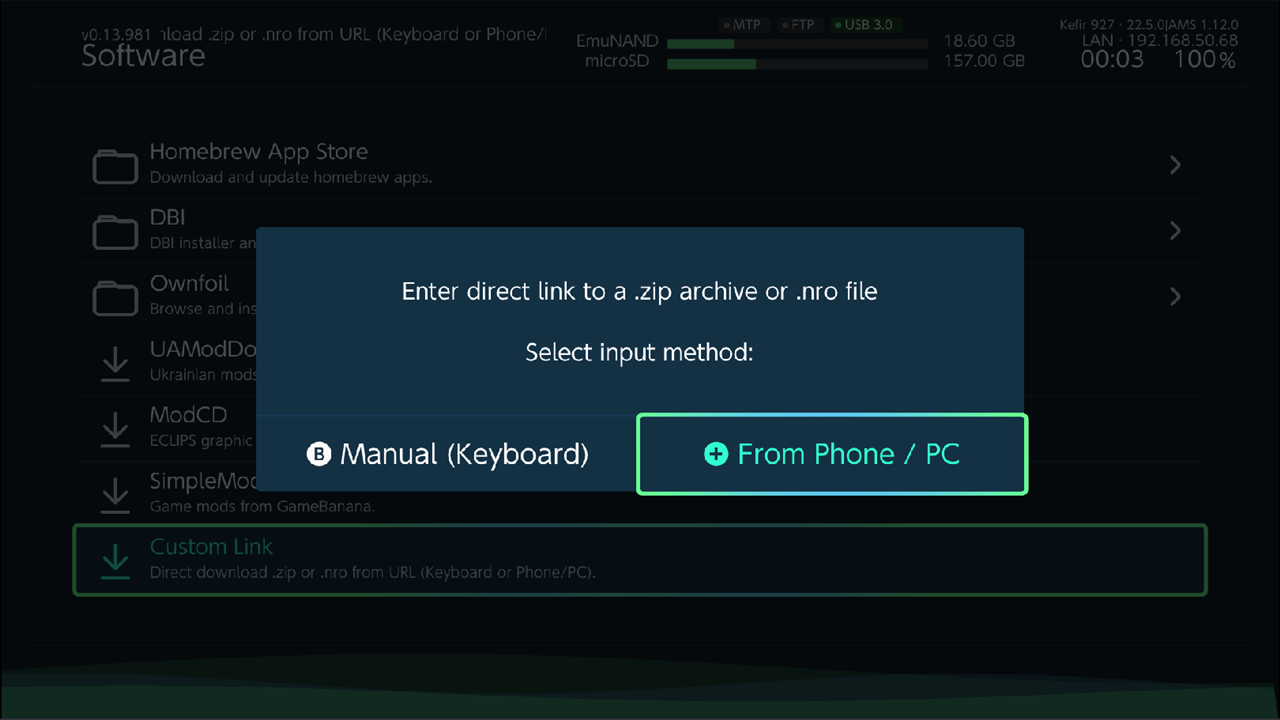
- Select Custom Link and press A.
- Choose how to enter the link: Manual (Keyboard) or From Phone / PC.
- With From Phone / PC, scan the QR code with your phone, or open the shown address on a PC on the same network, and send the link from there.
- Enter the link. It must start with
httpand end with.zipor.nro. - If the file is larger than 20 MB, Kefir Hub warns that large files may cause issues. Choose Force to download anyway.
- What happens next depends on the file:
.nro: it is saved to/switch/<name>/<name>.nro. Kefir Hub offers to launch it..zip: it is saved to/downloads/, and the Extract Options window opens.
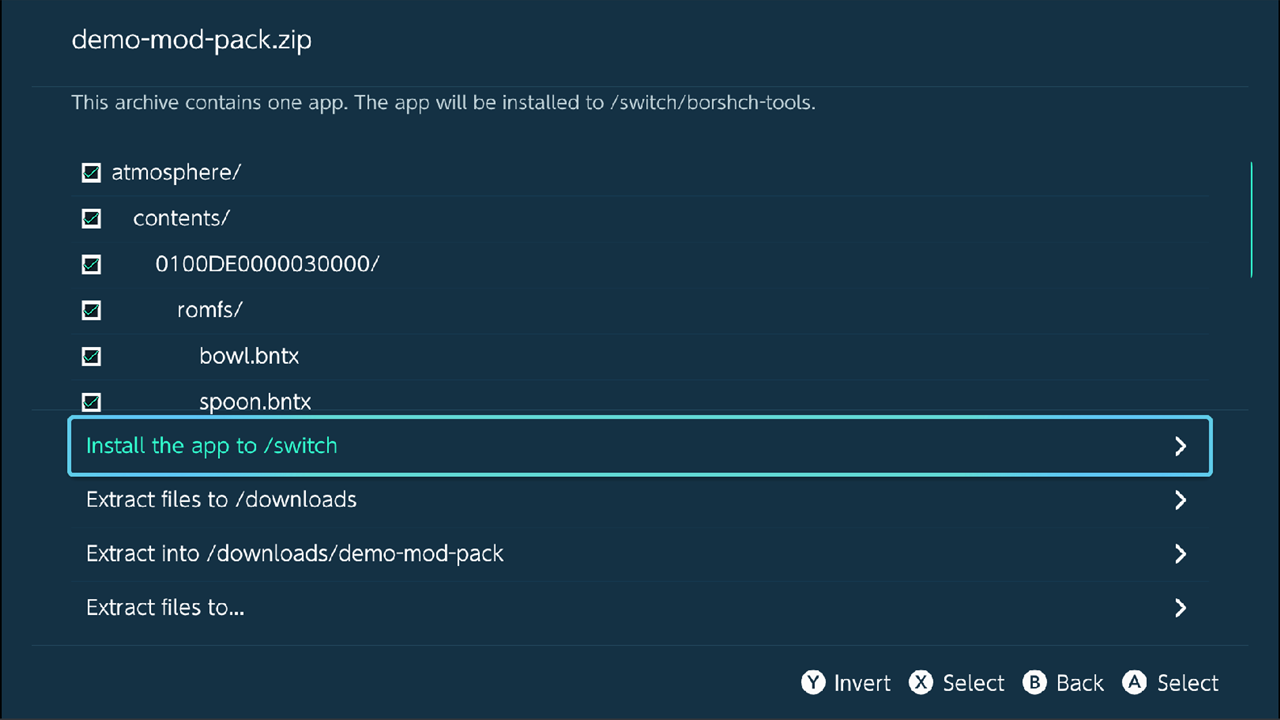
In Extract Options:
- If the archive contains one app, choose Install the app to /switch.
- Otherwise tick the files you want (X selects, Y inverts) and choose where to put them: Extract files to /downloads, a new folder named after the archive, or Extract files to... to pick a folder.
- After extracting, Kefir Hub asks whether to delete the downloaded
.zip, and may offer to launch the app or open the folder in the File Browser.
Problems
"This isn't a direct link to a .zip or .nro file." The link points to a web page, not to the file. Choose Edit URL and fix it.
"Couldn't download that file." The address is wrong or the server did not respond. Choose Edit URL and try again.
"Failed to download application". The App Store server could not be reached. Check the internet connection and try again.
An app shows as installed but its files are gone. For apps without a single launchable file (for example sysmodules), the App Store trusts its own install record. Choose Remove (it works even when the files are already gone), then Install again.