Getting started
How to move around Kefir Hub: buttons, the screen layout, option panels, dialogs, touch and text entry.
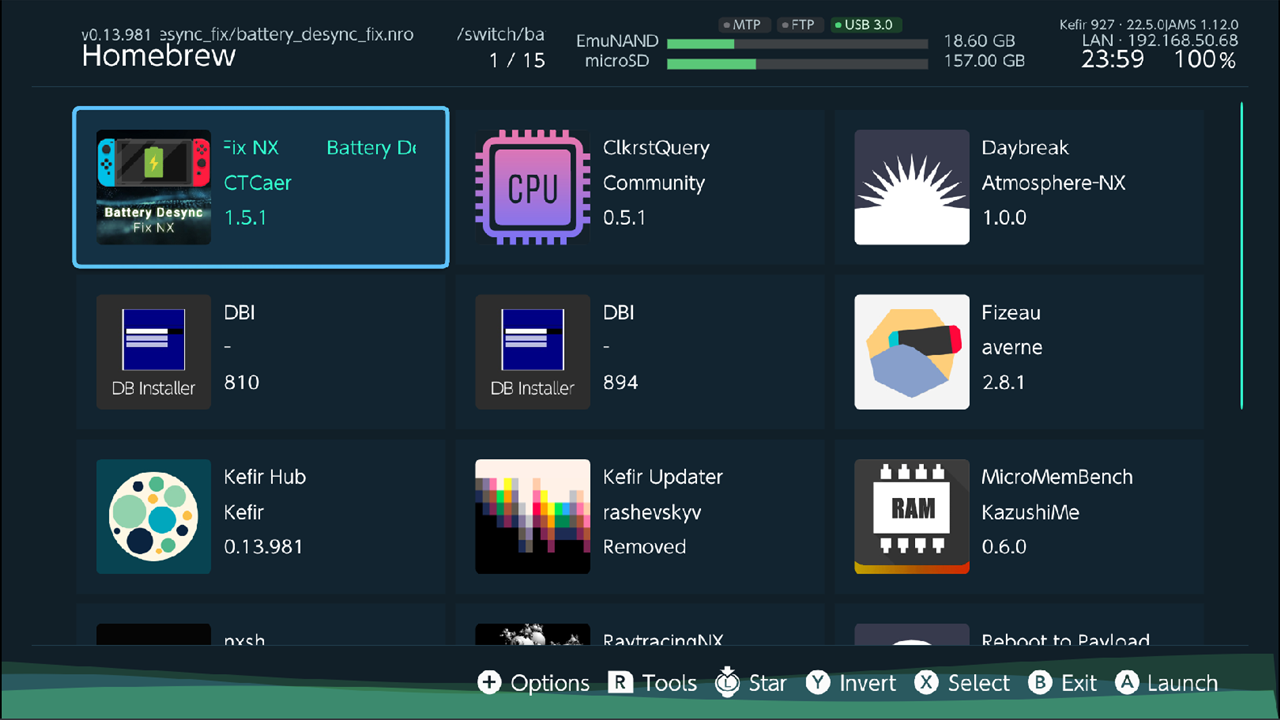
The screen
Header, left side: the Kefir Hub version, the name of the current screen, the position in the list
(for example 3 / 40) and one line about the selected item.
Header, right side:
- the Kefir version, the firmware version and the Atmosphère version (
AMS); - the Wi-Fi network name and the console's IP address, or No Internet;
- two storage bars,
NAND(orEmuNANDwhen you run emuMMC) andmicroSD, with the free space; - the clock and the battery level (green while charging);
- the
MTPandFTPbadges. A green dot means that server is running. AUSB 3.0badge appears when USB 3.0 is on; - Updating with a percentage while Kefir Hub downloads its own update in the background.
Footer: the buttons you can press on this screen and what they do. The hints change with the screen.

Buttons
| Button | What it does |
|---|---|
| D-pad / left stick | Move the cursor |
| A | Open, launch or confirm |
| B | Back. On the Homebrew tab: exit Kefir Hub |
| + | Options panel for the current screen |
| − | Return to the Homebrew tab from anywhere. On the Homebrew tab: exit Kefir Hub |
| X | Select the item (for actions on several items) |
| Y | Invert the selection |
| L / R | Switch tabs on the main screen. In other lists: one page up / down |
| ZL / ZR | Jump to the first / last item of a list |
| R3 | Minimize or expand a running background task |
A screen can give a button another job. The footer always shows what each button does right now. In the File Browser, for example, − goes back one screen.
Switch tabs
The main screen has two tabs: Homebrew and Tools.
- Press R to open Tools.
- Press L or B to return to Homebrew.
Screens you open from Tools stack on top of each other. B closes the current one. − closes all of them at once and takes you back to Homebrew.
Options panels
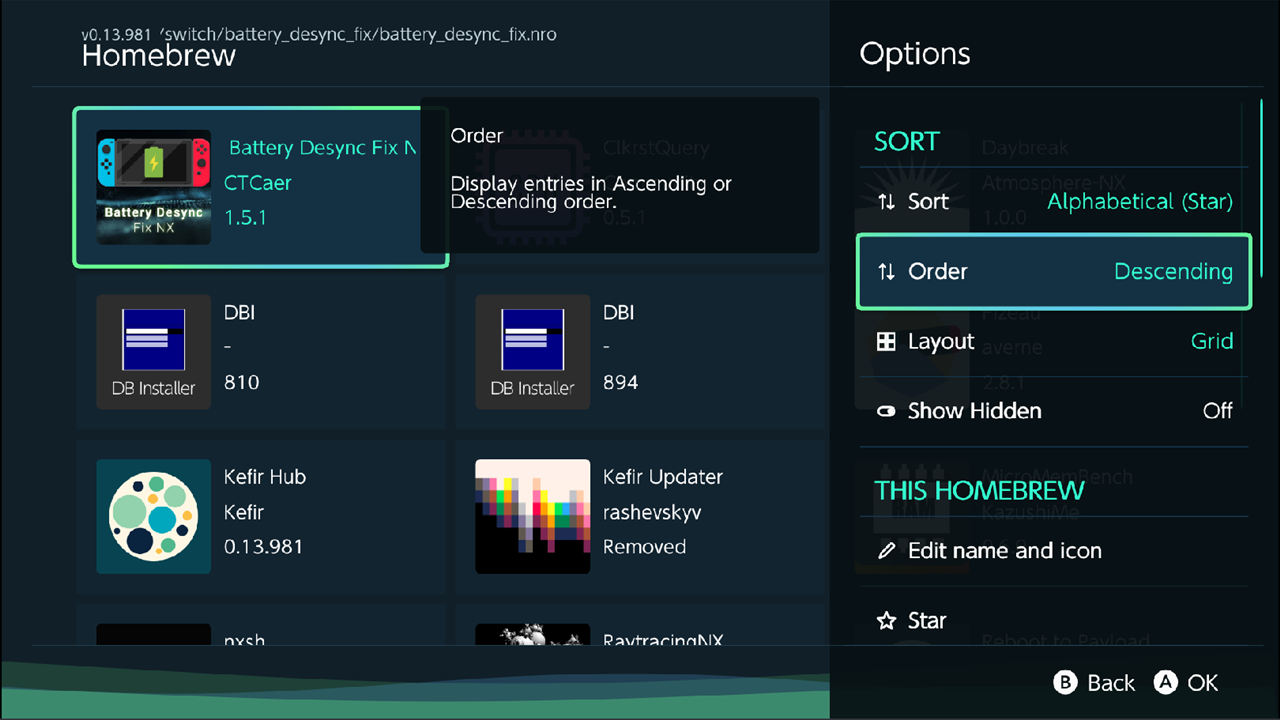
+ opens a panel on the right side with the actions and settings for the current screen.
- Move to an entry. A short description appears at the bottom of the panel.
- Press A to run the action, switch the setting, or open a sub-panel.
- Press B or + to close the panel.
An entry that cannot be used right now is grey. Its description says why, for example Destination folder is read-only.
Dialogs
A dialog asks a question with two or three buttons.
- Move between the buttons with the D-pad and press A.
- B picks the first button, usually Back, No or Cancel.
- + picks the last button, usually the one that does the action.
- − picks the middle button when there are three.
Some dangerous actions ask you to hold A until a bar fills up.
Touch
- Tap an item to select it. Tap it again to open it.
- Swipe up or down to scroll.
- Tap a hint in the footer to press that button.
Type text
When Kefir Hub needs text (a file name, a folder name, an address), the console keyboard opens. Type the text and confirm it.
Some fields ask first how you want to enter the text:
- Manual (Keyboard) opens the console keyboard.
- From Phone / PC shows a QR code and an address. Open it on a phone or PC on the same Wi-Fi and type the text there. This is faster for long addresses and keys.
The text editor in the File Browser can also open the whole file in a browser, see Edit a text file.
Change the language
On the first start Kefir Hub asks for the language. To change it later:
- Go to Tools → Settings → General → Language.
- Choose the language.
- Kefir Hub asks Restart Kefir Hub?. Choose Restart to apply the language everywhere.
Tip
To fix a translation yourself, put a file named after the language code, for example uk.json,
in /config/kefir/i18n/. Its strings replace the built-in ones.
Long tasks and background tasks
Copying, deleting, downloading and installing show a progress window with a Stop button. Press B to stop. Kefir Hub asks Are you sure you wish to cancel? first.
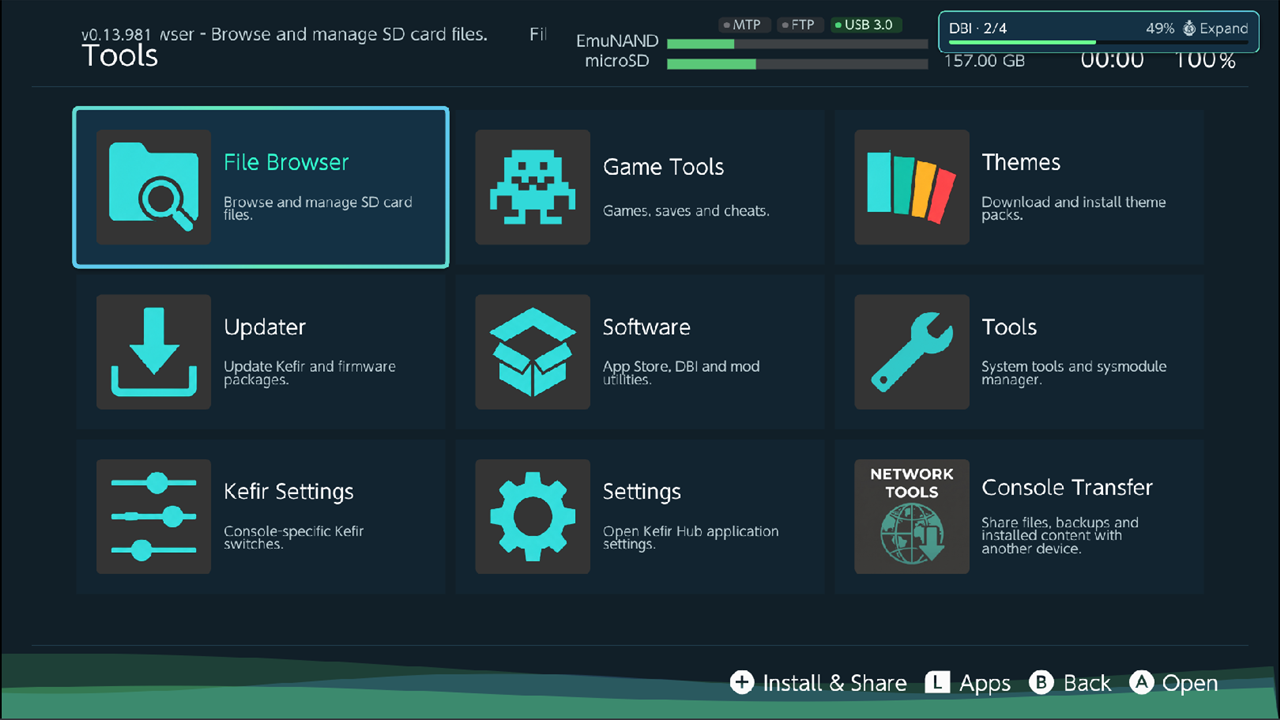
Some tasks can run in the background while you keep using Kefir Hub: the install queue, MTP and web transfers, and the download of a Kefir Hub update.
- Press R3. The task shrinks to a badge in the top right corner with its progress.
- Press R3 again, or tap the badge, to bring the window back.
Warning
Pressing HOME pauses the transfer. The console suspends Kefir Hub while you are in the HOME Menu.
Turn the screen off during an install
While an install queue runs, press − to turn the screen off or dim it, or to show a screensaver with the progress. Any button turns the screen back on. What − does, and whether the screen turns off by itself, is set in Settings → Install → Screen off (Minus). See Installing games.
Problems
A button does nothing. Look at the footer: the button may have no job on this screen, or another one.
The text keyboard does not open, or the console crashes when it opens. The console keyboard is part of the system. See Troubleshooting.