File Browser
Browse and manage files on the memory card, on USB drives and on network shares: copy, move, rename, delete, pack and unpack ZIP archives, view images, read and edit text files, and open files in other apps.
Where: Tools → File Browser
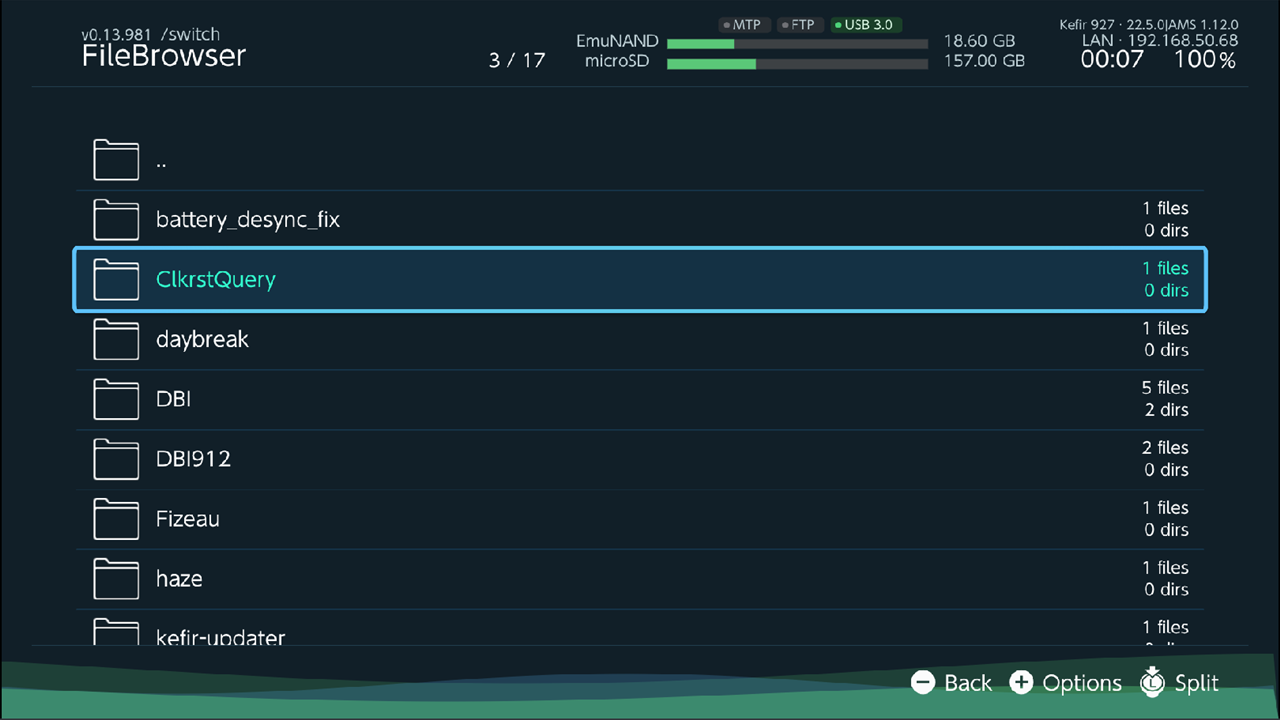
Move around
The File Browser opens in the last folder you used on the memory card.
| Button | What it does |
|---|---|
| A | Open the folder or file |
| B | Go up one folder |
| − | Close the File Browser |
| hold ZR + B | Close the File Browser from any folder |
| X | Select the item and move to the next one |
| Y | Invert the selection |
| + | File Options |
| hold ZR + + | Advanced Options |
| L3 | Split the screen into two panes |
The first row of every folder is ... Press A on it to go up, like B.
At the top folder of the memory card, B opens the list of sources, or closes the
File Browser when the card is the only source.
The header shows the current path and the position in the list. When items are selected, it also shows Selected with the count and their total size. Folders show how many files and folders they contain.
Some folders get a description next to their name:
- in
/atmosphere/contents/, each title ID folder shows the game or system module name; - in
/config/kefir/, each folder shows what it is for.
Open a file
A on a file does what fits the file type:
| File | What happens |
|---|---|
.nro (homebrew) |
Kefir Hub asks to launch it |
.nsp, .nsz, .xci, .xcz (games) |
Starts the install. See Install from the memory card |
.png, .jpg, .jpeg, .bmp, .gif |
Opens the image viewer |
.zip |
Opens the archive. See Browse a ZIP archive |
text files (.txt, .ini, .json, .log, .md and others) |
Asks: View as text, Edit or Edit on PC / phone. See Edit a text file |
| any other file | Opens the list of apps that can open it, if there are any. See Open a file in another app |
A folder with a firmware update (150 to 300 .nca files) asks Open with DayBreak? when Daybreak is installed.
To install firmware, use the Updater instead.
Select several items
- Press X on each item. The cursor moves to the next item.
- Press Y to invert the selection.
- Hold ZR and press X to select every item in the folder. Do it again to clear the selection.
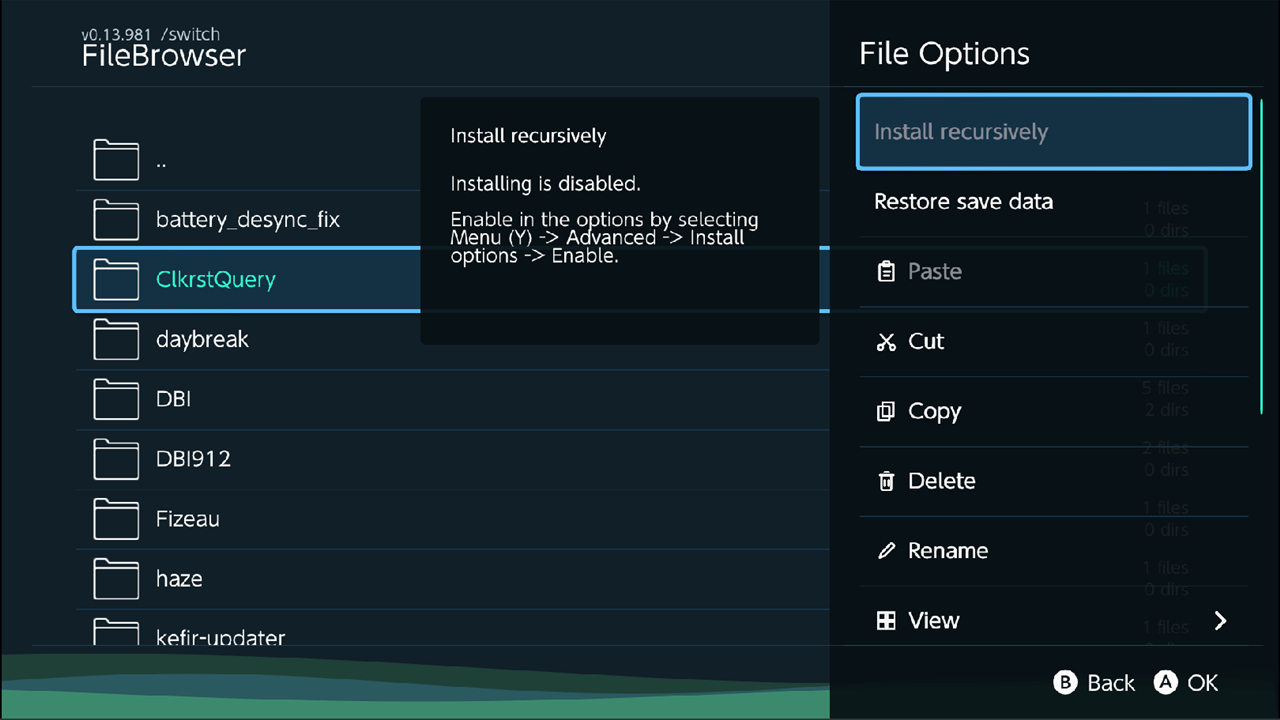
Actions in File Options apply to the selected items. With nothing selected, they apply to the item under the cursor.
Copy or move files
- Select the files and folders, or put the cursor on one.
- Press + and choose Copy or Cut.
- Go to the destination folder. It can be on another source, for example a USB drive, or in the other pane.
- Press + and choose Paste.
- If a file with the same name is already there, Kefir Hub asks to Replace it.
Moving one item inside the same storage is instant. Everything else is copied with a progress window.
Delete files
- Select the items, or put the cursor on one.
- Press + and choose Delete.
- Kefir Hub asks Delete Selected files? Choose Yes.
Warning
Deleted files do not go to a recycle bin. They are gone.
Rename a file or folder
- Put the cursor on the item. Do not select anything.
- Press + and choose Rename.
- Type the new name and confirm.
Create a folder or file
- Go to the folder where you want it.
- Press +, choose Advanced, then Create Folder or Create File.
- Type the name and confirm. You can type a path such as
games/newto create several folders at once.
Create File makes an empty file.
Change how files are listed
Press + and choose View.
| Option | What it does | Default |
|---|---|---|
| Layout | List: one row per item. Icon: picture thumbnails and folder previews | List |
| Sort | Alphabetical or Size | Alphabetical |
| Order | For Alphabetical, Descending is A to Z and Ascending is Z to A. For Size, Descending is largest first | Descending |
| Show Hidden | Show files and folders whose name starts with a dot | Off |
| Folders First | List folders before files | On |
| Hidden Last | Put hidden items at the end of the list | Off |
Use two panes
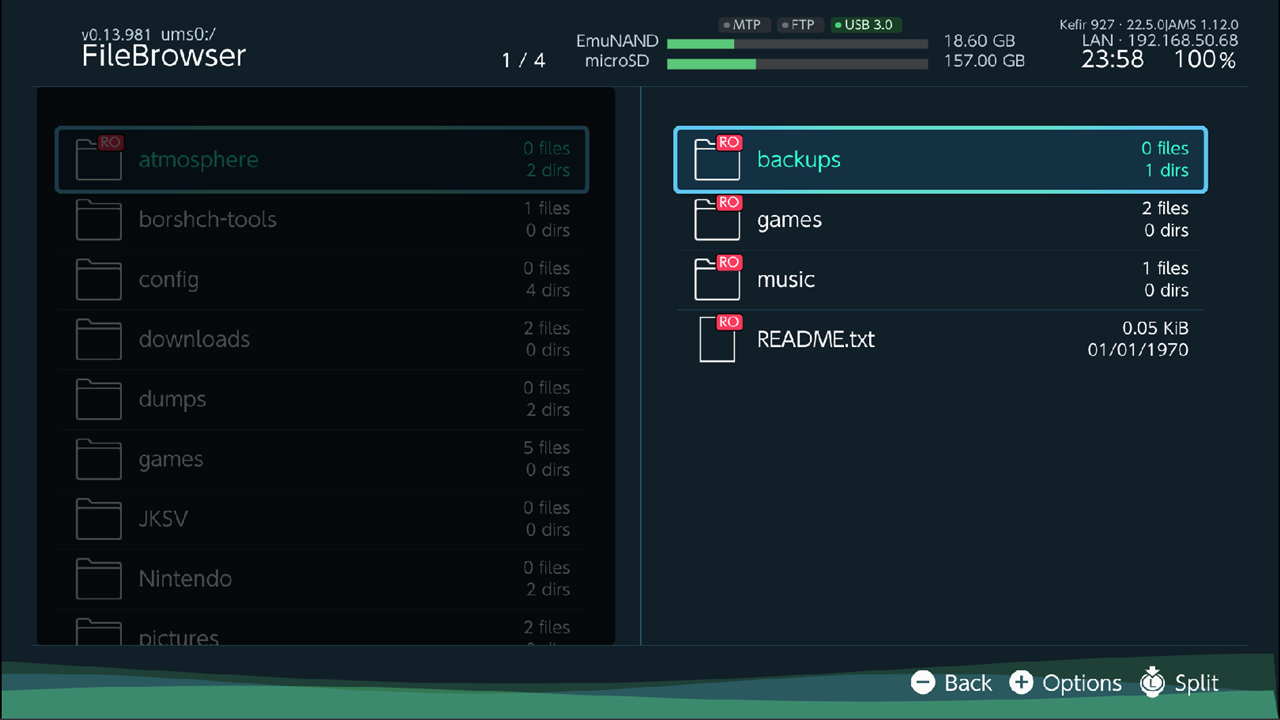
- Press L3. The screen splits; the new pane shows the same folder.
- Press Left or Right on the D-pad to switch between the panes.
- Each pane can show its own source. Copy in one pane, then paste in the other.
- Press L3 again to go back to one pane.
Switch sources
The File Browser can show:
- the microSD card;
- USB drives (FAT32, exFAT or NTFS) connected to the console;
- storage of a phone or camera connected over USB (shown as
MTP: <name>); - network shares you add: SMB, NFS (read-only), WebDAV, FTP or HTTP.
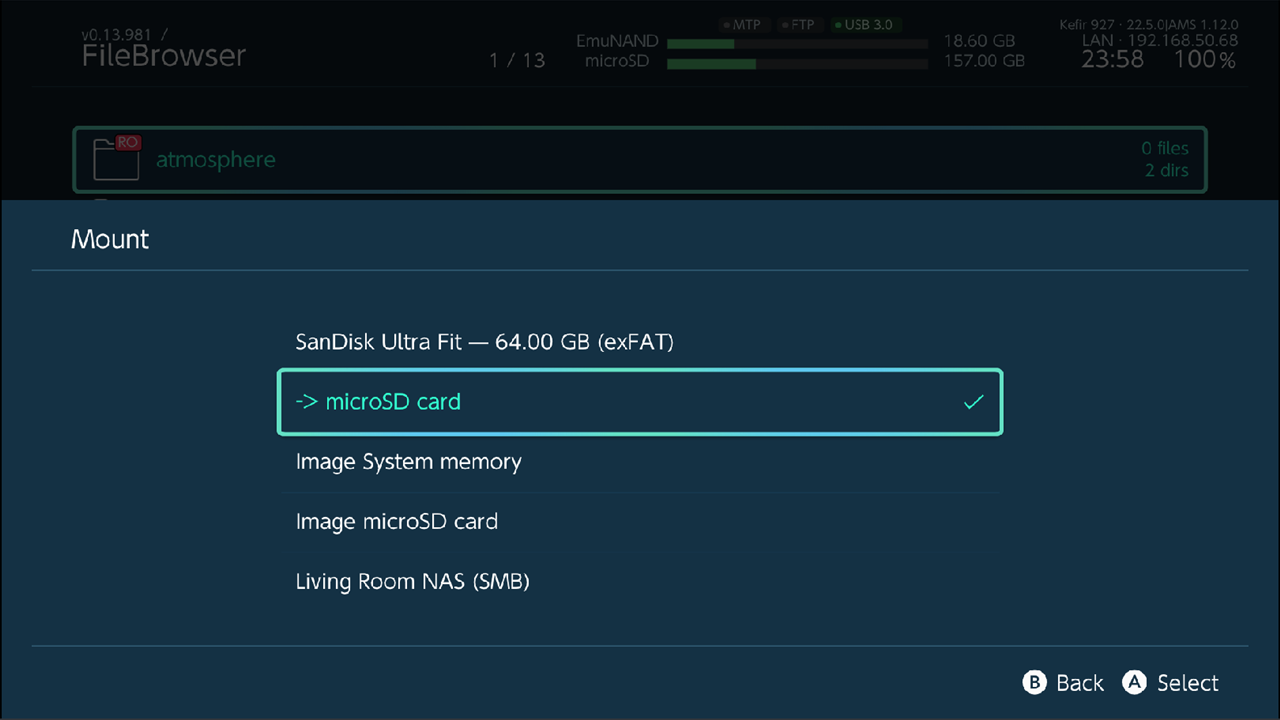
When you have more than the memory card, press B at the top folder of the card to see all sources, then press
A on one. Or press +, choose Sources and pick one under Mount. The current source is marked ->.
Open a USB drive
- Connect the drive.
- Press +, choose Sources, then Mount USB drive.
The drive opens at once. If MTP is running, Kefir Hub stops it: both use the same USB port.
A drive marked [read-only] is protected. Turn this off in Settings → Sources → USB storage read-only.
Add a network share
- Press +, choose Sources, then Add network location.
- Choose the protocol in Select Protocol.
- Type a name for it, for example
My NAS. If you type an address instead (for example192.168.1.10/games), Kefir Hub uses it as the server address. - Go to the list of sources (B at the top folder of the card), put the cursor on the new share, press + and choose Edit Source.
- Fill in the server address, the share name or port, and the username and password if the server needs them.
- Choose Test Connection.
- Go back and press A on the share to open it.
At the list of sources, + also has Rename Source, Properties and Delete Source for the share under the cursor. The same settings are in Settings → Sources, see Settings.
Browse a ZIP archive
- Press A on a
.zipfile. If an app can also open it (for example an emulator), choose Browse archive. - Move inside the archive like in a folder. You cannot change files inside it.
- To copy something out: select it, press + and choose Extract selection. The files go to the folder
where the
.zipfile is. - Press B at the top folder of the archive to leave it.
Unpack an archive
ZIP, RAR, 7z, TAR and compressed .tar.gz/.tar.xz/.tar.bz2 archives unpack the same way. A single .gz, .xz or
.bz2 file unpacks into one file named without that extension.
- Select one or more archives, or put the cursor on one.
- Press + and choose Extract.
- Choose where:
- Extract here: into the current folder;
- Extract to root: into the top folder of this storage. Kefir Hub asks to confirm;
- Extract to...: type the folder path.
Pack files into a ZIP archive
- Select the files and folders.
- Press + and choose Compress to zip.
- Choose Compress to create the archive in the current folder, or Compress to... to type another path.
View images
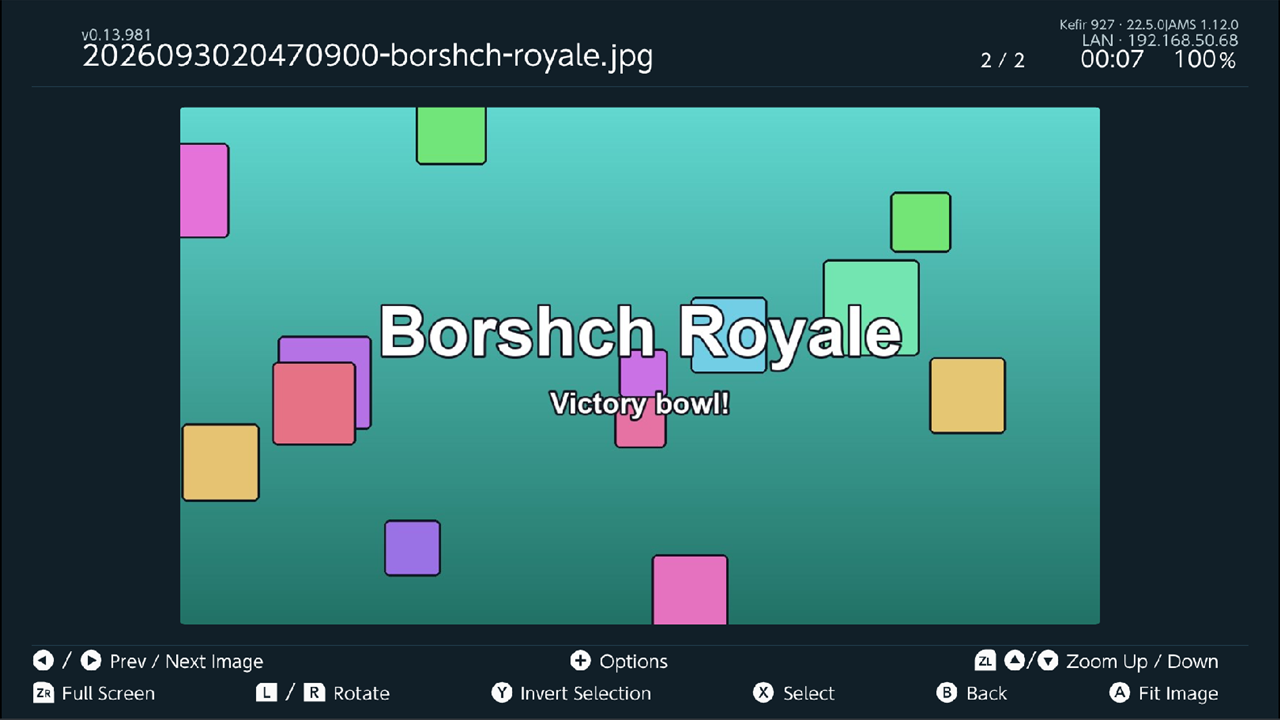
Press A on an image. All images in the folder open in the viewer.
| Button | What it does |
|---|---|
| Left / Right | Previous / next image |
| hold ZL + Up / Down | Zoom in / out |
| L / R | Rotate |
| A | Fit Image: reset zoom |
| ZR | Full Screen |
| X / Y | Select the image / invert the selection |
| + | Image Options: Delete, Compress to zip, Create Switch Theme |
| B | Close the viewer |
Create Switch Theme turns the image into a HOME Menu theme, see Themes.
Edit a text file
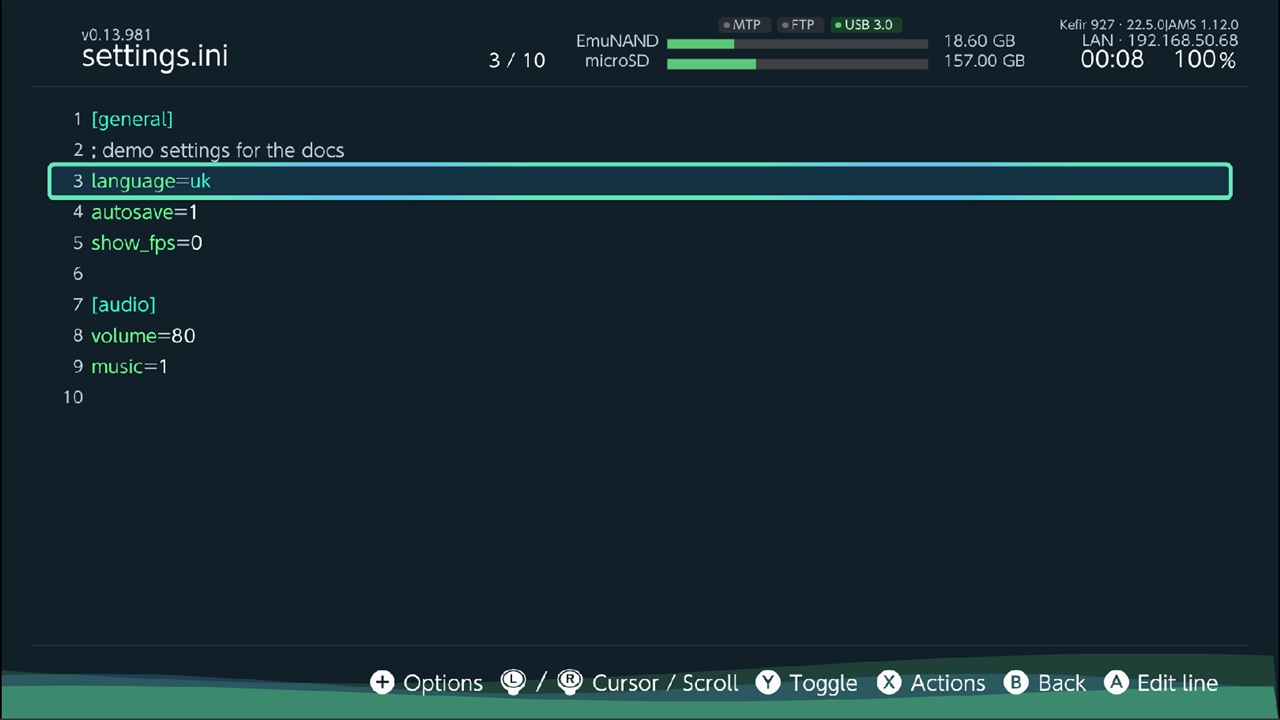
Text files up to 4 MB on writable storage can be edited. Bigger or read-only files open for viewing only.
Viewing:
| Button | What it does |
|---|---|
| L / R | One page up / down |
| ZL / ZR | Ten pages up / down |
| left / right stick | Scroll |
| hold L + right stick | Zoom |
| A | Edit |
| B | Close |
Editing:
- Press A to start editing. Move to a line.
- Press A (Edit line) to change the line with the keyboard.
- Press Y (Toggle) on a line like
enabled = trueto switch the value between true and false. - Press X (Actions) for line actions: Select range, Copy, Cut, Paste below,
Paste from PC / phone, Delete, Insert line below, Join with next line, Undo, Redo.
In
.inifiles you also get Comment and Uncomment. - Press + and choose Save.
- Press B to stop editing. With unsaved changes, Kefir Hub asks Unsaved changes: Save, Discard or Cancel.
+ while editing also has Undo, Redo (up to 32 steps) and Go to line.
Edit on a PC or phone
- Choose Edit on PC / phone when you open the file, or from + while editing.
- Scan the QR code with a phone, or open the address on a PC on the same Wi-Fi.
- Edit the text in the browser and save it there. It is written to the file on the console.
Open a file in another app
Kefir Hub knows which installed apps can open which files: emulator cores, media players and others.
- Game ROMs: keep them in a folder named after the system, for example
/roms/snes/or/roms/segacd/. Kefir Hub offers only cores that support that system and the file type. - Other files: apps that open a file type anywhere, such as media players, are offered in every folder.
Press A on the file and choose the app in the list. The app starts with that file.
For video and audio files, + also has Play with NXMP. If NXMP is not installed, Kefir Hub offers to open the App Store.
Tip
You can add your own rules. Put an .ini file in /config/kefir/assoc/, named after the app's .nro
(for example mgba.ini for mgba.nro), with supported_extensions= (for example smc|sfc) and, for emulators,
database= (the system name). path= is needed only when the .nro has another name or place. The app must be
on the memory card.
Make a forwarder
A forwarder is a HOME Menu icon that starts an app, or an emulator with one game.
- Put the cursor on a
.nrofile, or on a ROM that an emulator can open. Do not select anything. - Press + and choose Install Forwarder.
- For a ROM, choose the emulator. The forwarder editor opens with the game name and, if you have RetroArch thumbnails, the box art. Include platform in title adds the system name to the title.
- Choose Create Forwarder.
Installing must be turned on, and a forwarder is installed like a game. See Add an app to the HOME Menu for the warning and the options.
If no emulator is offered, Kefir Hub explains why: the folder is not named after a system, or no installed core supports the file type.
Other actions
These appear in File Options (+) or Advanced Options when they fit the item under the cursor.
| Action | What it does | See |
|---|---|---|
| Install, Install recursively | Install the selected games, or every game in the selected folders | Install from the memory card |
| Restore save data | Restore a save backup file or folder to the console | Saves |
| Launch payload | Reboot the console into a .bin payload through Hekate |
|
| Mount, Unmount | Share the current folder with a PC over MTP, FTP or a browser | Sharing |
| Start Web Server | Share the current folder through the built-in web server | Sharing |
| Upload to network location | Copy the selected files to one of your network shares | |
| Hash | Show the CRC32, MD5, SHA1 or SHA256 checksum of a file | |
| View as hex | Show the raw bytes of any file, 16 per row with their offset; read only | |
| View Image | Open the image in the viewer | |
| Create Switch Theme | Make a HOME Menu theme from the image | Themes |
| Add to Homebrew Search Paths | List the apps in this folder on the Homebrew tab | Homebrew |
| Ignore read only | Allow changing files that are marked read-only. Default: Off |
Warning
Launch payload reboots the console at once after you confirm Reboot. Save your game first.
Pick a folder for another feature
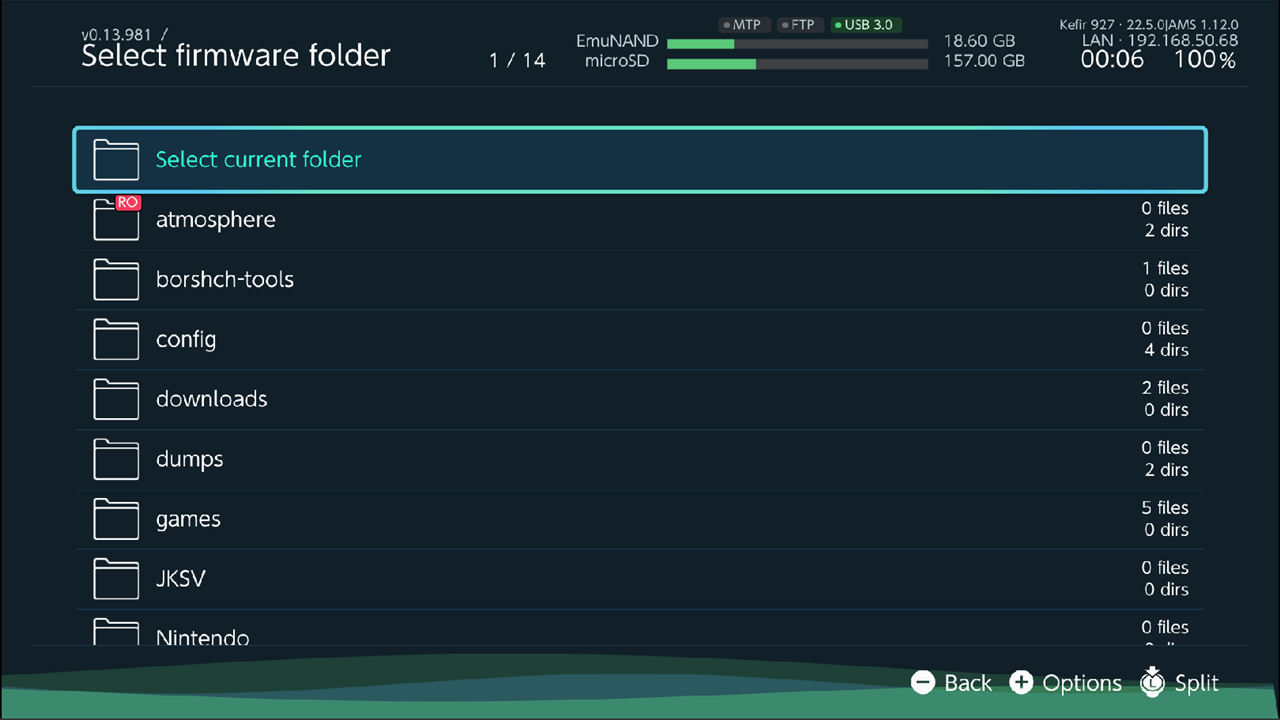
Some features ask you to choose a folder, for example a manual firmware install in the Updater or Choose Folder... in Console Transfer. The File Browser then opens in picker mode with its own title.
- Go to the folder.
- Press A on the top row, Select current folder. Pressing A on any file in the folder does the same.
A on a
.zipfile picks the archive itself, for example a firmware archive. - Confirm with Select.
In picker mode, + has Create Folder and Close picker. Selecting with X and Y is off.
Problems
Paste, Delete or Rename is grey. The folder or file is read-only. Check the source: NFS shares, ZIP archives and protected USB drives cannot be changed. For files marked read-only on the memory card, turn on Ignore read only in Advanced Options.
Failed to connect to network storage! The server cannot be reached. Check that it is on and on the same network, then run Test Connection.
Failed to list network storage! The server answers but the folder cannot be read. Check the username, the password and the share name in Edit Source.
"No USB drive found." Check that the drive has power and is formatted as FAT32, exFAT or NTFS. If the message says USB storage is turned off, turn on Settings → Sources → USB storage.
Failed to open archive! The .zip file is damaged or not a ZIP archive.