Homebrew
The Homebrew tab lists the homebrew apps (.nro files) on your memory card. Launch them, sort them,
mark favorites, delete them, or add one to the HOME Menu as its own icon.
Where: the first tab on the main screen. From Tools, press L or −.
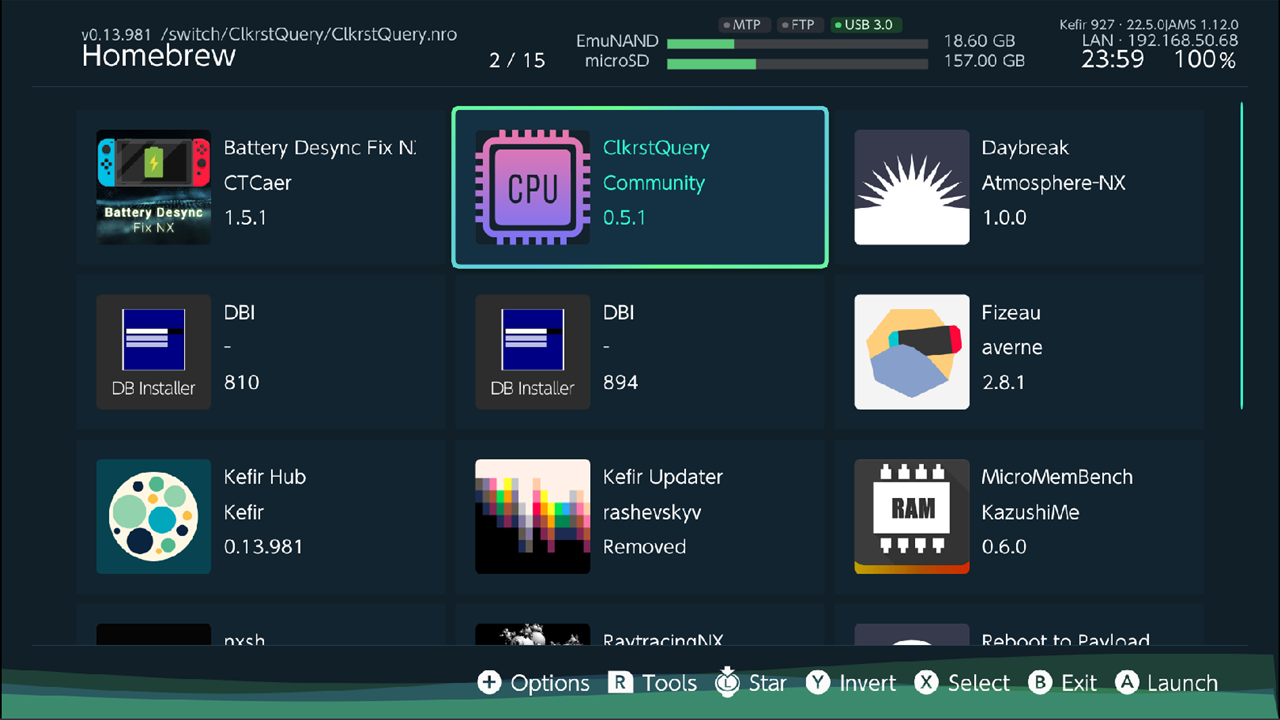
Which apps are listed
- every
.nroin/switch/and in its subfolders one level down (for example/switch/ftpd/ftpd.nro); - every
.nroin your own search folders, up to two levels down (see Add a search folder).
Files and folders whose name starts with a dot are skipped. The list updates by itself when you add or remove an app in the File Browser.
Launch an app
- Select the app. The header shows its path and its position in the list.
- Press A (Launch). Kefir Hub closes and the app starts.
When you exit the app, the Homebrew Menu (/hbmenu.nro) opens again.
Sort and change the layout
- Press + (Options).
- Change Sort, Order, Layout or Show Hidden. The list updates at once.
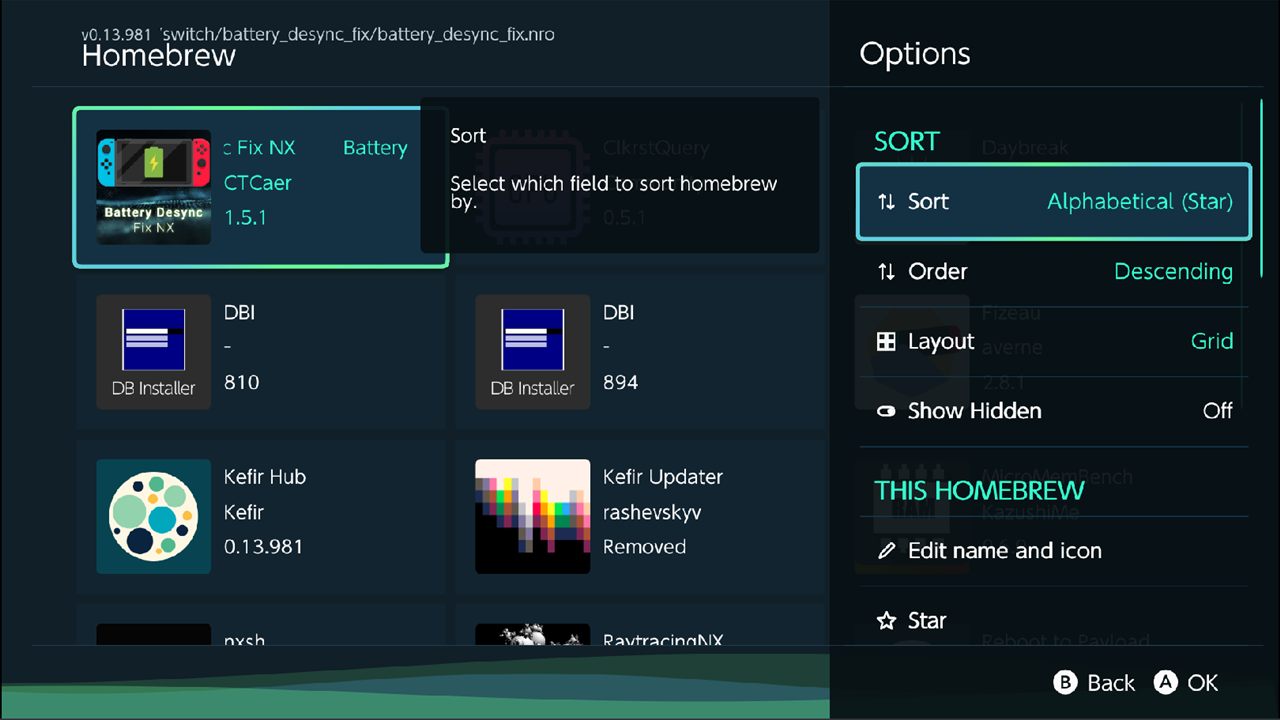
| Option | What it does | Default |
|---|---|---|
| Sort | Updated: last launched or last changed first. Alphabetical: by name. Size: by file size. The (Star) variants put starred apps first |
Alphabetical (Star) |
| Order | Descending or Ascending. Applies to Updated and Size; Alphabetical is always A to Z | Descending |
| Layout | List: one row per app with version and file size. Icon: six icons per row, the name shows for the selected one. Grid: three tiles per row with icon, name, author and version. HB Menu: one row of icons that you move through with Left / Right, with a large info panel for the selected app, like the classic Homebrew Menu | Grid |
| Show Hidden | Also list apps that are marked as hidden | Off |
Mark favorites
Starred apps show a ★ before the name and stay at the top of the list.
Stars work only while Sort is one of the (Star) variants.
- Press L3 on an app to Star or Unstar it.
- Or press + and choose Star or Unstar. This also works for several selected apps.
Select several apps
- Press X (Select) on each app. A mark appears on it and the cursor moves to the next app.
- Press Y (Invert) to select everything that is not selected, and the other way round.
- Press +. The panel shows SELECTED HOMEBREW with the count, and the actions apply to all of them.
Press X again on an app to unselect it.
Delete an app
- Select the app, or several apps.
- Press + and choose Delete.
- Confirm with Delete.
Kefir Hub deletes the .nro file. The app's folder and its other files (settings, saves of the app) stay on the card;
remove them in the File Browser if you want.
Warning
Deleting cannot be undone.
Change an app's name and icon
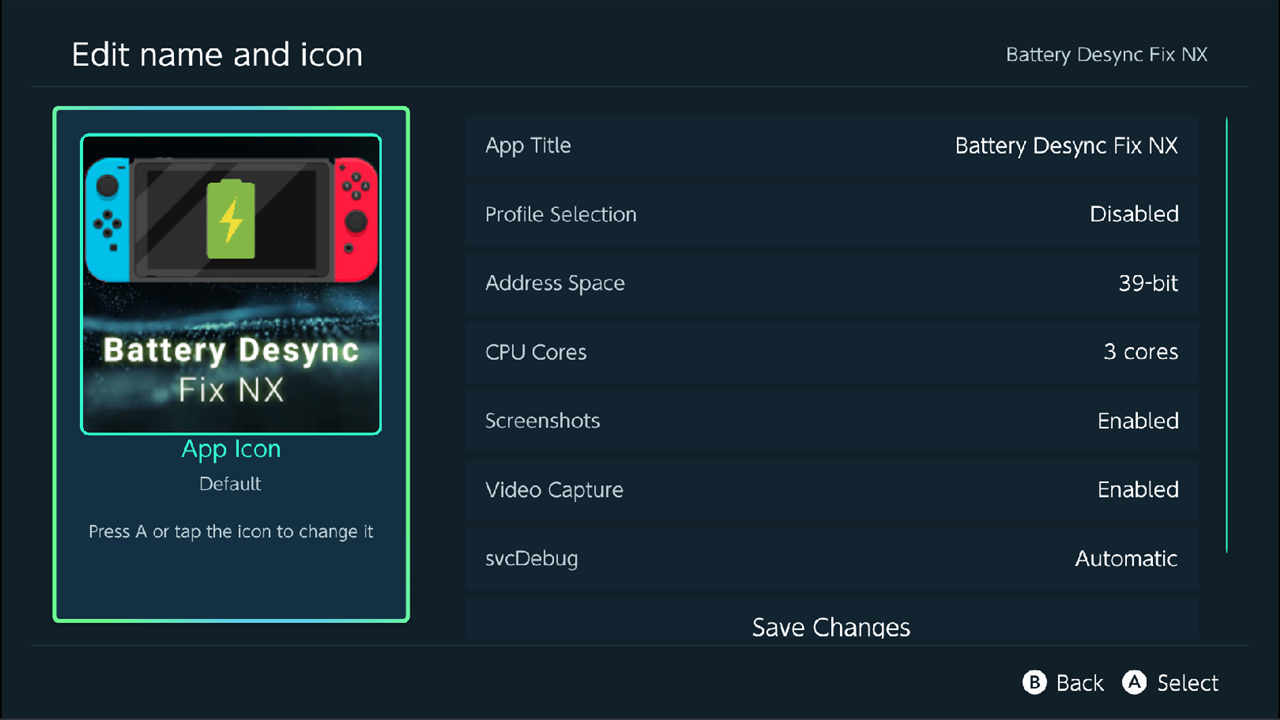
This rewrites the name and icon stored inside the .nro file, so every launcher shows the new ones.
- Select one app (no other apps selected).
- Press + and choose Edit name and icon.
- Change App Title. Press A on the icon, or tap it, to choose a new one: Local File (an image on the memory card) or SteamGridDB (search online).
- Choose Save Changes.
Add an app to the HOME Menu (forwarder)
A forwarder is a HOME Menu icon that starts the homebrew directly, without the Homebrew Menu. It starts the app in title mode, with full memory.
Warning
A forwarder is installed like a game. Installing anything other than official content can get the console banned when it goes online. Kefir Hub asks you to turn installing on first and warns about this.
- Select one app (no other apps selected).
- Press + and choose Install Forwarder under FORWARDER.
- If installing is off, Kefir Hub asks Installing is disabled, enable now? Choose Enable, read the warning and choose Enable again.
- If Ask every time is off, the forwarder is created at once with the default options. If it is on, the forwarder editor opens: change the title, author, version or icon, then choose Create Forwarder.
- Go back to the HOME Menu. The new icon is there.
| Option | What it does | Default |
|---|---|---|
| Ask every time | Open the forwarder editor for each forwarder instead of using the defaults | Off |
| Forwarder options | The defaults for new forwarders. Also in Settings → Homebrew → Forwarders | see below |
| Profile Selection | Ask which user profile to use when the forwarder starts | Off |
| Address Space | Memory layout given to the app. Change to 36-bit only if an old app needs it | 39-bit |
| CPU Cores | 3 or 4 CPU cores for the app. The fourth core is shared with the system and can cause lag | 3 cores |
| Screenshots | Allow screenshots while the app runs | On |
| Video Capture | Allow video capture while the app runs. Needs Screenshots | On |
| svcDebug | Debug permission for the app | Automatic |
You can also make a forwarder for any .nro or for a game ROM from the File Browser.
Add a search folder
Kefir Hub can list apps from folders other than /switch/.
- Go to Tools → Settings → Homebrew → Homebrew Search Paths.
- Choose Add folder and pick the folder on the memory card.
Or, in the File Browser, put the cursor on the folder (without selecting anything), press +, choose Advanced and then Add to Homebrew Search Paths.
To remove a search folder, select it in Homebrew Search Paths, or use Delete Homebrew Search Paths in the File Browser.
More in the options panel
The Homebrew options panel also has the Install & Share entries (Web Server, Mount MTP, PC Install (USB), Ownfoil) and the Settings entries (Install Title Mode forwarder, Settings). See Installing games and Sharing.
Problems
An app is not in the list. Check that the file ends in .nro and sits in /switch/ or one folder below it.
Deeper folders need a search folder. A name that starts with a dot is skipped.
An app has no icon. Kefir Hub shows only icons of 256 × 256 pixels. Other sizes show the default picture.
"Kefir Updater" with the version "Removed" is in the list. Kefir Updater was replaced by the Updater in Tools. Press A on the entry, read the message and hold A on OK for five seconds. The entry disappears.
An app is hidden and I cannot unhide it. Turn on Show Hidden. Kefir Hub has no command to hide or unhide an
app. Apps are marked hidden in /config/kefir/playlog.ini: a hidden line under the app's path.
Delete that line to unhide the app.