Settings
Settings change how Kefir Hub itself behaves: language, updates, network servers, install and dump defaults. Console-wide Kefir switches are a separate screen, see Kefir settings.
Where: Tools → Settings. Also: in Tools press + (Install & Share) → Settings.
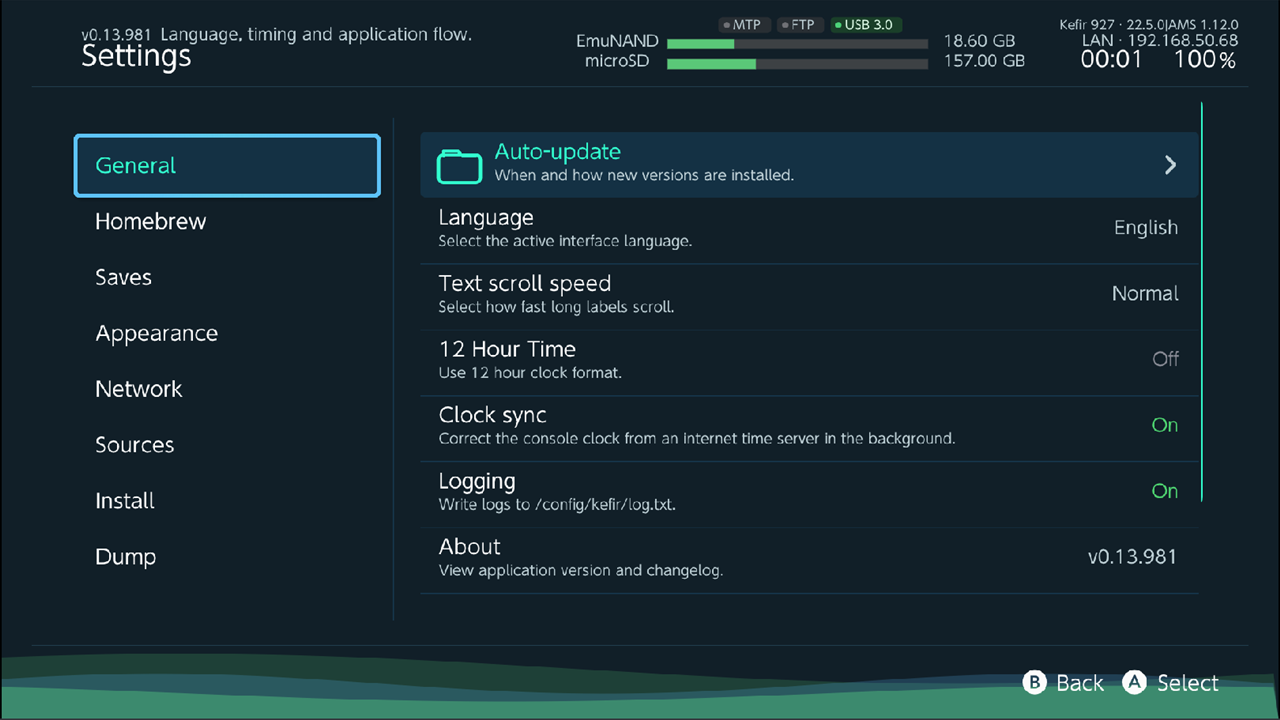
Move around the settings screen
The left column lists categories, the right column lists the options of the selected category. Each option shows its name, a one-line description under it, and its current value on the right.
- Press D-pad up and down to pick a category.
- Press D-pad right (or A) to move into the options.
- Press A on an option. An on/off option switches at once; other options open a list or a keyboard.
- Options marked as folders open a sub-page in the right column. Press B to go back one level.
- Press D-pad left or B to return to the categories, and B again to leave Settings.
L and R jump a page, ZL and ZR jump to the first and last entry. Touch works too.
Changes are saved to the microSD card as soon as you make them. There is no Save button.
General
| Option | What it does | Default |
|---|---|---|
| Auto-update | Sub-page: how new Kefir Hub versions are installed. See Update Kefir Hub. | |
| Language | Interface language. After a change Kefir Hub asks Restart Kefir Hub?; choose Restart to apply it everywhere. | Asked on first start |
| Text scroll speed | How fast long labels scroll: Slow, Normal, Fast. | Normal |
| 12 Hour Time | Shows the clock in 12-hour format. | Off |
| Clock sync | Corrects the console clock from an internet time server in the background. | On |
| Logging | Writes a log to /config/kefir/log.txt. Slows Kefir Hub down; turn it on only to report a problem. See Get the log. |
Off |
| About | Shows the installed version and the release notes of the latest version. | |
| Restart Kefir Hub | Closes and reopens Kefir Hub. | |
| Exit | Closes Kefir Hub. |
Update Kefir Hub
Where: Settings → General → Auto-update
| Option | What it does | Default |
|---|---|---|
| When to install | Off: never check. Silent: download in the background, the next start uses the new version. Ask: show a window when a new version is found, with Later, Skip this update and Update. | Silent |
| Update now | The value shows the state: Up to date, Checking..., a version number when one is waiting, Updating, Failed, or Ready — restart. Press A to download a waiting version, retry a failed one, or restart into a downloaded one. | |
| Skipped version | Appears only after you skipped a version. Press A to be asked about it again. |
Kefir Hub checks for a new version once per launch, at start. It does not check again when the network connects later. With Silent, a new version found at start (with internet) downloads in the background right away. The header shows an Updating bar; no window opens. The new version is used on the next launch, and Update now then shows Ready — restart.
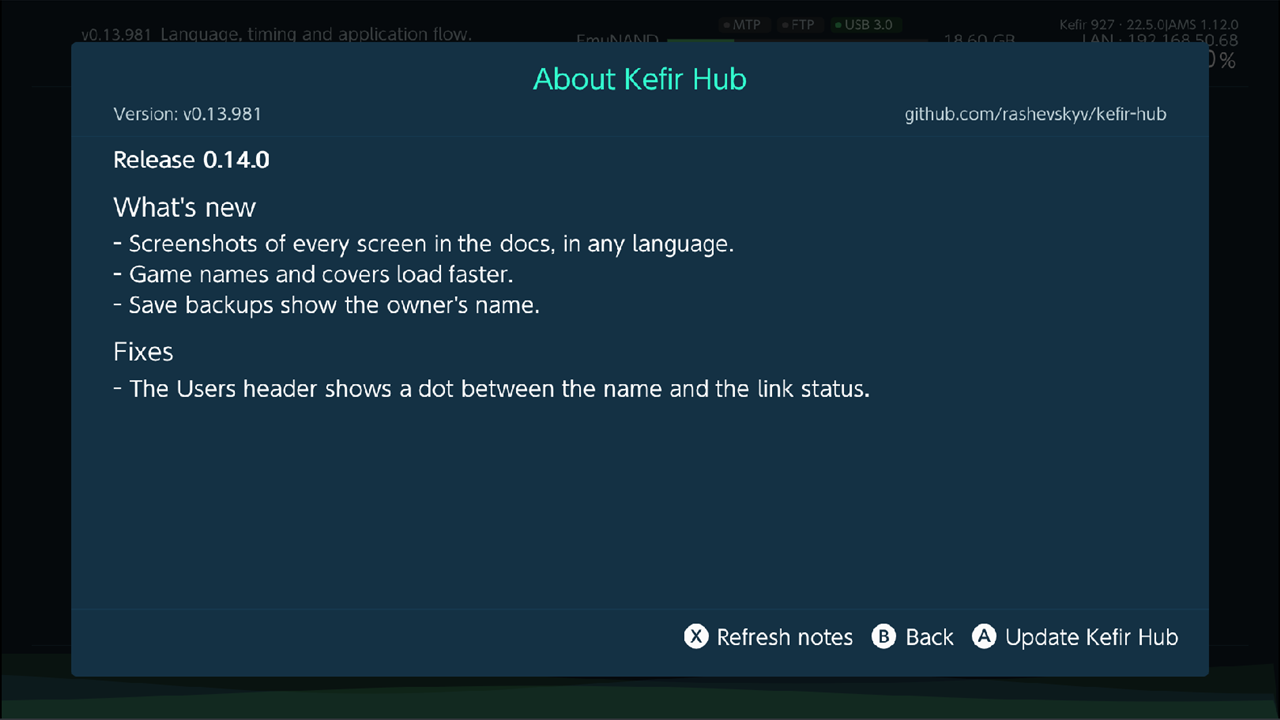
The About window shows the version, the release notes, and a button to Update Kefir Hub or Restart Kefir Hub when a newer version is available or already downloaded. Press X (Refresh notes) if the notes did not load.
Homebrew
| Option | What it does | Default |
|---|---|---|
| Homebrew Search Paths | Sub-page: extra microSD folders scanned for homebrew apps, besides /switch. Add folder picks one; select a folder to remove it. See Homebrew. |
none |
| Forwarders | Sub-page: defaults for HOME Menu forwarders you create. See Forwarder defaults. | |
| Replace hbmenu on exit | On exit, Kefir Hub copies itself over /hbmenu.nro, so the Album opens Kefir Hub. When you turn it off, Kefir Hub offers Restore hbmenu?; choose Restore to put the original hbmenu back from /switch/hbmenu.nro. |
Off |
Forwarder defaults
Where: Settings → Homebrew → Forwarders
| Option | What it does | Default |
|---|---|---|
| Ask every time | Opens the forwarder editor each time you create a forwarder, instead of using the defaults below. | Off |
| Address space | Automatic (uses 39-bit), 36-bit for compatibility, or 39-bit. | Automatic |
| CPU cores | 3 cores or 4 cores. Choosing 4 shows a warning: core 3 is shared with system services and some homebrew may lag. | 3 cores |
| Profile selection | Asks for a user profile when the forwarder starts. | Off |
| Screenshots | Lets the Capture button take screenshots inside the forwarder. | On |
| Video capture | Lets holding Capture record video inside the forwarder. Needs Screenshots on. | On |
| svcDebug | Kernel debug permission: Automatic (on with Atmosphère 1.8.0 and newer), Enabled, Disabled. | Automatic |
| SteamGridDB API key | Your key for looking up forwarder icons. The console shows a QR code; open it on a phone and paste the key there. When a key is set, A offers Remove or Replace. | Not set |
Saves
Options for the Saves screen: what it lists, where backups go, and WebDAV sync. All of them are explained on the Saves page.
| Option | Default |
|---|---|
| Installed game saves | On |
| Deleted game saves | On |
| Backups | Off |
| Default location | first storage in the list |
| Compress backup | On |
| Auto backup on restore | On |
| Save Backup Search Paths (sub-page) | none |
| Auto-sync after backup | On |
| Include remote backups | Off |
| Save sync location | None |
Appearance
| Option | What it does | Default |
|---|---|---|
| Theme | Picks the Kefir Hub theme from the installed ones. See Themes. | Default |
| Animated waves | Animated waves in the bottom bar. | On |
| Kefir Hub theme options | Sub-page with Select Theme and 12 Hour Time — the same settings as Theme above and in General. |
Network
Servers that let a PC reach the console. Details: Share files with a PC.
| Option | What it does | Default |
|---|---|---|
| FTP | Runs the FTP server in the background. | Off |
| FTP settings | Sub-page: Anonymous (no login) (default On), Username, Password, Port (default 5000). See Sharing. | |
| MTP | Runs the MTP server (USB cable to a PC) in the background. Turning it on turns USB storage off, because both need the USB port. | On |
| MTP storages | Sub-page: which drives the PC sees over MTP, their names, the game dump format and extra folders. See Sharing. | |
| Nxlink | Lets you send .nro files from a PC with the nxlink tool (for homebrew developers). |
On |
Sources
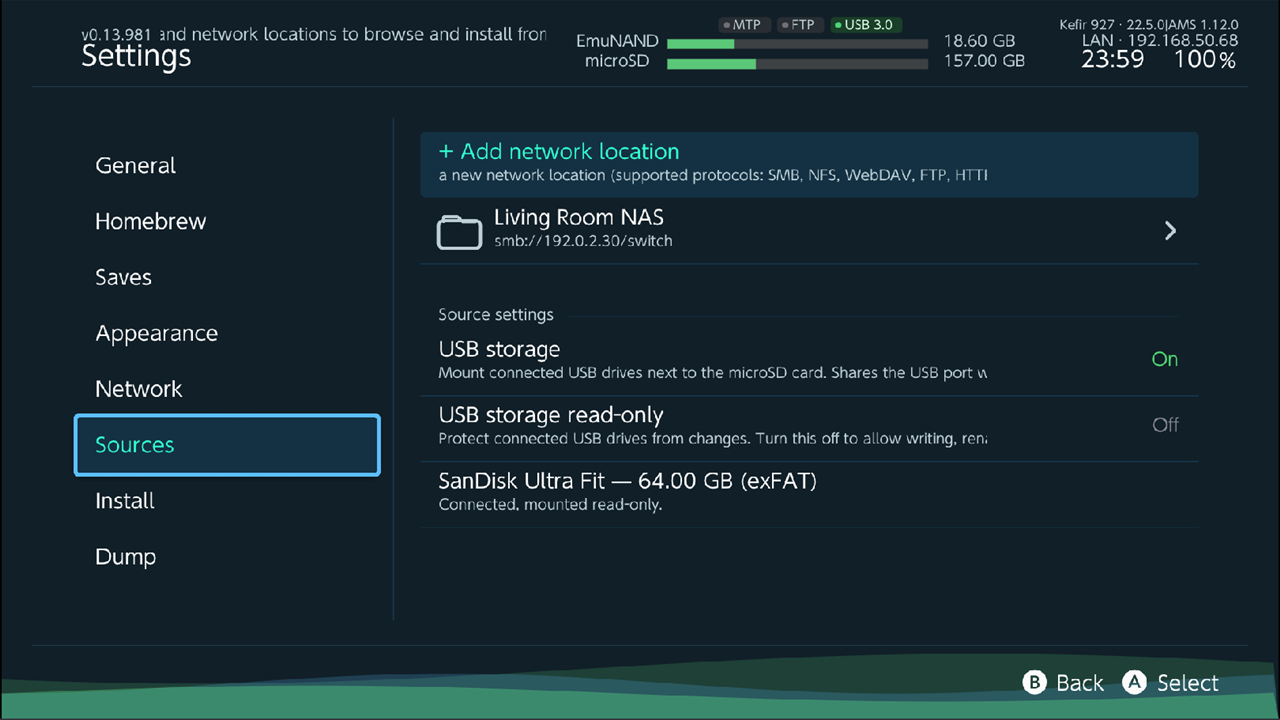
Network locations and USB drives you browse and install from. Details: File browser.
| Option | What it does | Default |
|---|---|---|
| + Add network location | Adds an SMB, NFS, WebDAV, FTP or HTTP location. | |
| each saved location | A opens it in the file browser (or its edit page if it is not set up yet). + (Options) offers Enter/Connect, Edit, Test Connection, Rename, Properties, Delete. | |
| USB storage | Mounts USB drives connected to the console next to the microSD card. Turning it on turns MTP off. | On |
By default both MTP and USB storage are on: a computer on the cable gets MTP, a USB drive gets mounted. | USB storage read-only | Protects connected USB drives from changes. Turn it off to write, rename, delete and install to them. | Off | | each connected drive | Shows whether the drive is mounted read-only or writable. | |
Install
Install behaviour and safety switches. What each option does is on the Install page.
Warning
Installing games can get the console banned. Enable sysMMC and Enable emuMMC are off until you confirm WARNING: Installing apps will lead to a ban! with Enable.
| Option | Default |
|---|---|
| Enable sysMMC | Off |
| Enable emuMMC | Off |
| Install location | Automatic |
| Allow downgrade | Off |
| Skip if already installed | Skip |
| Save options globally | On |
| Boost CPU during transfer | On |
| Screen off (Minus) (sub-page) | see below |
| Install tickets only | Off |
| Skip base game | Off |
| Skip game updates | Off |
| Skip DLC | Off |
| Skip DLC updates | Off |
| Skip tickets | Off |
| Skip NCA hash verify | On |
| Skip RSA header verify | On |
| Skip RSA NPDM verify | On |
| Ignore origin flag | Off |
| Convert ticket on install | On |
| Convert to standard crypto | Off |
| Re-encrypt to master key 0 | Off |
| Lower required firmware | On |
| Start without linked account | Off |
| Allow screenshots | Off |
| Allow video capture | Off |
The last three patch each installed game's restrictions (see Game restrictions); they need sigpatches.
Boost CPU during transfer speeds up installs but lowers the graphics clock, so the screen can look frozen while a transfer runs. See Kefir Hub looks frozen.
Screen off during installs
Where: Settings → Install → Screen off (Minus)
While the install queue runs, press − to darken the screen. These options set what happens.
| Option | What it does | Default |
|---|---|---|
| Minus button | Lower brightness, Turn off backlight, or Screensaver (a black screen with a small moving readout). | Screensaver |
| Inactivity timeout | Starts the screen-off mode by itself after no input for Off, 30 s, 1, 2, 5 or 10 minutes during an install. | Off |
| Brightness | Panel brightness while the screen is lowered: 1–50 %. Ignored when the backlight is off. | 10 % |
| OLED mode | Leaves the empty part of the progress bar black, so only useful pixels are lit. | On |
| Preview | Shows the screensaver at its real brightness. Any button exits. | |
| Show on screensaver | One switch per item: Clock, Status, Package counter, Current file, Progress bar, Average speed, Time remaining, Elapsed time, Battery, Errors, Speed graph. | all On |
Dump
How game dumps are named and sent. Dumping itself is described on Games.
| Option | What it does | Default |
|---|---|---|
| Create nested folder | Puts each game dump in its own folder. | On |
| Name XCI folder like the file | Adds .xci to the dump folder name; some devices read the dump only when folder and file names match. |
On |
| Trim XCI | Removes unused space from XCI dumps. | Off |
| Label trimmed XCI | Marks trimmed XCI files in their names. | Off |
| USB transfer stream | Streams the dump over USB. This one is not saved: it is back on after every start. | On |
| Convert ticket on dump | Converts a personalized ticket to a common one while dumping. | On |
Where settings are stored
All options on this page are kept in one file on the microSD card: /config/kefir/config.ini.
Other files in /config/kefir/:
| File or folder | What it holds |
|---|---|
locations.ini |
Your network locations from Sources. |
themes/, i18n/ |
Installed themes and translations. |
log.txt, errors.txt |
Logs, see Troubleshooting. |
If you used Sphaira before, Kefir Hub moves an old /config/sphaira/ folder to /config/kefir/ on first start,
unless /config/kefir/ already exists.
Reset settings to defaults
There is no reset button. Delete the settings file instead.
- Open Settings → General → Exit.
- Turn the console off, put the microSD card into a PC and delete
/config/kefir/config.ini. - Put the card back and start Kefir Hub. It asks for the language again; every other option is back at its default.
Network locations survive this, because they are in locations.ini.
Warning
Delete only config.ini. Do not delete the whole /config/kefir/ folder: it also holds data that
account and profile restores need.
Deleting the file from Kefir Hub's own file browser does not work reliably: Kefir Hub writes to config.ini when it closes.
Problems
An option has no effect after I change it. Language needs a restart; choose Restart when asked. MTP and USB storage switch each other off: Kefir Hub shows MTP turned off to free the USB port or USB storage turned off to free the USB port. Pick the one you need.
I cannot install anything. Enable sysMMC or Enable emuMMC is off for the system you are running. See Install.
Kefir Hub shows Warning! Logs are enabled, Kefir Hub will run slowly! at every start. Turn Logging off.