Installing games
Kefir Hub installs games, game updates and DLC from package files. This page helps you pick a method and explains the settings that apply to all of them.
Warning
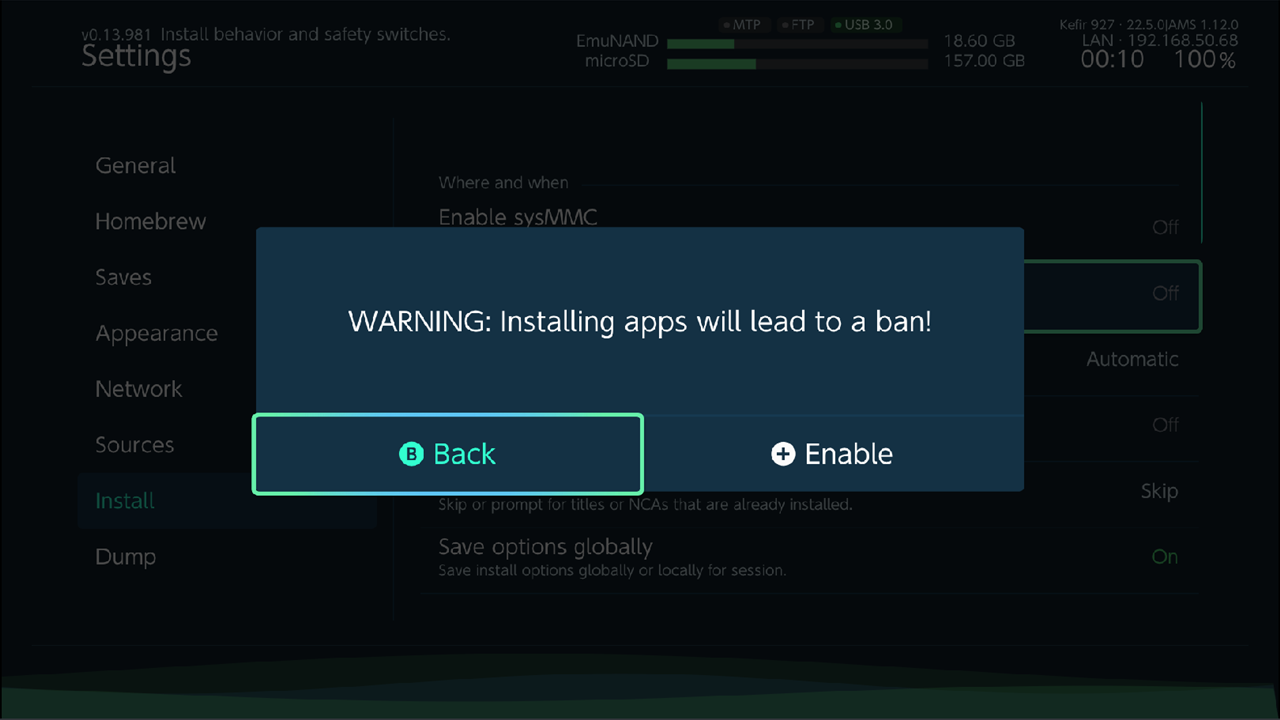
Installing games that you did not buy can get your console banned from Nintendo's online services. Kefir Hub shows WARNING: Installing apps will lead to a ban! before it lets you turn installing on.
Turn installing on
Installing is off until you turn it on. There is a separate switch for sysMMC and for emuMMC.
- Open Tools → Settings → Install.
- Select Enable sysMMC or Enable emuMMC, whichever you are running.
- Read the warning and select Enable.
If you start an install from the File Browser while installing is off, Kefir Hub asks Installing is disabled, enable now?. Select Enable to get to the same warning.
Choose a method
| Method | You need | Review before install | Page |
|---|---|---|---|
| From the microSD card or a USB drive | The files on the card or drive | Yes | Install from the microSD card |
| From a PC over USB | A USB cable and a PC app (DBI Backend, ns-usbloader, Fluffy) | Yes | Install from a PC over USB |
| From a PC over MTP | A USB cable; the PC file manager | No, it installs while the file is copied | Install over MTP |
| Over the network | Wi-Fi; FTP client, web browser or Ownfoil server | Depends on the method | Install over the network |
| From a game card | The card in the slot | — | Game cards |
The microSD and USB methods open the same install queue: every package is checked first, you see how much space it needs and where it will go, then you choose what to install. MTP installs each file as soon as the PC starts copying it, so the file is never stored on the console.
Supported files
- NSP and NSZ (NSZ is a compressed NSP).
- XCI and XCZ (XCZ is a compressed XCI).
Compressed files are unpacked during the install, so they need more memory. In Applet Mode memory is limited and NSZ packages are unlikely to install. Start Kefir Hub in Title Mode instead: hold R while you launch an installed game until hbmenu opens, or use the Kefir Hub icon on the HOME Menu (see Getting started).
Where games go
Each package goes either to the microSD card or to the system memory (NAND). Install location decides which:
| Value | What it does |
|---|---|
| microSD card only | Always the microSD card. |
| System memory only | Always the system memory. |
| System first, then SD | System memory until it is full, then the microSD card. |
| SD first, then system | The microSD card until it is full, then system memory. |
| Automatic | The storage that leaves free space on the two most even. If the package fits on only one, that one. Default. |
Kefir Hub keeps 500 MB free on each storage when it plans where packages go. Change this in the queue's Options with Reserve free space (system) and Reserve free space (microSD) (see Queue options). If the selected packages do not fit after the reserve, the queue asks Selected packages may not fit after the configured reserve. Continue?.
In the install queue you can also set the target of one package: highlight it and press L3 (Package target) to switch between Auto, microSD and System memory.
Install options
Where: Tools → Settings → Install
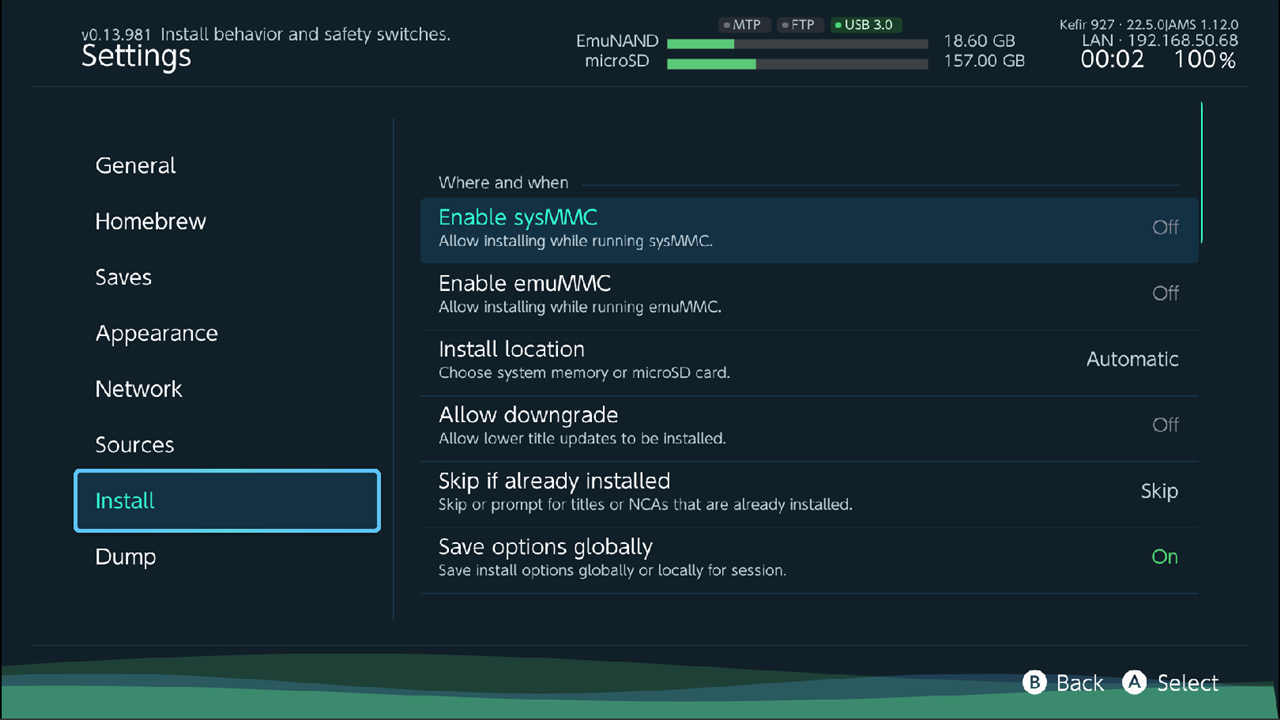
Where and when
| Option | What it does | Default |
|---|---|---|
| Enable sysMMC | Allows installing while sysMMC is running. | Off |
| Enable emuMMC | Allows installing while emuMMC is running. | Off |
| Install location | Where packages go, see Where games go. | Automatic |
| Allow downgrade | Lets you install a game update older than the one installed. When off, an older update is skipped. | Off |
| Skip if already installed | What to do with content that is already installed: Reinstall, Skip, or Prompt (ask Already installed. Reinstall? each time). | Skip |
| Save options globally | On: changes you make in the queue's Options are saved to Settings. Off: they apply to the current queue only. | On |
| Boost CPU during transfer | Runs the CPU faster during transfers. | On |
| Screen off (Minus) | What − does while a queue runs, see Turn the screen off. | — |
What to install
| Option | What it does | Default |
|---|---|---|
| Install tickets only | Installs only the tickets (licences). Content that is missing is still written. Use it when a game is installed but its ticket is missing or damaged, see Repair tickets. | Off |
| Skip base game | Does not install the base game. | Off |
| Skip game updates | Does not install updates. | Off |
| Skip DLC | Does not install DLC. | Off |
| Skip DLC updates | Does not install DLC updates. | Off |
| Skip tickets | Does not install tickets. Not recommended: the game may not start. | Off |
Verification and conversion
| Option | What it does | Default |
|---|---|---|
| Skip NCA hash verify | Skips the check that the game data is not corrupted. | On |
| Skip RSA header verify | Skips the check that the data headers are signed by Nintendo. Needed for converted NSP/XCI files. | On |
| Skip RSA NPDM verify | Not implemented; has no effect. | On |
| Ignore origin flag | Ignores the mark that says content came from a game card or from the eShop. Content marked as game card normally does not start when installed. | Off |
| Convert ticket on install | Turns personalised tickets into common ones. Needs the console keys. | On |
| Convert to standard crypto | Installs the game so it does not need a ticket. Needs the console keys. | Off |
| Re-encrypt to master key 0 | Re-encrypts the game keys so any firmware can read them. The game may still not work; updating the firmware is the better fix. Needs the console keys. | Off |
| Lower required firmware | Lowers the firmware version the game asks for. Does not help if the game needs keys your firmware does not have. | On |
The queue's Options menu (press + in the queue) has Skip if already installed, Install location and the reserve settings, so you can change them for one session. See Queue options.
MTP, FTP and web-browser installs do not use Skip if already installed, Convert to standard crypto or Re-encrypt to master key 0: content is always installed again, and the game is not converted.
Repair tickets
For installs from the microSD card, a USB drive or a PC over USB, Skip if already installed set to Skip skips the whole package of a game that is already installed, ticket included. Install tickets only alone therefore does nothing for an installed game.
- Set Install tickets only to On.
- Set Skip if already installed to Reinstall.
- Install the game's package again.
MTP, FTP and web-browser installs always import the tickets.
Problems
"Installing is disabled" with a path through Menu (Y) → Advanced. That path is out of date. Turn installing on in Tools → Settings → Install (see Turn installing on).
"The title was installed successfully, but cannot run on this console yet". The game needs newer system firmware than the console has. Update the firmware and Kefir (see Updater). You do not need to install the game again.
A package is skipped with "already installed". Skip if already installed is set to Skip. Set it to Reinstall or Prompt.
An update is skipped. It is older than the installed update. Turn on Allow downgrade if you want to go back to it.
NSZ files fail in Applet Mode. Start Kefir Hub in Title Mode.
You need the error details later. Install errors are written to /config/kefir/errors.txt on the microSD card, even when logging is off.