Troubleshooting
What to do when something goes wrong, and how to collect what a bug report needs.
Get the log
The log records what Kefir Hub did. It is off by default because writing it slows the app down.
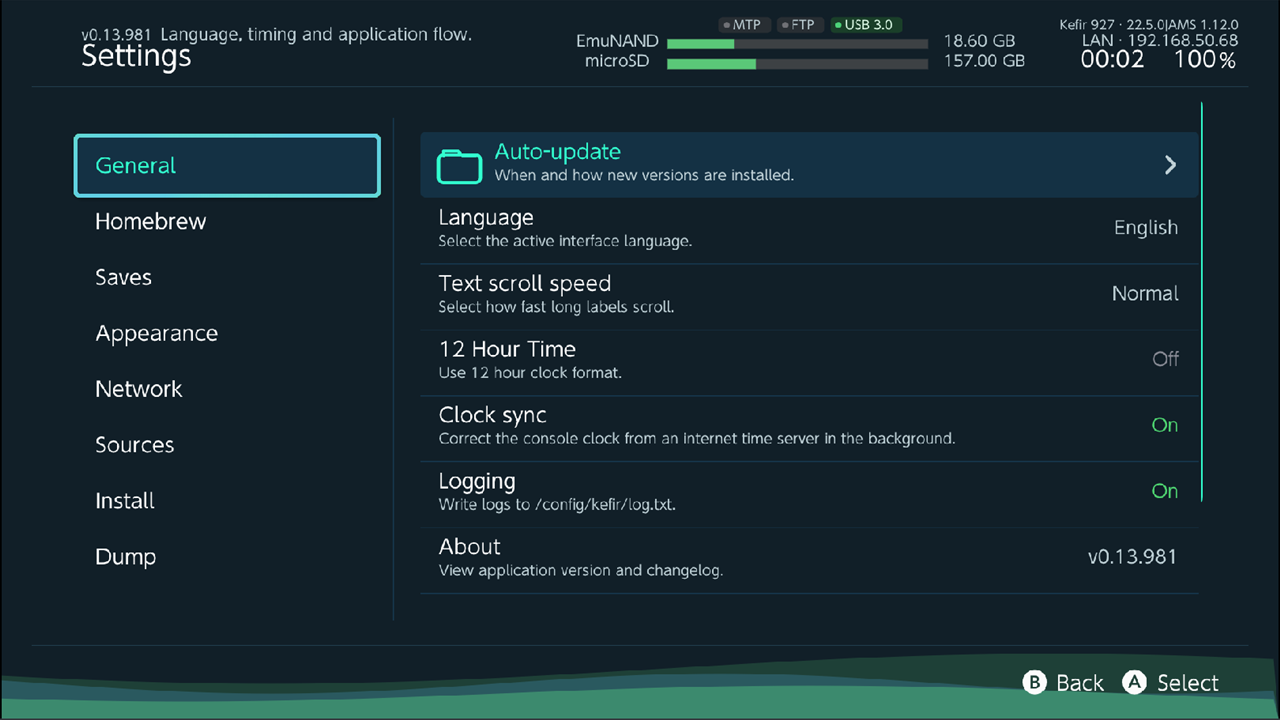
- Open Tools → Settings → General and turn Logging on.
- Do the thing that fails again.
- Copy
/config/kefir/log.txtto a PC before you start Kefir Hub again. - Turn Logging off.
Warning
log.txt is emptied every time Kefir Hub starts, and also when you turn Logging off and on again.
Copy it first, then restart.
Ways to copy the file while Kefir Hub is still open: over MTP with a USB cable, or over FTP (see Share files with a PC). Or exit Kefir Hub and read the microSD card in a PC: exiting keeps the file, only the next start empties it.
While Logging is on, every start shows Warning! Logs are enabled, Kefir Hub will run slowly!. This is expected.
The error list (errors.txt)
/config/kefir/errors.txt is written even when Logging is off. It keeps entries from earlier starts, each with
date and time, and starts over when it grows past about 256 KB.
Failed packages from the install queue are recorded there. When a queue finishes with failures, its summary says how many errors were recorded; press Y to review them on the console. See Install.
Crash reports
The whole console stops on an Atmosphère error screen. The screen names the file it saved:
/atmosphere/fatal_errors/report_<number>.bin. Take a photo of the screen, then send that file.
Kefir Hub closes and the console shows an error, but the console keeps working. Atmosphère writes a crash report to
/atmosphere/crash_reports/ (a .log file named with a time stamp). Send the newest one.
Kefir Hub looks frozen during a transfer
The progress bar stops moving and the screen barely updates while installing or copying. During a transfer Boost CPU during transfer raises the processor speed and lowers the graphics speed, so the screen can update only a few times per second. The transfer keeps going and finishes; the HOME button still works.
- Wait for the transfer to finish.
- If you want a smooth screen, turn off Tools → Settings → Install → Boost CPU during transfer. Installs of compressed packages (NSZ, XCZ) can get slower.
Common problems
Kefir Hub is slow overall. Check that Logging is off.
Installing is refused, or Kefir Hub asks Installing is disabled, enable now?. Installing is off for the system you are running. Turn on Enable sysMMC or Enable emuMMC in Settings → Install. Read the ban warning first. See Install.
Applet Mode has limited memory. NSZ packages are unlikely to install. Use Title Mode for reliable installation. Kefir Hub was started from the Album and has little memory. Start it from its HOME Menu icon instead. To create the icon, open Tools, press + (Install & Share) and choose Install Title Mode forwarder. See Getting started.
Install failed: another installation is in progress. Only one install runs at a time. Wait for the current one to finish.
There is not enough free space on the selected storage. Free up space, or choose another Install location in Settings → Install.
A USB drive is not seen, or MTP disappears when you plug a drive in. MTP and USB drives share the console's USB port, so only one works at a time. Kefir Hub says MTP turned off to free the USB port or USB storage turned off to free the USB port. Choose MTP in Settings → Network, or USB storage in Settings → Sources.
Copying a folder to the microSD card over MTP does nothing. Known problem. Open the folder on the PC and copy the files inside it instead. See MTP install.
A network location does not open: Connection test failed!, Failed to connect to network storage!, or The server is reachable but the listing failed. Check the credentials and the shared folder path. Check the server address, share name, user name and password in Settings → Sources → the location → + (Options) → Edit. The console and the server must be on the same network. See File browser.
The release notes in About do not load. They come from GitHub and need an internet connection. Press X (Refresh notes) to try again.
The Album opens Kefir Hub instead of the Homebrew Menu. Replace hbmenu on exit is on. Turn it off in
Settings → Homebrew and choose Restore at Restore hbmenu?. If Kefir Hub says it cannot find
/switch/hbmenu.nro, install the Homebrew Menu again first.
Web listener started, but its local self-test failed; check the log or use Title Mode Start Kefir Hub from its HOME Menu icon, or get the log. See Share files with a PC.
The console shows error 2162-0002 after a firmware update. Custom themes and system translations made for the old firmware can cause it. The firmware update removes them; if it warned that it could not, remove them by hand. See Updater.
Cheats: Kefir Hub says prod.keys was not found. Dump the console keys with Lockpick_RCM. See Cheats.
Problems sections on other pages
Report a bug
Report bugs on GitHub: https://github.com/rashevskyv/kefir-hub/issues
Include:
- Kefir Hub version. It is shown in the top-left corner of the screen, above the screen title, and in Settings → General → About.
- How you started Kefir Hub: from the Album, or from its HOME Menu icon. And whether you run sysMMC or emuMMC.
- Steps: what you did, what you expected, what happened instead. Exact error text or a screenshot.
- Files:
log.txt(see Get the log),errors.txt, and a crash report if there was one.
