Themes
Download system themes for the Home menu, make your own theme from a picture, and change the look of Kefir Hub itself.
Where: Tools → Themes
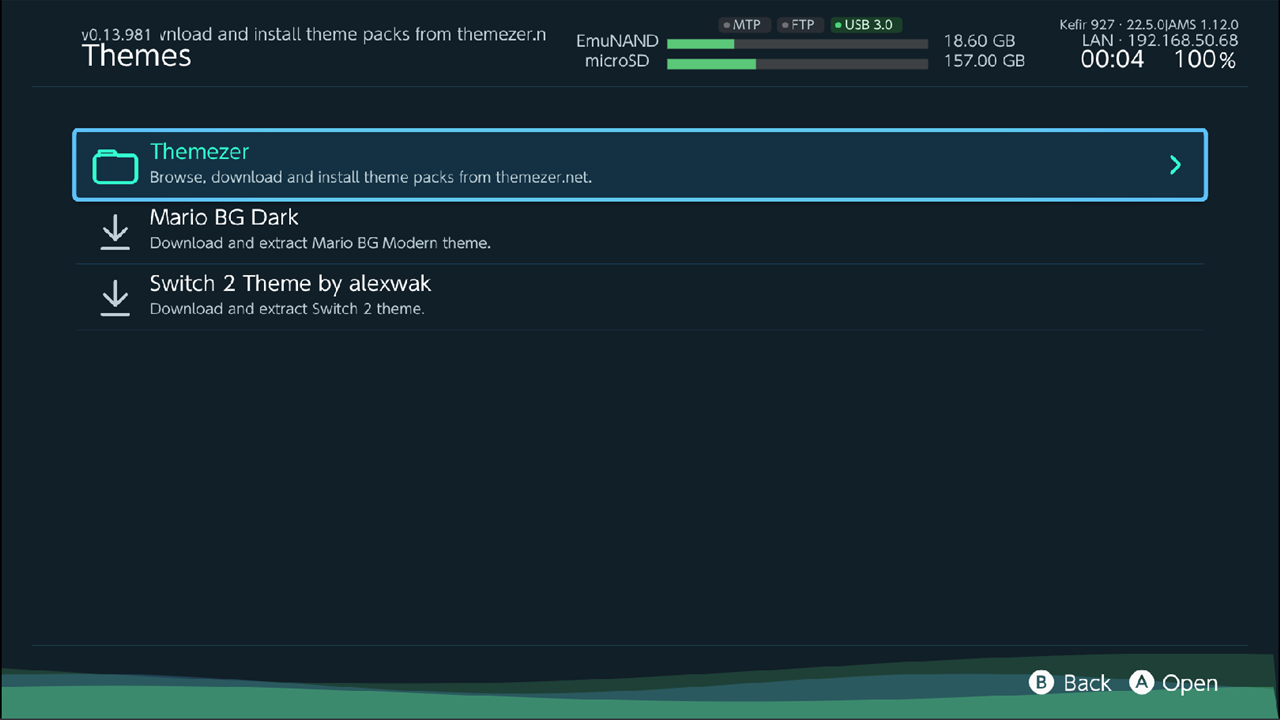
The Themes menu has:
- Themezer — browse and download theme packs from themezer.net.
- Two ready-made packs: Mario BG Dark and Switch 2 Theme by alexwak.
- Your favorite Themezer packs, if you starred any.
How system themes are installed
Kefir Hub downloads theme files (.nxtheme). The NXThemes Installer app applies them to the console.
- If NXThemes Installer is not on the memory card, Kefir Hub asks "NXthemes_Installer.nro not found, download now?".
Choose Download; it is saved to
/switch/Switch_themes_Installer/NXThemesInstaller.nro. - After a theme is downloaded, Kefir Hub asks "Theme downloaded, install now?". Choose Install to open NXThemes Installer with the downloaded files, then finish the install there.
Install a ready-made pack
- Open Tools → Themes.
- Select Mario BG Dark or Switch 2 Theme by alexwak and press A.
- Confirm "Download theme?" with Download.
- The pack is downloaded and unpacked to
/themes/on the memory card. - Choose Install when asked, and apply the theme in NXThemes Installer.
Download a theme from Themezer
- Open Tools → Themes → Themezer.
- Browse the packs. Each tile shows a preview, the name and the author.
- Press Y (Screenshot) to see the screenshots of the selected pack.
- Press A (Download) and confirm "Download theme?".
- Every theme of the pack is saved to
/themes/sphaira/on the memory card, in a folder named after the pack and its author. - Choose Install when asked, and apply the theme in NXThemes Installer.
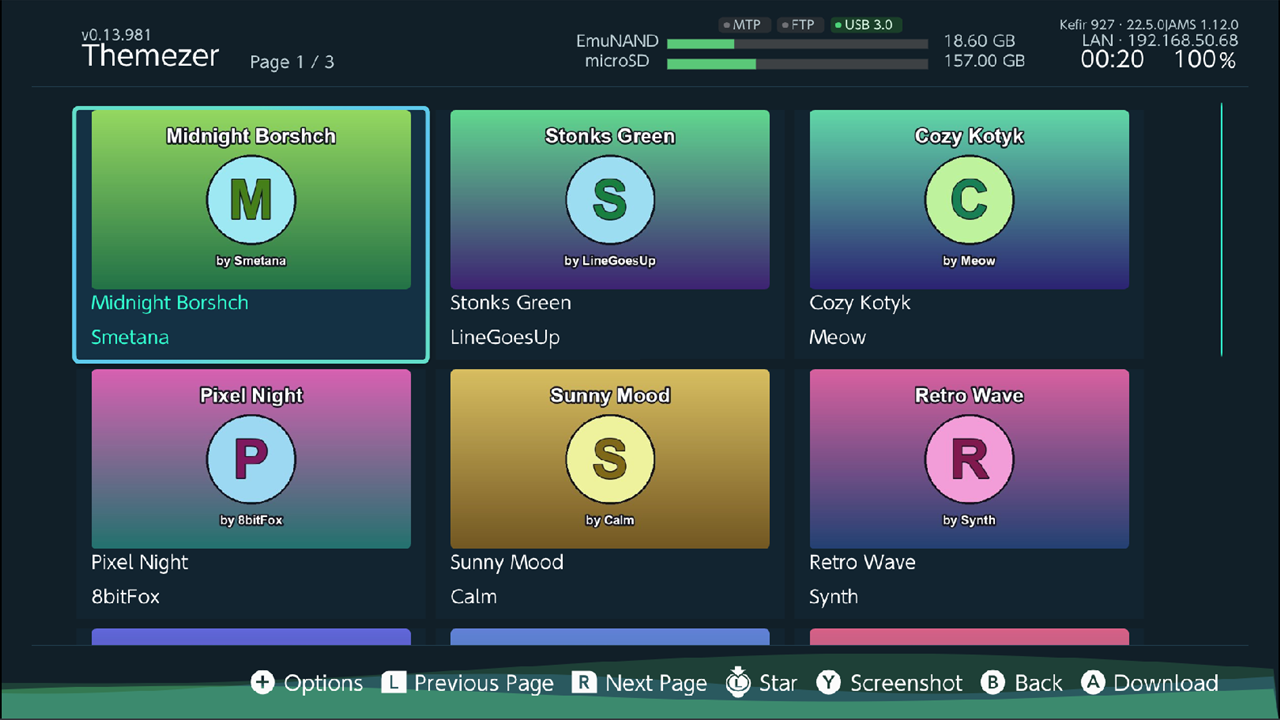
| Button | Action |
|---|---|
| A | Download the selected pack |
| Y | Screenshot |
| R / L | Next Page / Previous Page |
| ZR / ZL | Jump 10 pages forward / back |
| L3 | Star / Unstar — add the pack to favorites or remove it |
| + | Options |
| B | Back |
Themezer options
Press + (Themezer Options).
| Option | What it does |
|---|---|
| Sort | Rising, Trending, Created, Updated, Downloads or Saves. |
| Order | Descending or Ascending. |
| Target | Show only themes for one screen: All, Home Menu, Lock Screen, All Apps, Settings, Player Select, User Page, News. |
| Tags | Filter by tags, for example anime, dark. Separate tags with spaces or commas. |
| Page | Jump to a page number. |
| Search | Search by name or keyword. |
| Launch NXthemes_Installer.nro | Open NXThemes Installer. Shown only when it is installed. |
Favorites
Press L3 (Star) on a Themezer pack. It then appears in the Themes menu, so you can download it again without searching. To remove it, select it in the Themes menu and press L3 (Unstar).
Make a theme from a picture
Create a Home menu theme from any image on the memory card.
- Open the File Browser and select an image.
- Press + and choose Create Switch Theme. (In the image viewer the same item is in the + menu.)
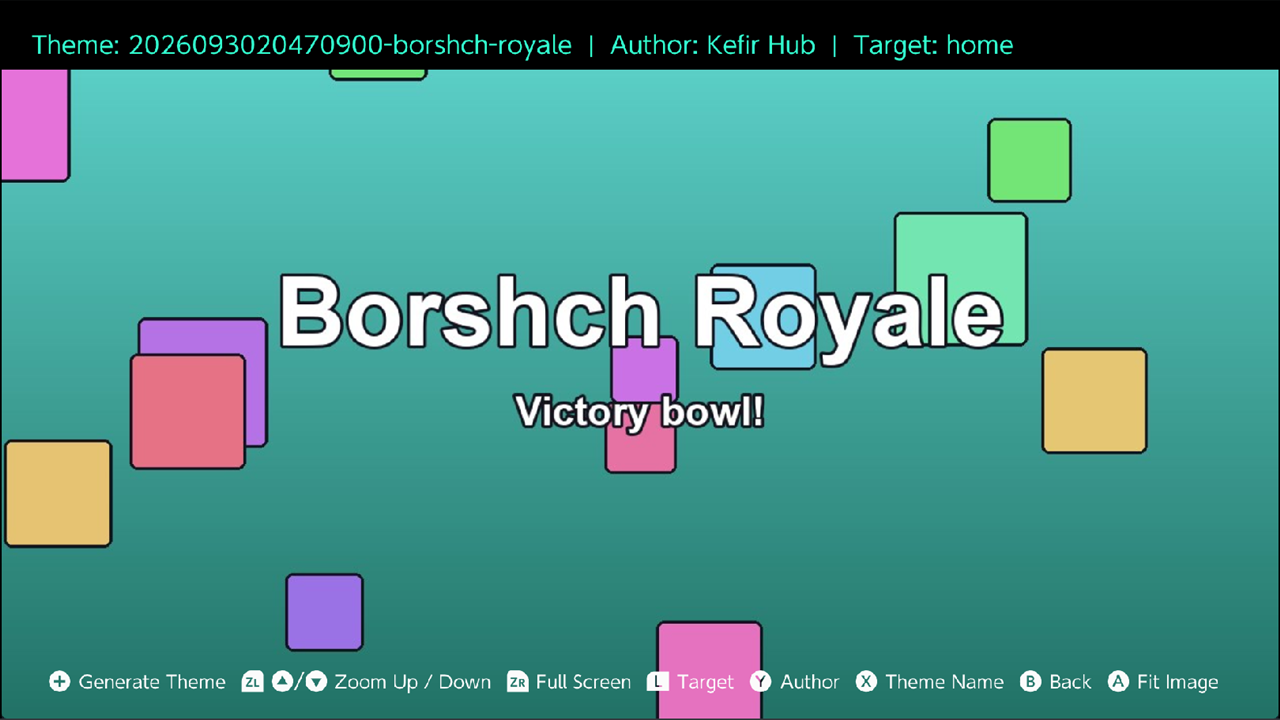
- Frame the picture. The theme image is 1280×720.
- D-pad or a stick moves the image; hold ZL and press up/down to zoom.
- A (Fit Image) resets the view.
- ZR (Full Screen) shows the full-screen preview.
- Press L (Target) to choose which screen the theme is for. The default is the Home menu.
- Press X (Theme Name) and Y (Author) to set the name and author.
- Press + (Generate Theme). The theme is saved to
/themes/as<name>_<date>.nxtheme. - If NXThemes Installer is installed, the Theme Created Successfully! screen opens:
- hold A for 3 seconds to install the theme;
- hold Y for 3 seconds to install it and reboot;
- press B to go back to the editor.
Remove a theme
Kefir Hub has no button to remove an installed system theme. Use NXThemes Installer for that. In NXThemes Installer open "Uninstall theme" in the left column:
- "Remove the current theme" brings back the default theme;
- "Uninstall everything" removes all installed theme parts.
Installing any firmware from the Updater removes custom themes automatically, because themes made for another firmware can stop the console from booting (Atmosphère error 2162-0002). Install the theme again after the update.
Change the look of Kefir Hub
This changes Kefir Hub only, not the console's Home menu.
Where: Settings → Appearance
| Option | What it does | Default |
|---|---|---|
| Theme | Kefir Hub's colour theme. Built in: Abyss, Black, Black alt-icons-SP, Default, OLED Black, White. | Default |
| Animated waves | Animated waves in the bottom bar. | On |
| Kefir Hub theme options | Select Theme (the same list as Theme) and 12 Hour Time for the clock (default: Off). | — |
Custom Kefir Hub themes (.ini files) placed in /config/kefir/themes/ appear in the same list.
See also Settings.
Problems
"Failed to download theme". Check the internet connection and try again.
"NXthemes_Installer.nro not found, download now?" every time. Kefir Hub looks for NXThemes Installer at /switch/NXThemesInstaller.nro, /switch/NXThemesInstaller/NXThemesInstaller.nro and /switch/Switch_themes_Installer/NXThemesInstaller.nro. Let Kefir Hub download it, or move it to one of these paths.
The console shows error 2162-0002 after a firmware update. A theme or translation for the old firmware is still installed. See Updater → Problems.