Users
Manage the user profiles on this console: create, rename, change the avatar, delete, link profiles to a Nintendo Account offline, and back up all profiles with their play hours.
Where: Tools → Tools → Users
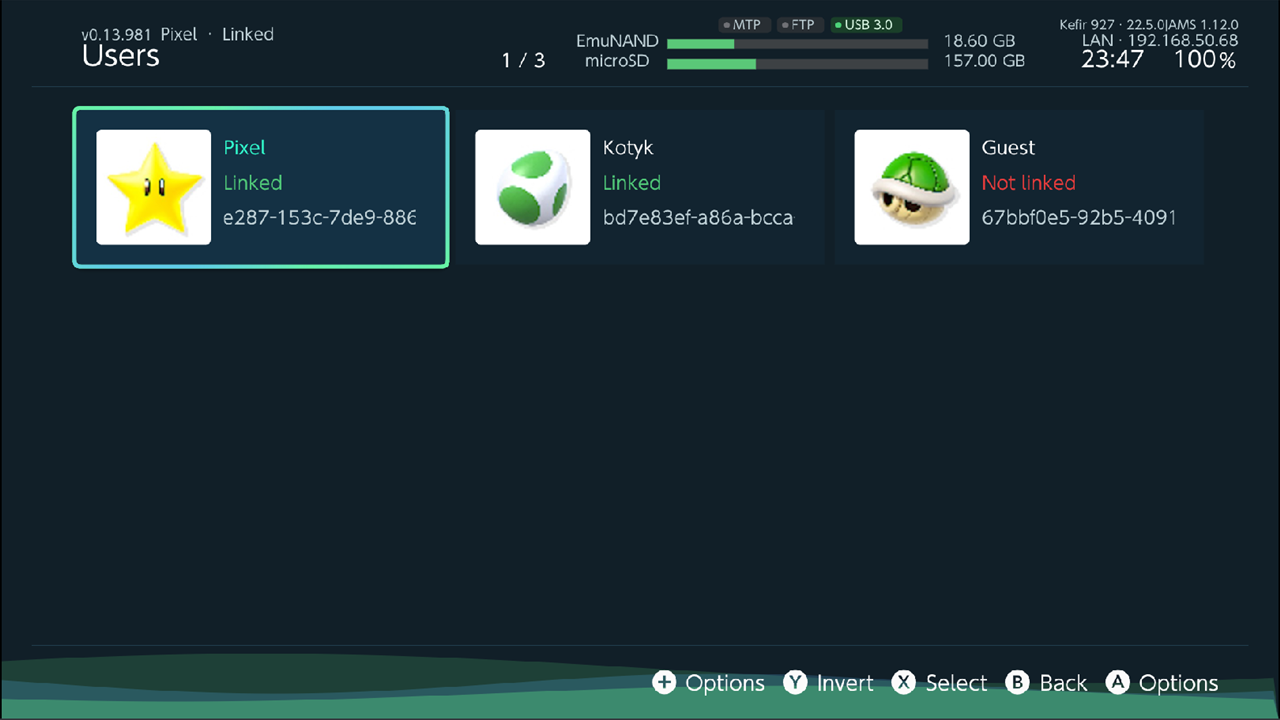
The profile list
Each profile shows its avatar, name, link status and user ID. The status is one of:
| Status | Meaning |
|---|---|
| Linked (green) | The profile has a Nintendo Account link. This can be a real account or a link made by Kefir Hub; the list does not tell them apart. |
| Not linked (red) | The profile has no Nintendo Account link. |
| Link status unavailable (grey) | Kefir Hub could not read the link status of this profile. |
Buttons on this screen:
- A or + opens Options for the selected profile.
- X marks a profile, Y inverts the marks. Marked profiles are used by Delete user and Unlink Nintendo Account.
- B clears the marks; with nothing marked it goes back.
Create a profile
- Press A and choose Create user.
- The console's own user creator opens. Pick a name and an icon there and finish.
- The new profile appears in the list.
A console holds at most 8 profiles. With 8 profiles, Kefir Hub shows a message and does not open the creator.
Rename a profile
- Select the profile, press A, choose Rename.
- Type the new name on the keyboard and confirm.
A name holds up to 31 Latin characters or up to 15 Cyrillic letters. A longer name is cut without a warning.
Change the avatar
- Select the profile, press A, choose Change avatar.
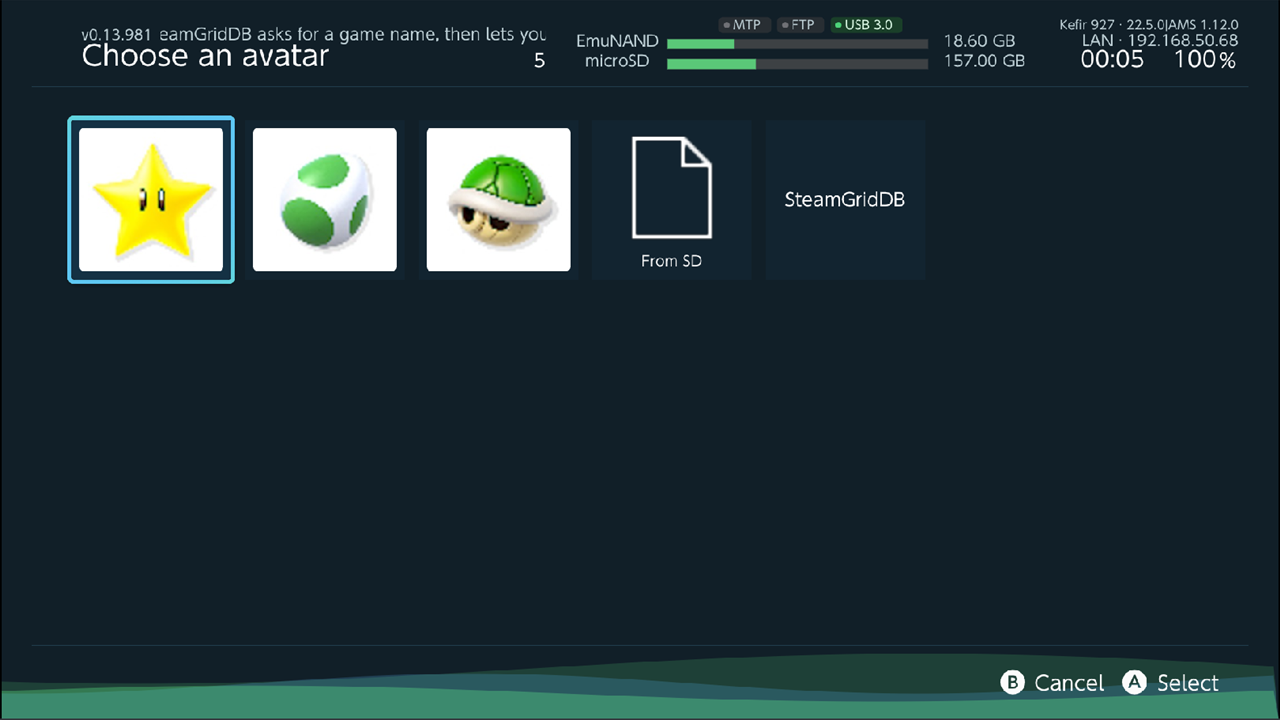
- In Choose an avatar pick one of:
- an avatar of another profile on this console;
- an image from
/config/kefir/avatars/(.jpg,.jpeg,.png,.bmp) — these appear as tiles; - From SD — choose any image on the memory card, then crop it;
- SteamGridDB — type a game name, then pick an icon. This needs internet and a SteamGridDB API key; without a key, Kefir Hub shows a QR code so you can paste the key from a phone.
- Kefir Hub writes the avatar and asks to reboot. The new avatar shows on the HOME Menu after the reboot. Press Reboot now or Later.
Delete a profile
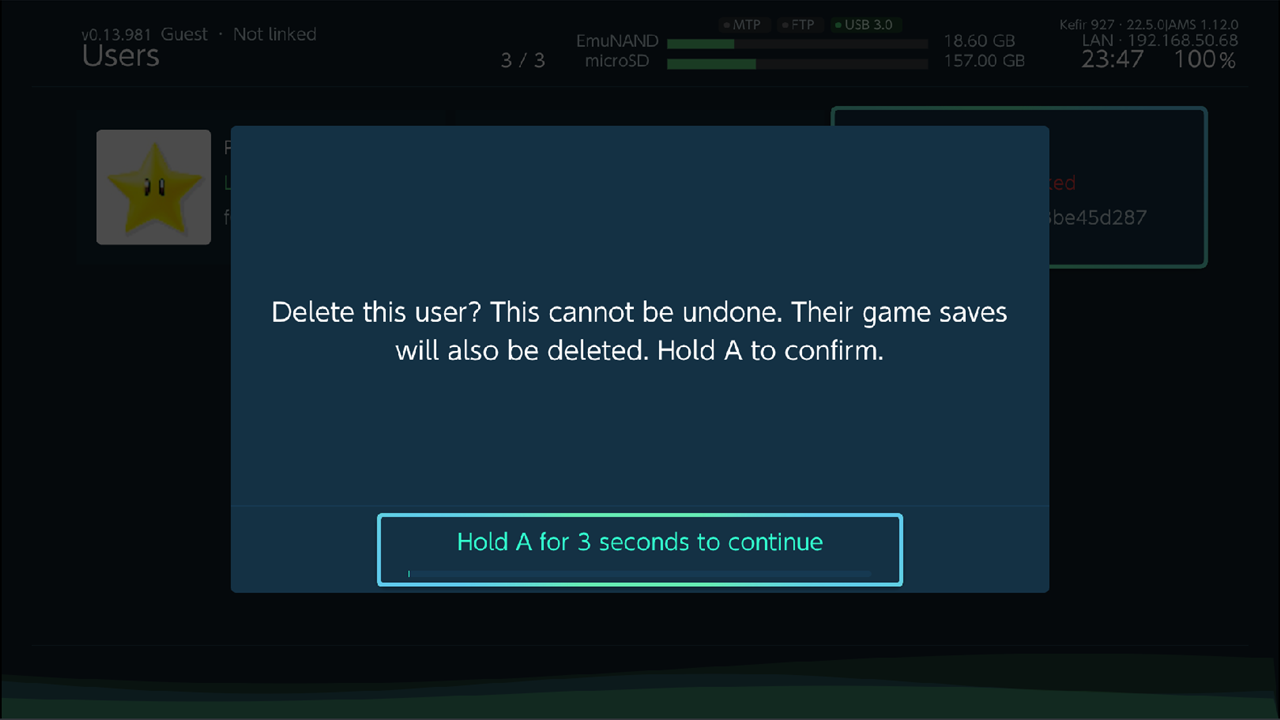
- Select the profile (or mark several with X), press A, choose Delete user.
- Hold A to confirm. The game saves of the deleted profiles are deleted too.
- Kefir Hub offers to back up all profiles on the console (name, avatar, Nintendo Account link) first.
Choose Backup all accounts or Skip. The backup goes to
/config/kefir/account_backups/. - If the profiles have game saves, Kefir Hub offers to back them up. Choose Choose saves, mark games with X and press A to back up the marked saves, or choose Skip. The saves go to your save backup folder, see Saves.
- The profiles and their saves are deleted.
You cannot delete every profile: at least one must stay.
Warning
Deleting a profile cannot be undone. Restoring the profile backup made in step 3 is not available yet. Back up the game saves you want to keep.
Link profiles to a Nintendo Account offline
Some games refuse to start unless the profile is linked to a Nintendo Account. They only check that a link exists. Kefir Hub can create such a link without internet, using accounts built into Kefir Hub ("donors").
What happens:
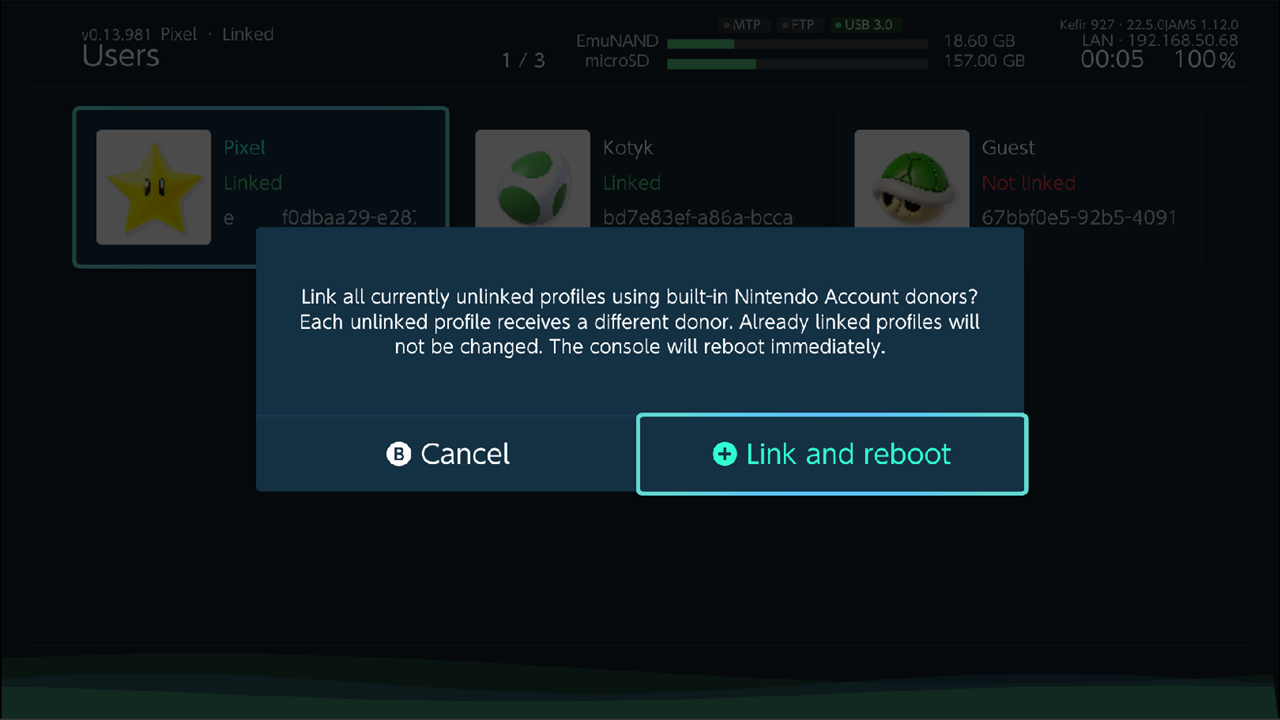
- Every profile with Not linked gets a link. Each one gets a different donor. Profiles that are already linked are not changed.
- Game saves are not deleted or changed.
- The console reboots right after linking.
- Before writing, Kefir Hub copies the link files it replaces to
/config/kefir/account_link_rollback/.
Steps:
- Press A and choose Link Nintendo Account.
- Confirm with Link and reboot.
- After the reboot, the profiles show Linked.
Danger
Use this only on emuMMC (emuNAND) that is isolated from Nintendo servers. A donor link carries a ban risk; it works only because the console does not talk to Nintendo servers. The donor link is not your Nintendo Account. The same donor accounts are built into every copy of Kefir Hub.
Remove a Nintendo Account link
- Mark the linked profiles to unlink with X. With nothing marked, all linked profiles are unlinked.
- Press A, choose Unlink Nintendo Account, confirm with Unlink and reboot.
- The console reboots.
This removes any link, including a real Nintendo Account, not only donor links.
If you unlinked a real Nintendo Account on emuMMC, link the profile again through Link Nintendo Account in Kefir Hub, not through System Settings.
The link reminder at startup
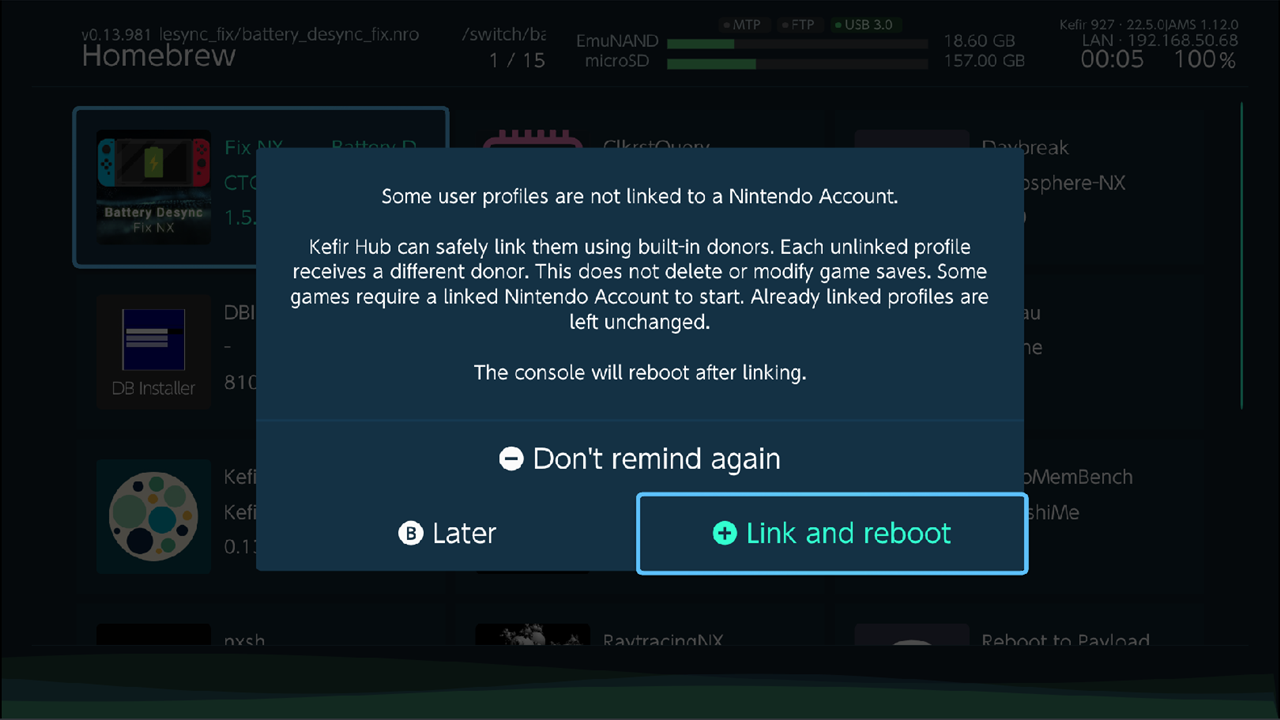
When Kefir Hub starts and at least one profile is Not linked, it offers to link them:
- Link and reboot links all unlinked profiles, as described above.
- Later closes the reminder. It comes back the next time Kefir Hub starts.
- Don't remind again turns the reminder off. You can still link from Users.
The reminder is not shown when Kefir Hub runs over a suspended game in applet mode, or when an unfinished profile restore is waiting (Kefir Hub shows the restore message instead).
There is no menu switch to turn the reminder back on. To do it, open /config/kefir/config.ini and set
account_link_prompt_skip=0 in the [config] section.
Back up and restore profiles & play hours
The CONSOLE MOVE part of Options copies every profile on the console together with the play hours (the play time the HOME Menu and activity log show). The main use is moving to another console, see Console Transfer. You can also use it as a backup of this console.
Back up
- Press A, choose Backup profiles & play hours, confirm with Backup.
- Kefir Hub copies the profiles and play hours to
/config/kefir/nand_transfer/as a.kefir-nand.zipfile. - If the system is using one of these files at that moment, the console restarts into TegraExplorer by itself, copies them there, and returns to hekate. Start Kefir again and open Kefir Hub: it reports that the dump is done.
Restore
Warning
Restore replaces all profiles on this console with the ones in the backup. With play hours, the play history of this console is replaced too. Make a SYSTEM backup in hekate first.
- Press A, choose Restore profiles & play hours.
- Select a backup and press A.
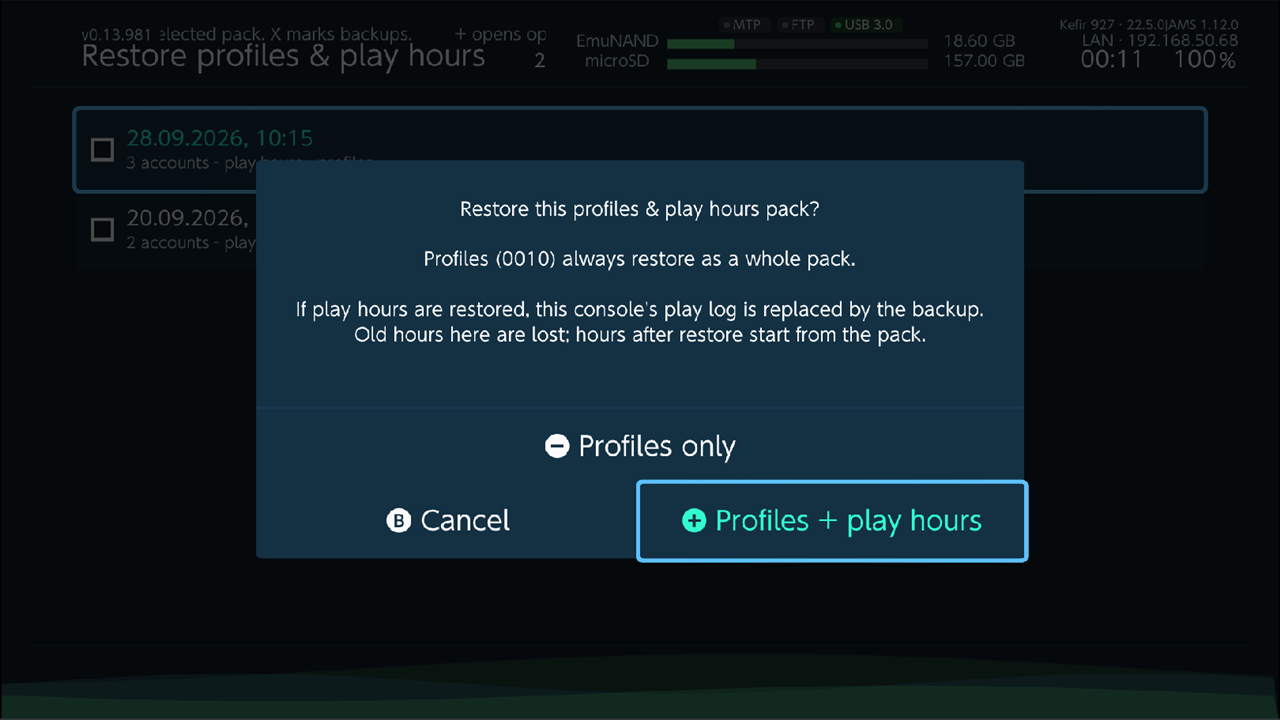
- Choose Profiles only or Profiles + play hours. A backup without play hours offers Restore profiles.
- Kefir Hub prepares the restore and shows what will happen. Press Launch TegraExplorer.
- The console restarts into TegraExplorer, writes the backup, and returns to hekate. Do not touch the console while TegraExplorer works.
- Start Kefir again and open Kefir Hub. It shows whether the restore finished.
The restore goes to the system you run Kefir Hub from (emuMMC or sysMMC). If the console does not boot afterwards, see Undo a profiles restore.
Manage backups
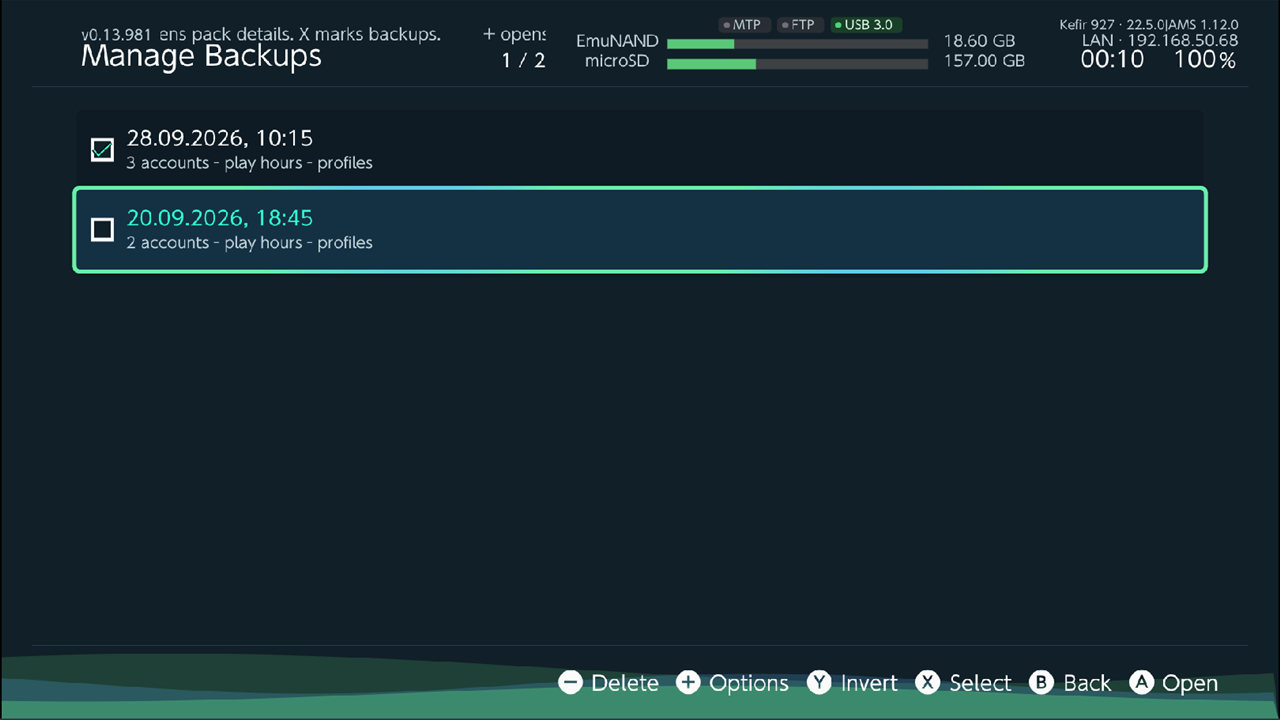
Manage Backups lists the backups in /config/kefir/nand_transfer/. Each row shows the name, date, number of
profiles and whether play hours are inside.
- A opens the backup: the profiles in it with names and avatars. A there restores it.
- X marks backups, − deletes the marked (or selected) backups after a confirmation.
- + opens Options: Open, Restore, Receive from another console, Rename, Delete, Send to another console, and selection commands.
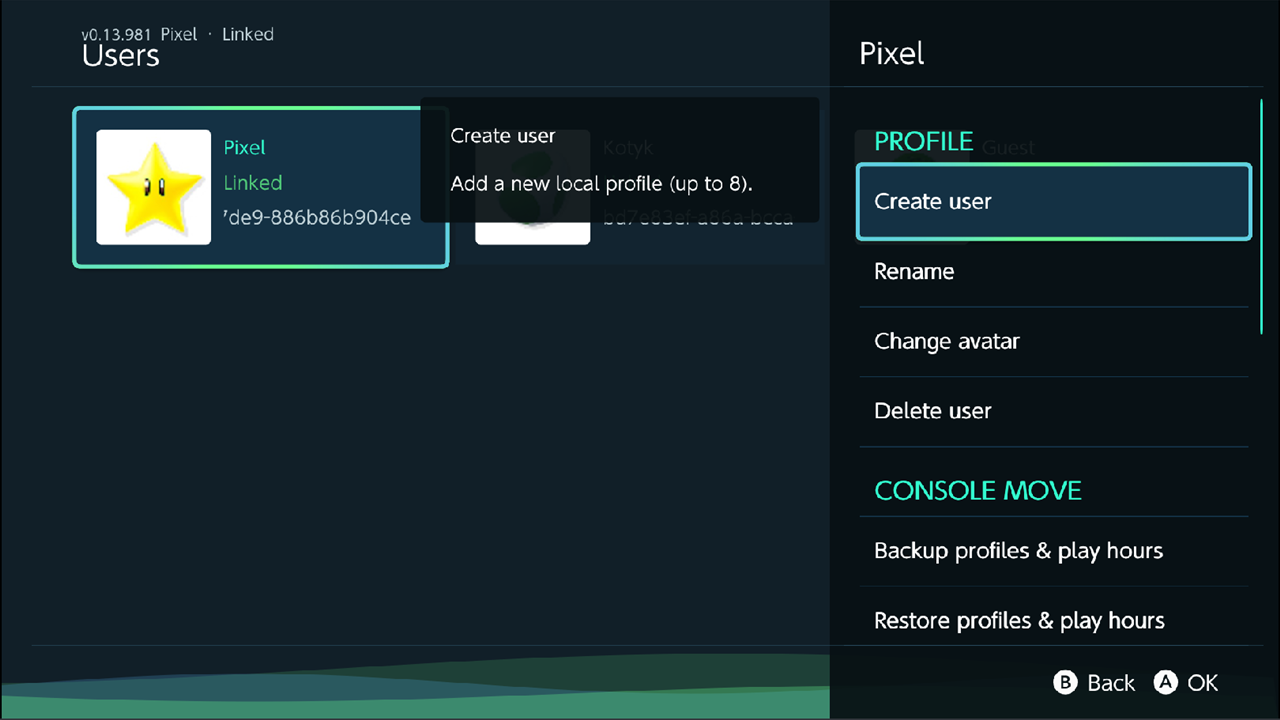
Options
| Option | What it does |
|---|---|
| Create user | Opens the console's user creator. Up to 8 profiles. |
| Rename | Changes the profile name. |
| Change avatar | Picks a new avatar; takes effect after a reboot. |
| Delete user | Deletes the selected or marked profiles and their game saves. |
| Backup profiles & play hours | Copies all profiles and play hours to the memory card. |
| Restore profiles & play hours | Writes a backup to this console through TegraExplorer. |
| Manage Backups | Lists, opens, renames, deletes and sends profile backups. |
| Receive from another console | Downloads backups from another console, see Console Transfer. |
| Restore from another console | Downloads one backup from another console and restores it. |
| Link Nintendo Account | Links all unlinked profiles with built-in donors; reboots. |
| Unlink Nintendo Account | Removes the link from marked (or all) linked profiles; reboots. |
| Layout | List, Icon or Grid. Default: Grid. |
Problems
"Linking is unavailable in applet mode while a game is suspended". Close the game, or start Kefir Hub as an installed title, then try again.
"Failed to link Nintendo Account." Linking stops when a profile shows Link status unavailable or when there
are not enough unused donors for all unlinked profiles. Check /config/kefir/log.txt (lines starting with [ACC]).
The new avatar does not show. Reboot the console.
"Cannot delete every user profile. Keep at least one." Create another profile first, or delete fewer.
"Could not start TegraExplorer". Kefir Hub puts its own copy of TegraExplorer.bin into
/bootloader/payloads/. If that failed, copy TegraExplorer.bin there yourself and try again.
The console does not boot after a restore. See Undo a profiles restore.