System tools
Manage sysmodules, set the fan curve, manage saved Wi-Fi networks and user profiles.
Where: Tools → Tools
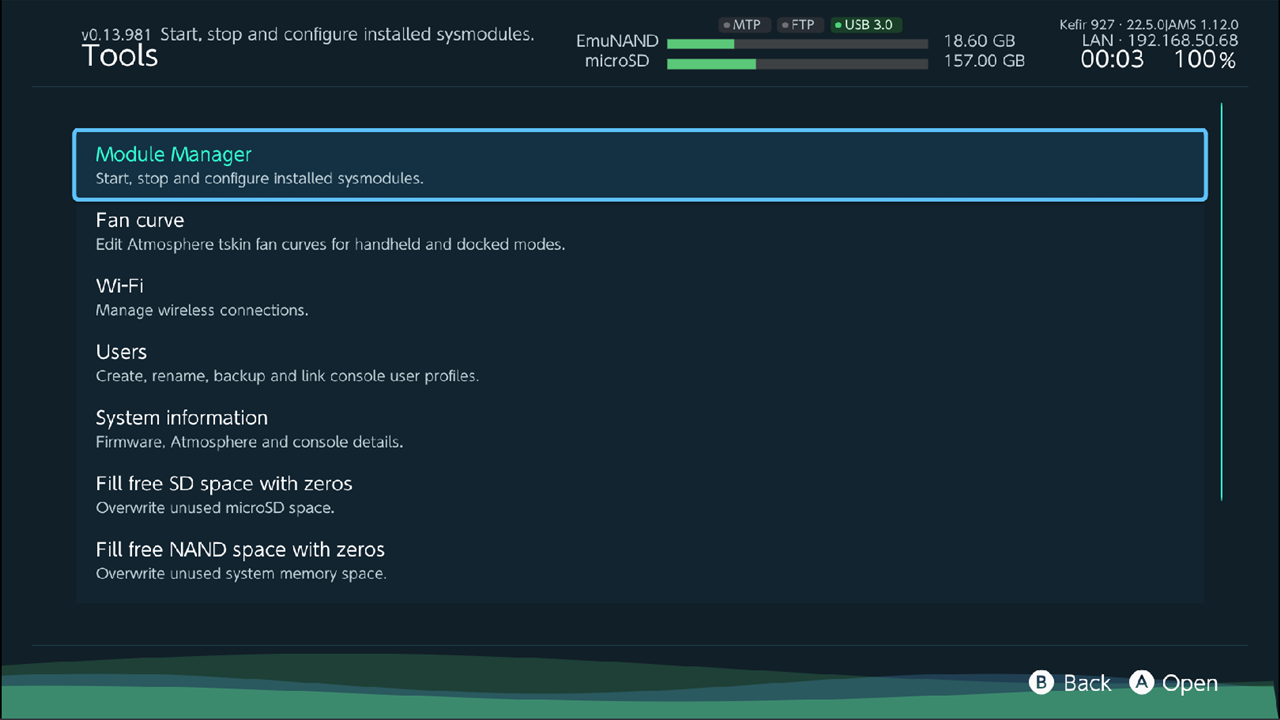
| Item | What it is |
|---|---|
| Module Manager | Start, stop and set autostart for installed sysmodules. |
| Fan curve | Fan speed curves for handheld and docked mode. |
| Wi-Fi | Saved Wi-Fi networks. |
| Users | Console user profiles. See Users. |
| Fill free SD space with zeros | Overwrites the unused space of the memory card. See Fill free space with zeros. |
| Fill free NAND space with zeros | Overwrites the unused space of the console's system memory. |
| Clean system junk | Deletes leftovers. See Clean system junk. |
| System information | Firmware, Atmosphère, battery and hardware details. The report is also saved to /config/kefir/system-info.txt. |
Remove parental controls is planned; it opens a "Coming soon" message.
Module Manager
Shows every sysmodule installed in /atmosphere/contents on the memory card, whether it runs now, and whether it starts at boot.
Where: Tools → Tools → Module Manager
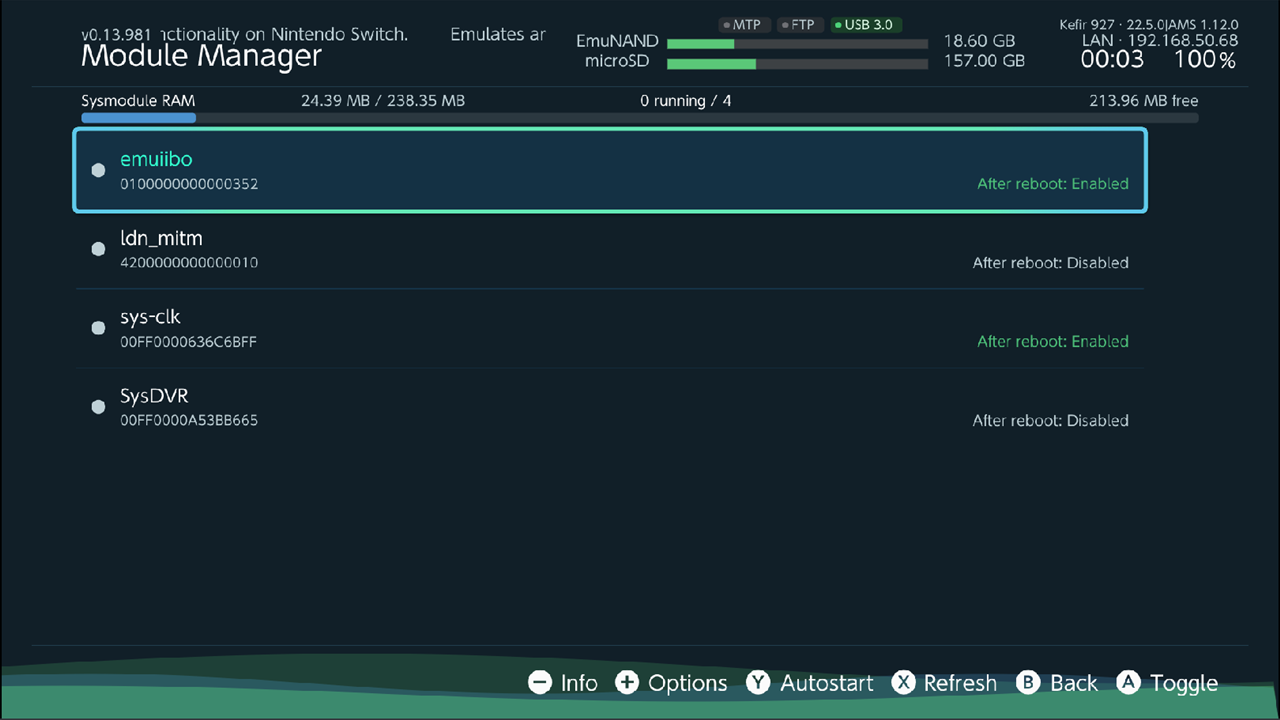
Each row shows:
- a green dot when the module runs now, grey when it does not;
- its name and program ID; "Applies after reboot" when the module can only start at boot;
- the RAM it uses, when it runs;
- "After reboot: Enabled" or "After reboot: Disabled" — whether it starts when the console boots.
The bar at the top (Sysmodule RAM) shows how much of the system memory pool is used and how much is free.
Start or stop a module
- Select the module.
- Press A (Toggle). A running module stops; a stopped module starts.
Some modules cannot be toggled here:
- A module marked Applies after reboot cannot start while the console runs. Use autostart and reboot.
- sys-patch starts at boot and does not need to be started again.
- FunControl (the fan module) is started by Kefir Hub when you use Fan curve and stopped automatically.
Start a module at boot
- Select the module.
- Press Y (Autostart). The right column changes to "After reboot: Enabled" or "After reboot: Disabled".
- The change takes effect on the next boot.
Module details
Press − (Info) to see the name, program ID, current state, RAM use, autostart state and a description (taken from the module's GitHub page when available).
Options
Press + (Options).
| Option | What it does |
|---|---|
| Start / Stop | Same as A for the selected module. |
| Autostart | Same as Y. |
| Info | Same as −. |
| Filter | Show All, Running, Stopped, Autostart or Applies after reboot modules. |
| Sort | Order by Name, Running or Autostart. |
Press X (Refresh) to read the states again.
Warning
Stopping a module the system or a running game depends on can make it crash. If something stops working, reboot.
Fan curve
Sets how fast the fan spins at each temperature, separately for handheld and docked mode.
The curve is written to Atmosphère's system_settings.ini.
Where: Tools → Tools → Fan curve
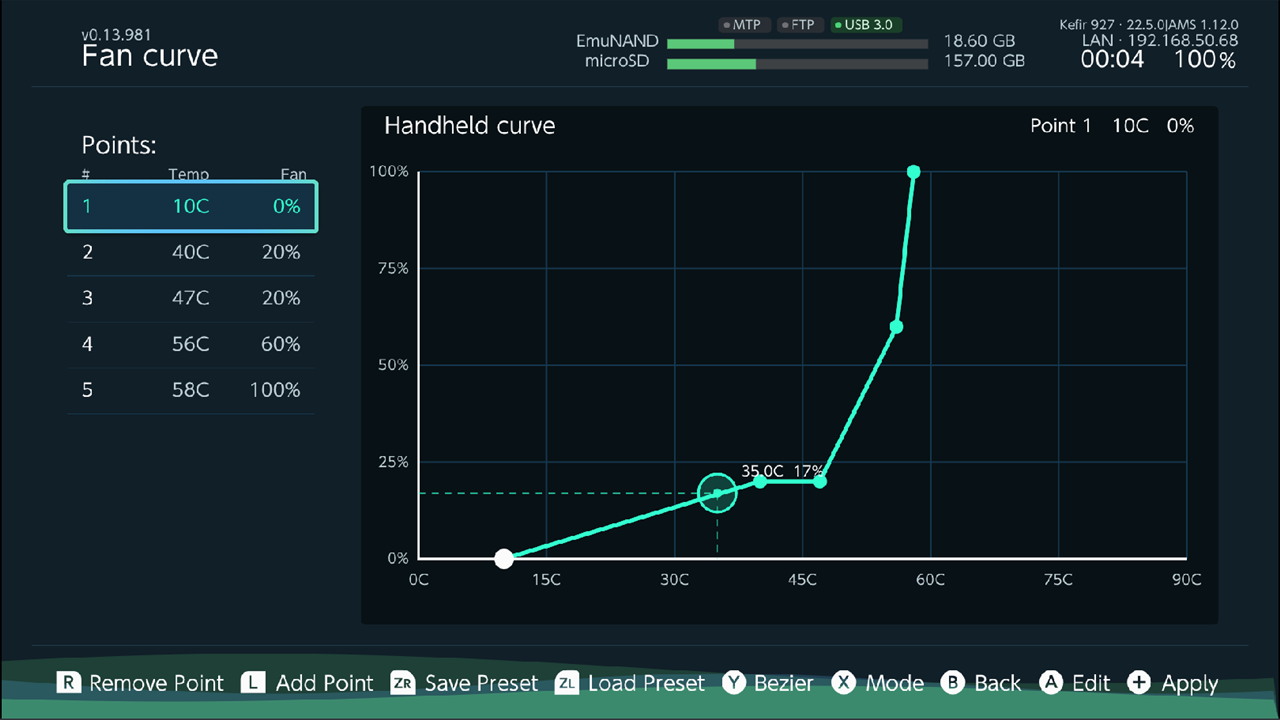
The first time, Kefir Hub offers to install the Kefir fan module. With it, a new curve applies without a reboot and the screen shows live sensor readings. Choose Install (recommended) or No. If the module needs a reboot to start, Kefir Hub asks Later or Reboot.
Edit the curve
- Press X (Mode) to switch between the handheld and the docked curve.
- Select a point with D-pad up/down, or tap it on the graph.
- Press A (Edit). Use D-pad left/right to change the temperature and up/down to change the fan speed. Press A or B (Done) to stop editing.
- L (Add Point) adds a point; R (Remove Point) removes the selected point. A curve needs at least two points.
- Press + (Apply) to save both curves and apply them.
Points stay in order: a point cannot move past its neighbours.
Y switches to Bezier mode: you move three control points (Min, Mid, Max) and the curve follows them smoothly. Press Y (Manual Mode) to return to editing single points.
If you press B with changes not applied, Kefir Hub asks to Discard them.
Presets
- ZL (Load Preset) loads a preset into the current mode: Cold console, Quiet, Balanced, Fan off, Fan 100%, or one of three custom presets.
- ZR (Save Preset) saves the current curve to one of three custom slots. Enter a name.
Custom presets are stored separately for handheld and docked mode.
Warning
Fan off keeps the fan at 0% at every temperature on the curve (10–90 °C), and Fan 100% keeps it at full speed. Watch the temperature if you use Fan off while playing.
Wi-Fi
Lists the Wi-Fi networks saved on the console. Connect to one, edit or delete it. New networks are added in the console's System Settings.
Where: Tools → Tools → Wi-Fi
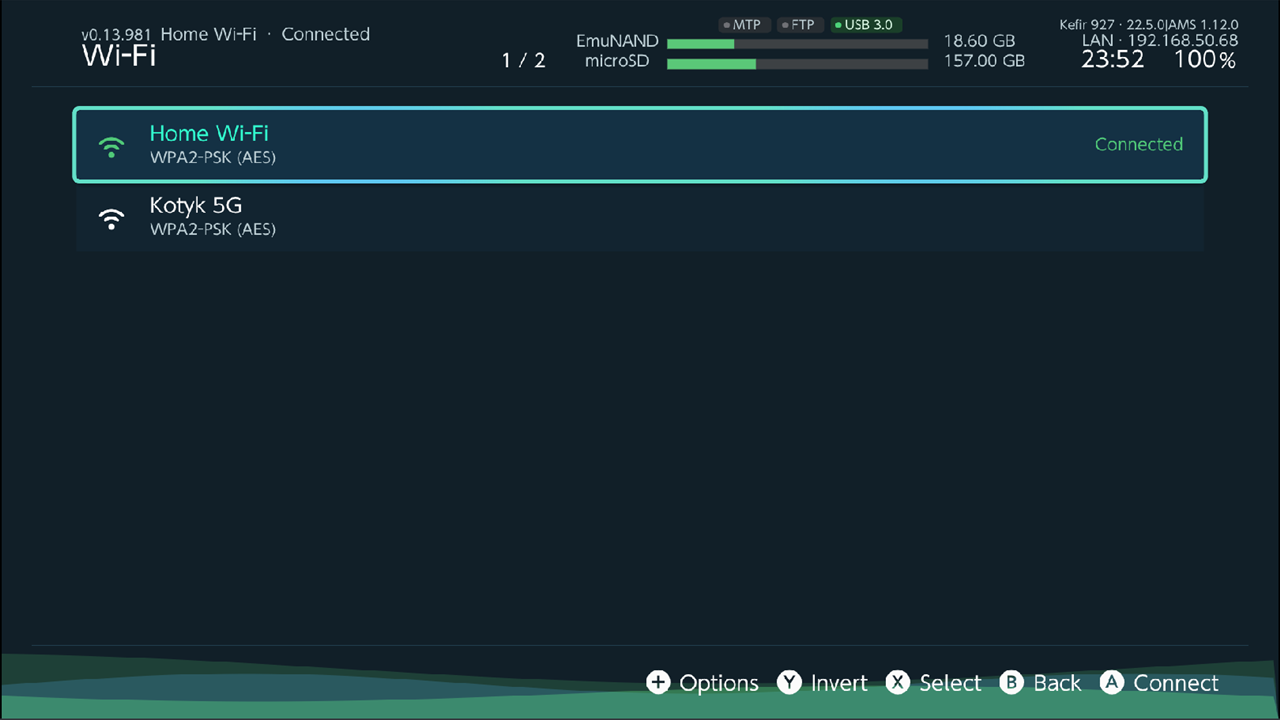
Connect to a saved network
- Select the network.
- Press A (Connect) and confirm.
- The title shows the result, or "Connection timed out".
Edit or delete a network
Press + (Options) on a network:
| Option | What it does |
|---|---|
| Connect | Connect to this network. |
| Rename | Change the name shown for this network. |
| Change password | Set a new Wi-Fi password without opening System Settings. |
| Edit SSID | Change the network name (SSID) the console looks for. |
| View password & details | Show the SSID, security type and saved password. |
| Delete network | Remove the saved network. |
| Turn Wi-Fi Off / Turn Wi-Fi On | Switch wireless communication off or on. |
| Refresh | Reload the saved networks. |
Warning
View password & details shows the password in plain text on screen.
Delete several networks
- Press X (Select) on each network, or Y (Invert) to invert the selection.
- Press + → Delete selected and confirm.
Press B to clear the selection.
Users
Create, rename, back up and link console user profiles. See Users.
Clean system junk
Deletes what installs and removed games leave behind.
Where: Tools → Tools → Clean system junk
Turn off what you want to keep, then choose Run selected. The message at the end tells how much space came free.
| Item | What it deletes |
|---|---|
| Old game updates | An update when a newer one of the same game is installed. |
| Lost content on the SD card, Lost content in system memory | Game files no installed game uses. |
| Unfinished installs on the SD card, Unfinished installs in system memory | Pieces of installs that stopped half way. |
| Unused tickets | Tickets of games that are no longer installed. |
| Error reports | Crash reports in /atmosphere/erpt_reports. |
| Folders of removed games | Folders in /atmosphere/contents of games that are no longer on the console. Sysmodules are kept. |
| Saves of removed users | Saves of users that were deleted from the console. Off by default: these cannot be restored. |
Fill free space with zeros
Overwrites the space no file uses with zeros, on the memory card or in the console's system memory. Files, games and saves stay as they are. Use it before you sell or hand over a console or a card, so deleted data cannot be recovered.
Where: Tools → Tools → Fill free SD space with zeros or Fill free NAND space with zeros
- Select the item and confirm with Fill.
- Wait. The bar shows how much is written; it can take a long time on a large card.
- B cancels; the space written so far is freed again.
Kefir Hub keeps 64 MB free while it writes, so the system can still save its own data.
Problems
"Could not start this module." Some modules load only at boot. Set Autostart and reboot.
"Failed to activate fan module." The curve is saved but not active. Hold A to reboot and apply it, or apply it after the next reboot.
"No saved Wi-Fi networks". Add a network in the console's System Settings first.