Install from the microSD card
Install NSP, NSZ, XCI and XCZ files that are already on the microSD card. The same steps work for files on a USB drive or a network share opened in the File Browser.
Where: Tools → File Browser
Turn installing on first (see Turn installing on).
Install one file
- Open Tools → File Browser and go to the folder with the file.
- Highlight the file and press A.
- The Install queue opens and checks the file. Nothing is installed yet.
- Check the target and size, then press A (Install selected).
Install several files
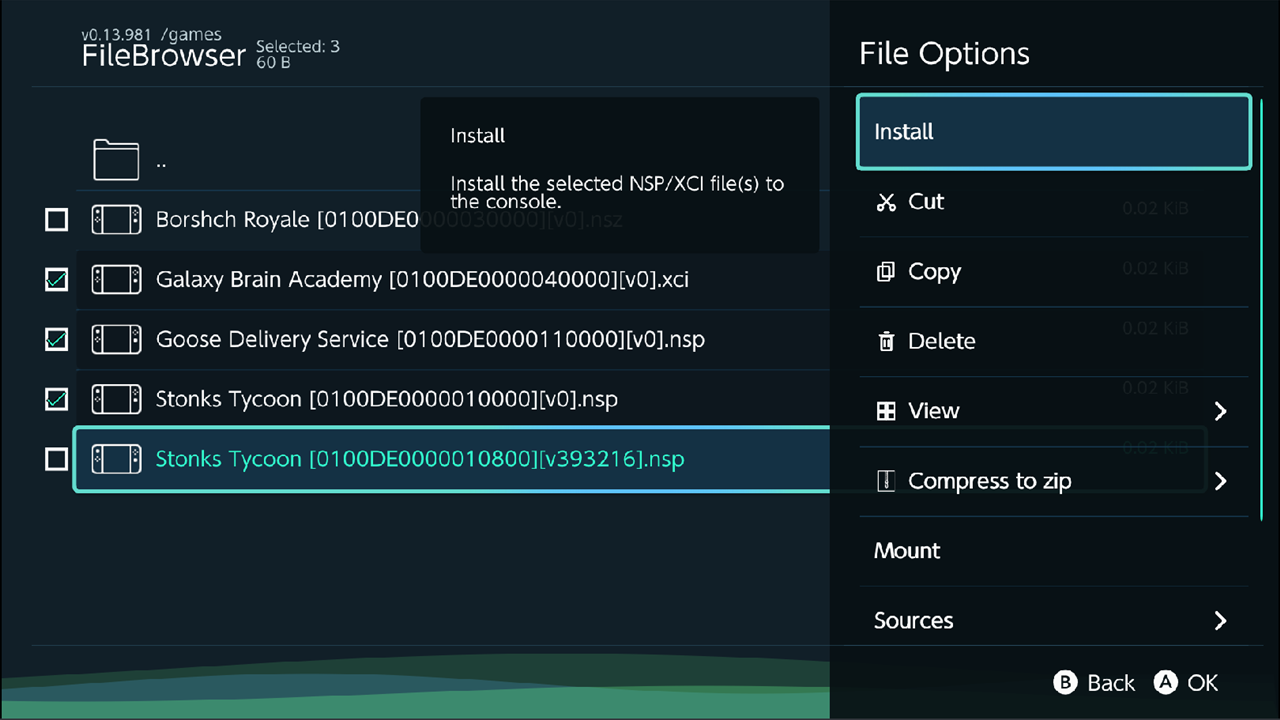
- In the File Browser, highlight each file and press X (Select). Press Y (Invert) to invert the selection.
- Press + and select Install.
Install appears only when every selected item is an NSP, NSZ, XCI or XCZ file.
Install a whole folder
Kefir Hub can search a folder and all its subfolders for packages.
- In the File Browser, highlight a folder. To use several folders, select them with X.
- Press + and select Install recursively.
- Kefir Hub shows Scanning... while it searches. Press B to stop.
- The Install queue opens with every package it found.
If the folders hold no packages, you see No packages found.. Install recursively is not offered in the list of drives or inside an archive.
Review the queue
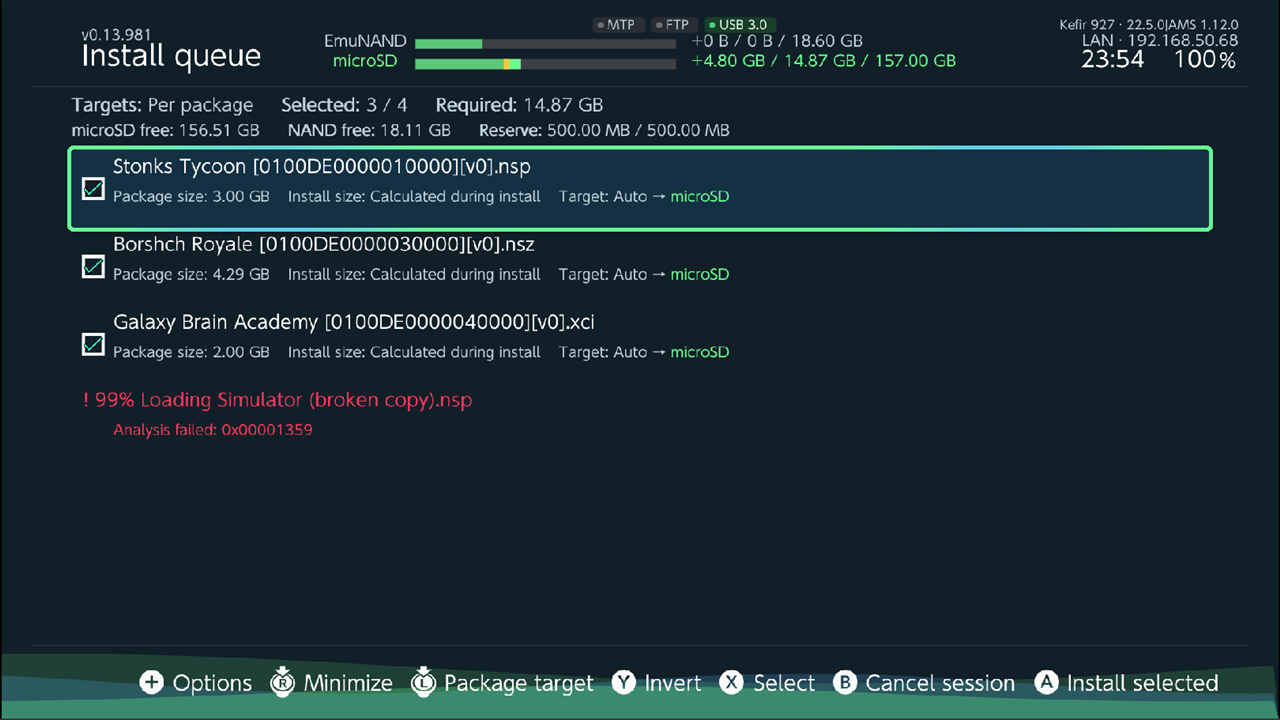
Every package is checked before anything is installed. The queue then shows:
- At the top: Selected packages, Required space, free space on the microSD card and the system memory after the reserve, and the Reserve itself. The storage bars in the status area show how much the selected packages will use.
- For each package: Package size, Install size and the Target storage. When the target is chosen automatically it reads Auto → microSD or Auto → System memory.
- A package that could not be read is shown in red with Analysis failed and cannot be selected.
For files on a network share the install size is not checked in advance; the queue shows Calculated during install.
| Button | Action |
|---|---|
| A | Install selected. If nothing is selected, installs the highlighted package. |
| X | Select or unselect the highlighted package. |
| Y | Invert the selection. |
| L3 | Package target: switch the highlighted package between Auto, microSD and System memory. |
| + | Options, see Queue options. |
| R3 | Minimize, see Keep using the console while it installs. |
| − | Screen off, see Turn the screen off. |
| B | Cancel session: close the queue without installing. |
Watch the progress
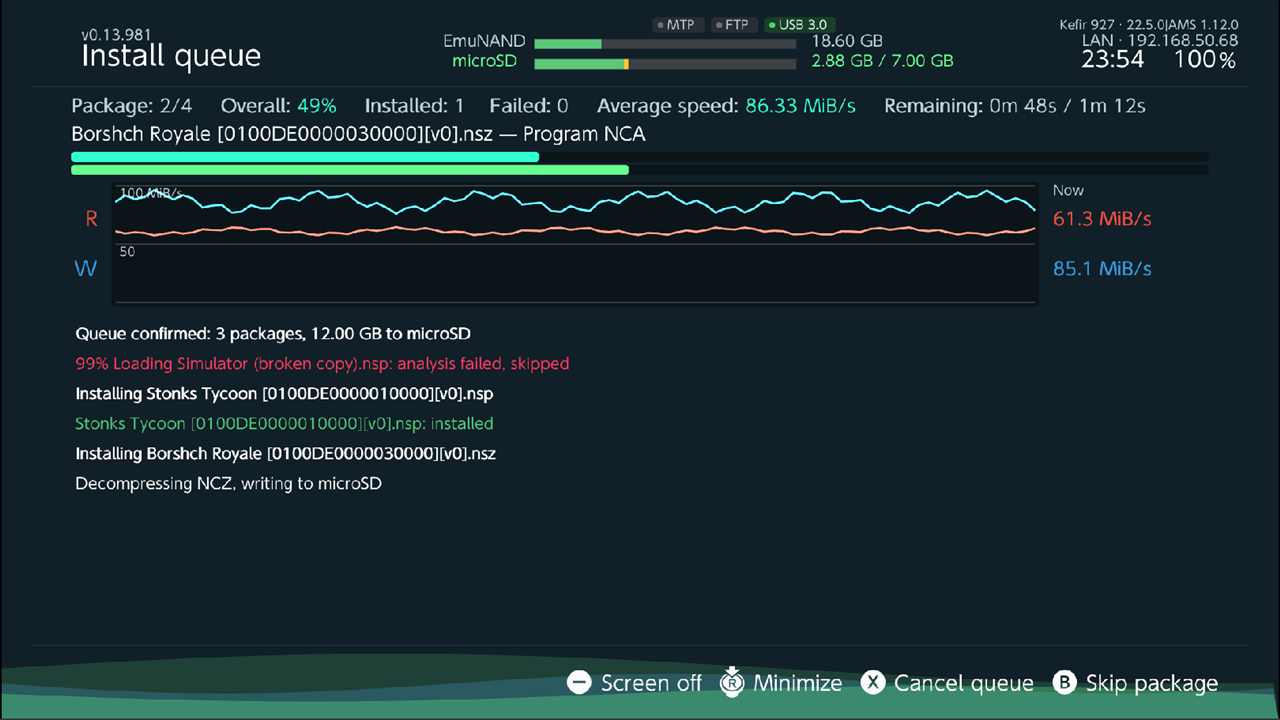
While the queue runs, the top row shows the Package number, Overall progress, how many packages are Installed and Failed, the Average speed and the time Remaining. Below it are the current package, a speed graph and a log of every step.
| Button | Action |
|---|---|
| B | Skip package: stop the current package and go on to the next. Asks Skip this package? first. |
| X | Cancel queue: stop everything. Asks Cancel installation queue? first. |
| + | Options. |
| R3 | Minimize. |
| − | Screen off. |
If Skip if already installed is set to Prompt, the queue stops at each installed title and asks Already installed. Reinstall?.
Keep using the console while it installs
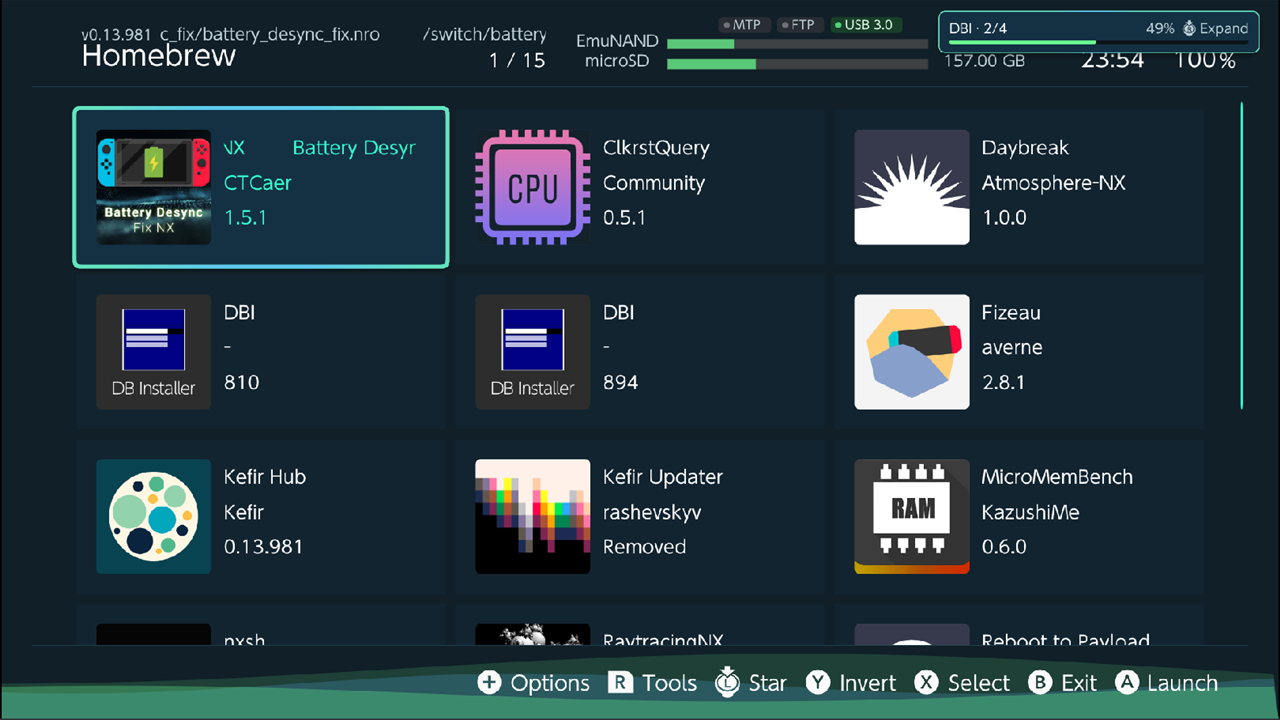
- Press R3 (Minimize). The queue keeps running and a small badge with the progress stays at the top right of the screen.
- Press R3 again from any menu, or tap the badge, to bring the queue back (Expand).
When everything is installed, the badge shows Finished and a full bar.
Turn the screen off
During a long queue, press − (Screen off). What happens depends on Minus button:
- Lower brightness: the screen is dimmed.
- Turn off backlight: the screen goes dark.
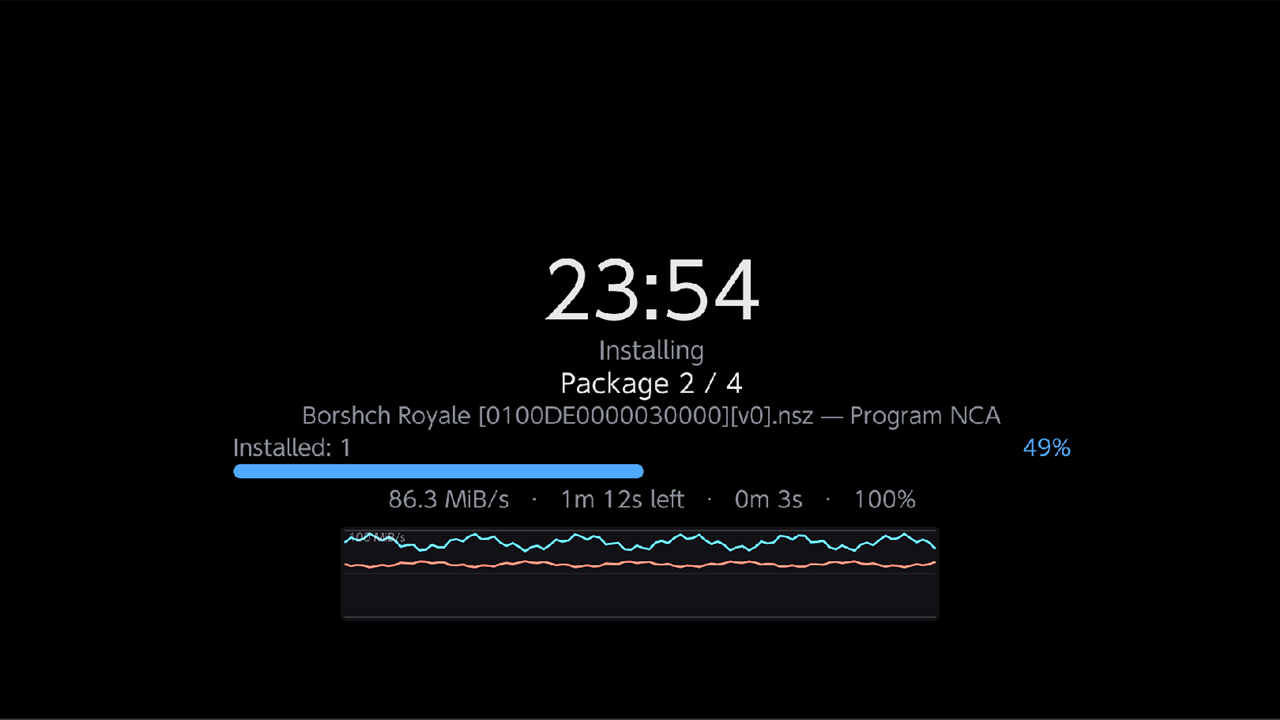
- Screensaver (default): a dark screen with the clock, progress and other details.
Press any button or touch the screen to wake it. The install keeps running either way.
These settings are in the queue's Options → Screen off (Minus) and in Tools → Settings → Install → Screen off (Minus):
| Option | What it does | Default |
|---|---|---|
| Minus button | What − does while the queue runs. | Screensaver |
| Inactivity timeout | Turn the screen off by itself after this long without input: Off, 30 s, 1, 2, 5 or 10 min. | Off |
| Brightness | Brightness for Lower brightness. | 10% |
| OLED mode | Keeps unused parts of the screensaver black. | On |
| Show on screensaver | Which details the screensaver shows: clock, status, package counter, current file, progress bar, speed, time remaining, elapsed time, battery, errors, speed graph. | All on |
When the queue finishes
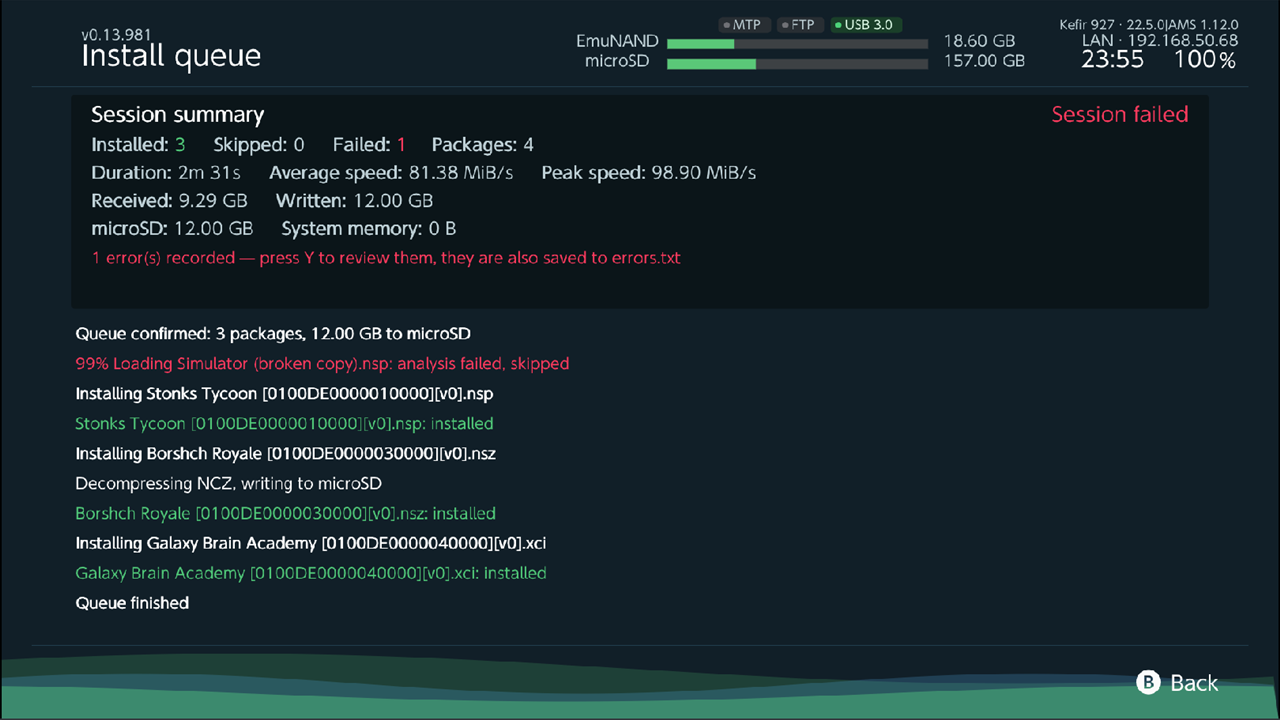
The Session summary shows how many packages were Installed, Skipped and Failed, how long it took, the average and peak speed, and how much was written to the microSD card and to the system memory.
- If something failed, press Y (Errors) to see the list. Press Y again for the Session log. The errors are also saved to
/config/kefir/errors.txt. - Press B (Back) to return to the queue. Press B (Cancel session) there to close it.
Cancel an install
Press X (Cancel queue) and confirm. Packages that finished stay installed. The package that was being installed is removed, so nothing half-installed is left.
Queue options
Press + in the queue. Changes are saved to Settings when Save options globally is on; otherwise they apply to this queue only.
| Option | What it does | Default |
|---|---|---|
| Skip if already installed | Reinstall, Skip or Prompt for content that is already installed. | Skip |
| Install location | Where packages go (see Where games go). | Automatic |
| Reserve free space (system) | Space in MB to keep free on the system memory. | 500 |
| Reserve free space (microSD) | Space in MB to keep free on the microSD card. | 500 |
| Screen off (Minus) | See Turn the screen off. | — |
| Sort | Before the install starts: Queue order, Name, Package size or Install size. | Queue order |
| Order | Ascending or Descending. | Ascending |
All other install options are in Settings, see Install options.
Problems
The install item is missing from the options menu. Not every selected item is an installable file. Unselect folders and other files, or use Install recursively for folders.
The queue says nothing is selected. You see Select at least one package: every package is unselected or failed the check. Select one with X.
A package is shown in red. It reads Analysis failed: the file is damaged, incomplete or not a game package. Check the file on a PC.
The queue warns about free space. You see Selected packages may not fit after the configured reserve. Continue?. Unselect some packages, move some to the other storage with L3, or lower the reserve in Options.
The screen seems to freeze during a long install. The install keeps going. If this bothers you, turn off Boost CPU during transfer in Tools → Settings → Install.