Updater
Update Kefir, install system firmware (update or downgrade), and keep Kefir Hub itself up to date.
Where: Tools → Updater
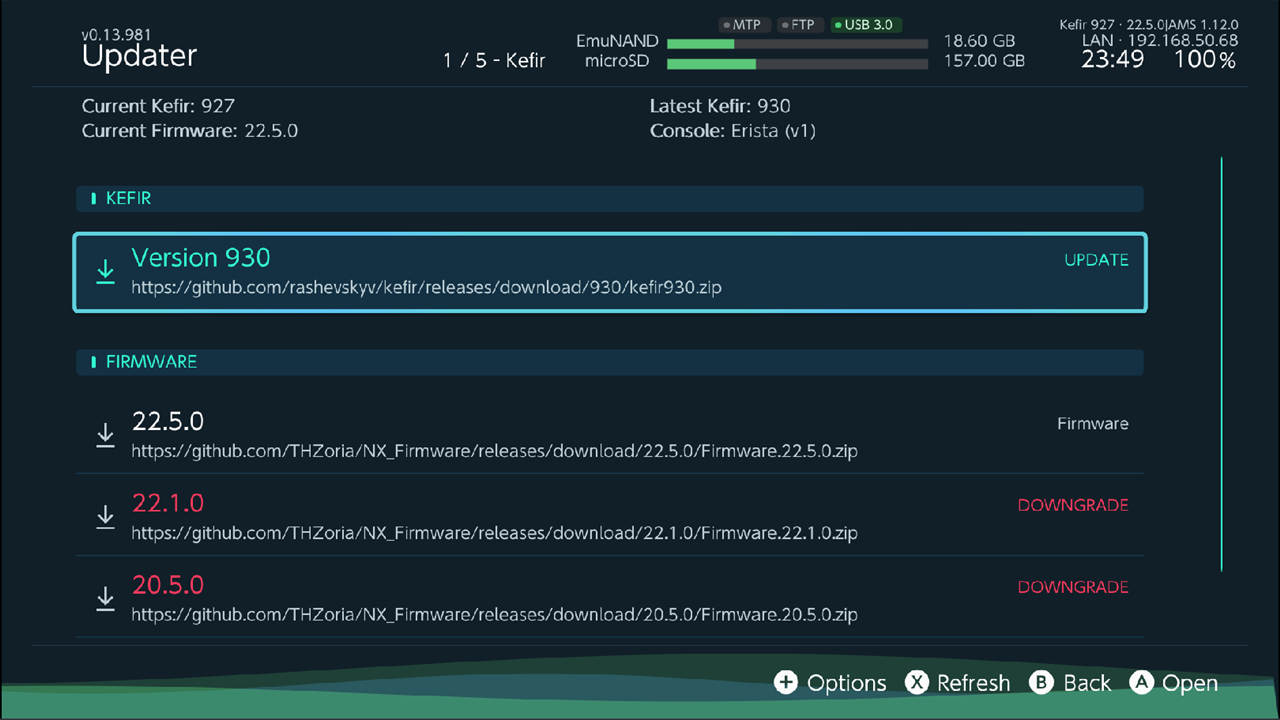
What the screen shows
The top of the screen shows four lines:
- Current Kefir: — the Kefir version installed on the memory card.
- Latest Kefir: — the newest Kefir version on the download list.
- Current Firmware: — the system firmware the console runs now.
- Console: — Erista (v1) or Mariko (v2).
Below are two sections:
- KEFIR — Kefir versions you can download. A newer version than yours is tagged UPDATE.
- FIRMWARE — firmware versions you can download, plus Install manually for a firmware you already have on the memory card. A version lower than yours is tagged DOWNGRADE. A version the installed Kefir cannot run is tagged Unsupported (with the highest supported version, when known).
The list is downloaded each time you open the Updater, so the console needs an internet connection. If it is not connected yet, the list loads by itself once it connects. Press X (Refresh) to load it again.
| Button | Action |
|---|---|
| A | Open the selected entry |
| X | Refresh the list and the version info |
| + | Options |
| B | Back |
Before you start
Warning
A firmware install writes to the console's system storage. Read this list first.
- Keep the console on the charger, or make sure the battery is well charged. Do not power it off during the install.
- Check the target. The install prompt names it: sysMMC (internal storage) or emuMMC (emuNAND). The firmware goes to the one you are running now.
- Back up your saves first (Saves).
- Custom system themes and system interface translations are deleted on every firmware install, update or downgrade. Re-install them afterwards (Themes, Kefir Settings).
- Do not keep your own files in the
/firmwarefolder on the memory card. A downloaded firmware replaces that folder and it is deleted after the install. - If the firmware is tagged Unsupported, update Kefir first (the Updater offers this).
- Leave enough free space on the memory card for the firmware archive and its unpacked copy: at least 300 MB free in addition to the archive.
Update Kefir
- In the KEFIR section, select the version you want and press A.
- A changelog window opens. It lists the changes between your version and the selected one (in Ukrainian when the interface language is Ukrainian).
- Scroll to the bottom with D-pad down (L / R scroll a page). Install unlocks only after you reach the end.
- Press D-pad down once more to select Install, then press A.
- Kefir Hub downloads the package and unpacks it to
/kefiron the memory card. It also updatespayload.binand the bootloader files. - When it finishes, the message "Kefir package installed. Reboot now?" appears. Choose Reboot to restart now, or Later.
After the reboot the update finishes by itself. You do not need to do anything.
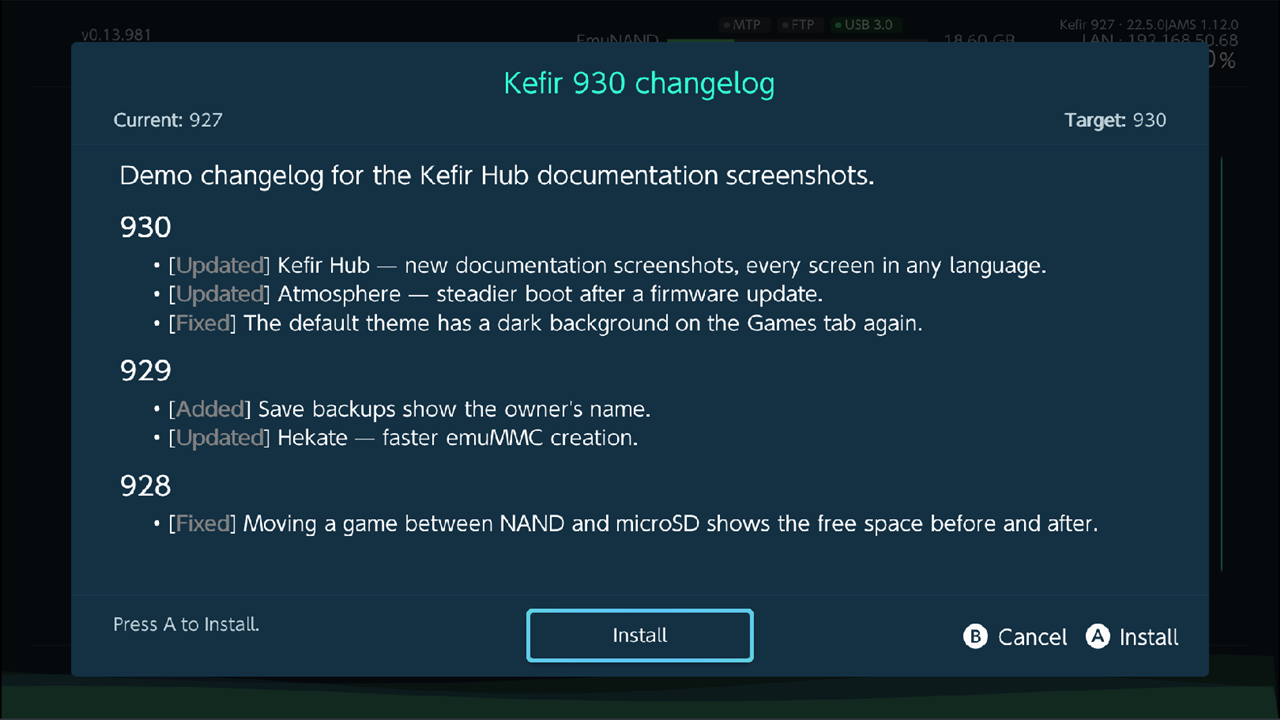
Press B in the changelog window to cancel. Nothing is downloaded until you press Install.
Update the firmware
- In the FIRMWARE section, select a version and press A.
- If the installed Kefir does not support that firmware, Kefir Hub offers Update Kefir first. Choose it to install Kefir; the firmware download continues after that.
- If the version is lower than yours, the downgrade warning opens first. See Downgrade the firmware.
- Confirm Download. The archive is saved to
/config/kefir-updater/firmware.zipand unpacked to/firmware. - Kefir Hub checks the firmware files ("Validating"). If the check fails, nothing is installed.
- The install prompt shows the version, the target (sysMMC or emuMMC) and whether exFAT is supported. Choose Install.
- Wait. Do not power off the console.
- When it finishes, a message tells you that custom themes and translations were removed. Choose Reboot.
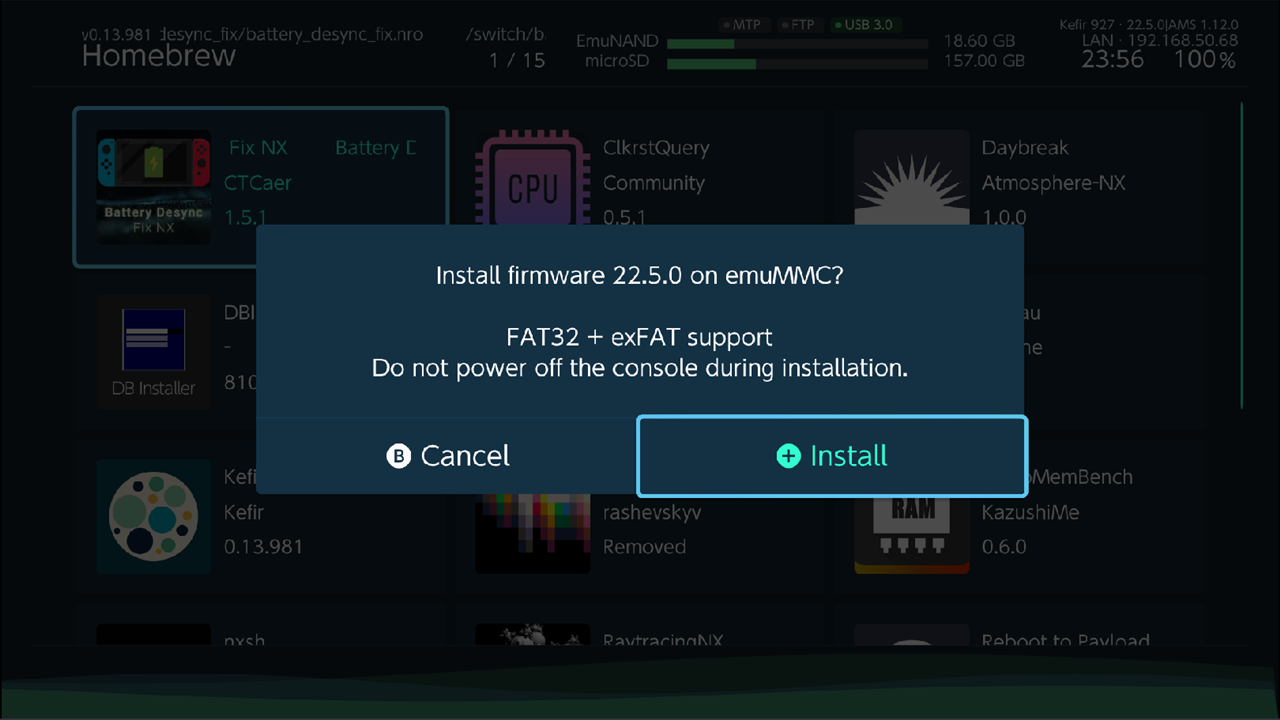
The downloaded firmware files (/firmware and the archive) are deleted after a successful install.
Install a firmware from the memory card
Use this when you already copied a firmware to the memory card, as a folder or as a .zip archive.
- In the FIRMWARE section, select Install manually and press A.
- A file browser opens with the title Select firmware folder.
- Pick the firmware:
- A folder: open the folder that contains the firmware files, then select the top row, Select current folder. Opening any file in a folder also selects that folder.
- A
.ziparchive: select the archive and press A.
- Confirm with Select ("Install firmware from this folder?" or "Install firmware from this archive?").
- An archive is unpacked to
/config/kefir-updater/firmware_manualfirst. - The same check, prompt and install as in Update the firmware follow.
- If you installed from an archive, Kefir Hub asks whether to delete the original archive: Keep or Delete.
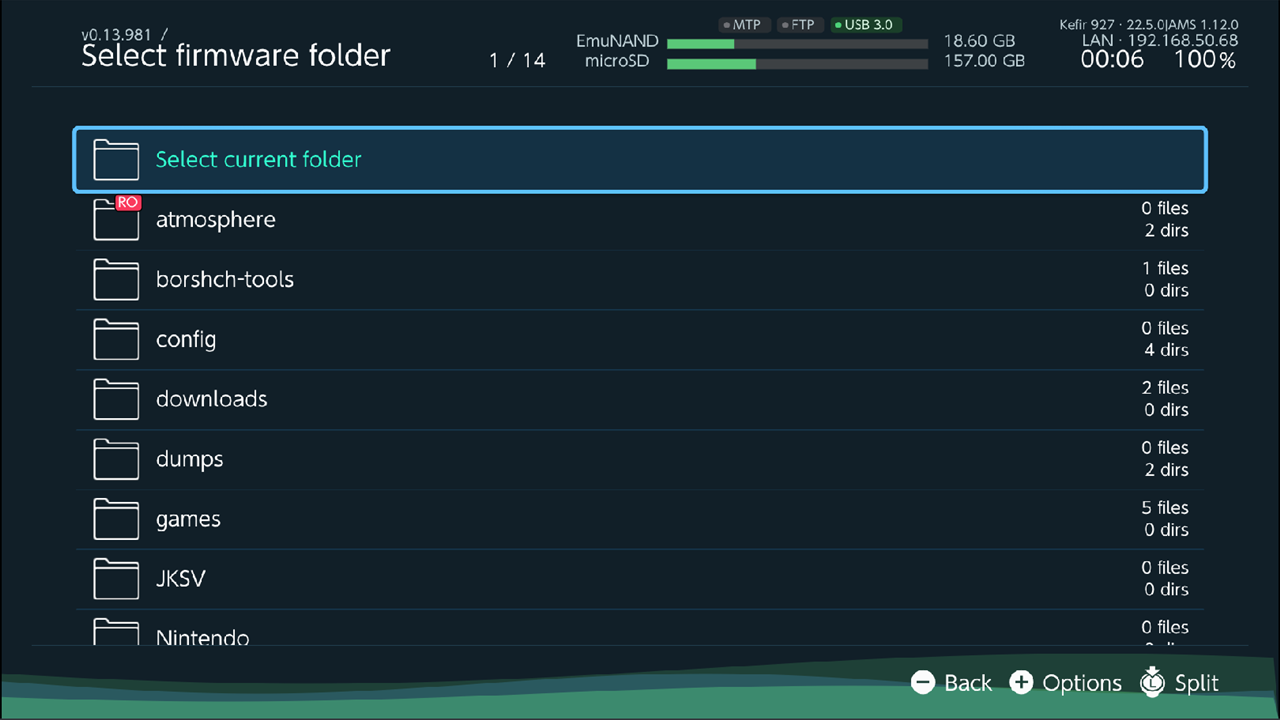
Your own folder is not deleted, unless it is /firmware itself: that is the download folder and is cleared after every install. Do not keep a firmware you want to keep in /firmware.
Downgrade the firmware
A downgrade (installing a lower firmware than the current one) shows the Firmware downgrade warning before anything is downloaded or installed.
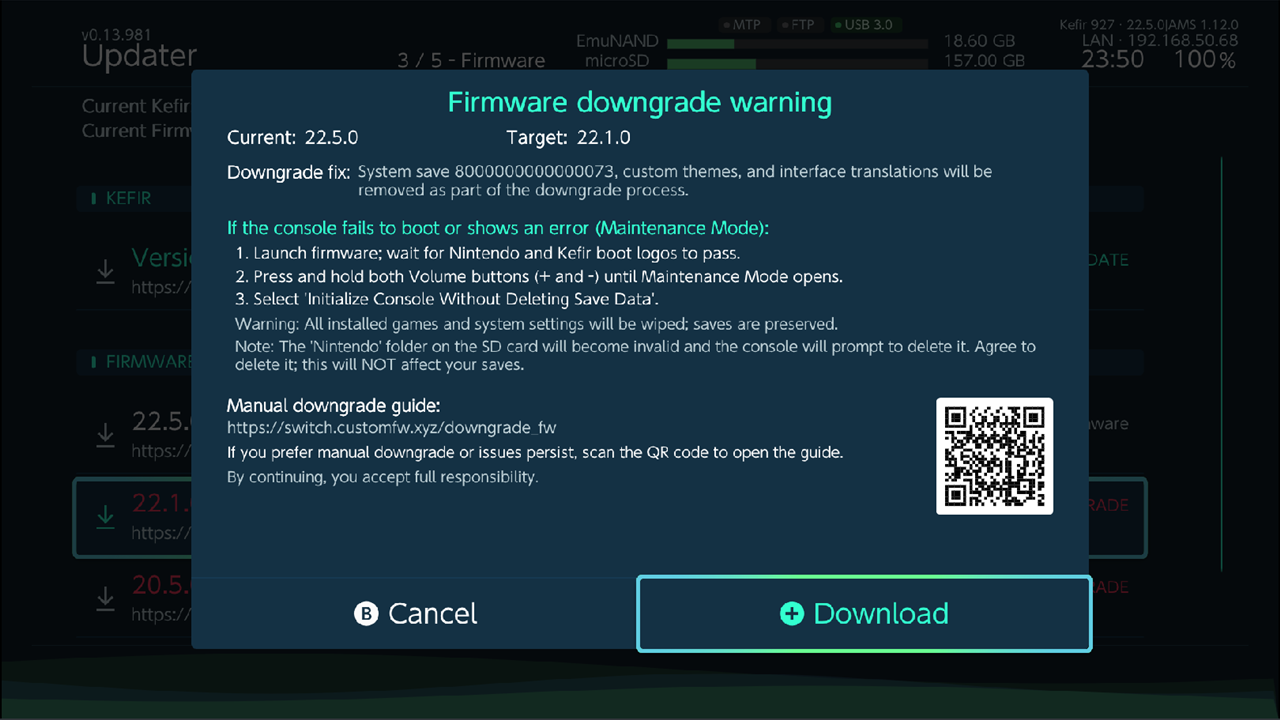
The warning shows the current and target versions and what to do if the console does not boot afterwards.
Warning
In the warning box the confirm button is selected when it opens. Pressing A right away continues the downgrade. Press B to cancel.
What happens next depends on the Downgrade fix option (press + in the Updater):
| Value | What it does |
|---|---|
| Automatic | Prepares the downgrade fix without asking. |
| Optional (ask) | Asks "Apply downgrade fix?" each time. |
| Off | Never applies the fix. |
The downgrade fix deletes the system save 8000000000000073 after the install. It runs in TegraExplorer:
after a downgrade with the fix, the reboot prompt starts TegraExplorer instead of a normal reboot.
After the reboot the TegraExplorer screen appears, does its work by itself and returns to the firmware.
The fix is not guaranteed to work.
You can also run the fix on its own: + → Apply downgrade fix → Apply. The console reboots into TegraExplorer.
If the console does not boot after a downgrade
If the firmware still does not boot, Maintenance Mode is the only way:
- Turn the console on. After the Kefir logo, the trident appears.
- From the trident, press and hold both volume buttons (+ and −) and keep holding them. The Atmosphère logo (blue and yellow) appears, then the sloth logo, then Maintenance Mode.
- Select "Initialize Console Without Deleting Save Data". The wording depends on the console's system language.
All games are removed and must be installed again. Profiles, most settings and all saves stay. The console then
reports that the Nintendo folder on the memory card is invalid and offers to delete it. Agree; this does not
affect your saves.
The warning box also has a QR code that opens a manual downgrade guide.
Update Kefir Hub
Kefir Hub checks for its own new version when it starts. The behaviour is set in Settings → General → Auto-update (see Settings).
| Option | What it does | Default |
|---|---|---|
| When to install | Off: never check. Silent: download in the background; the next launch uses the new version. Ask: show a prompt when a new version is found. | Silent |
| Update now | Downloads a waiting release, or retries a failed download. When the new version is ready, select it to restart Kefir Hub. | — |
| Skipped version | Shown only after you skip a version. Select it to be asked about that version again. | — |
With Ask, this prompt appears once per launch when a new version exists: "A new version is available. Update now?"
- Later — ask again next launch.
- Skip this update — do not ask about this version again.
- Update — download and install now. When it finishes, restart Kefir Hub.
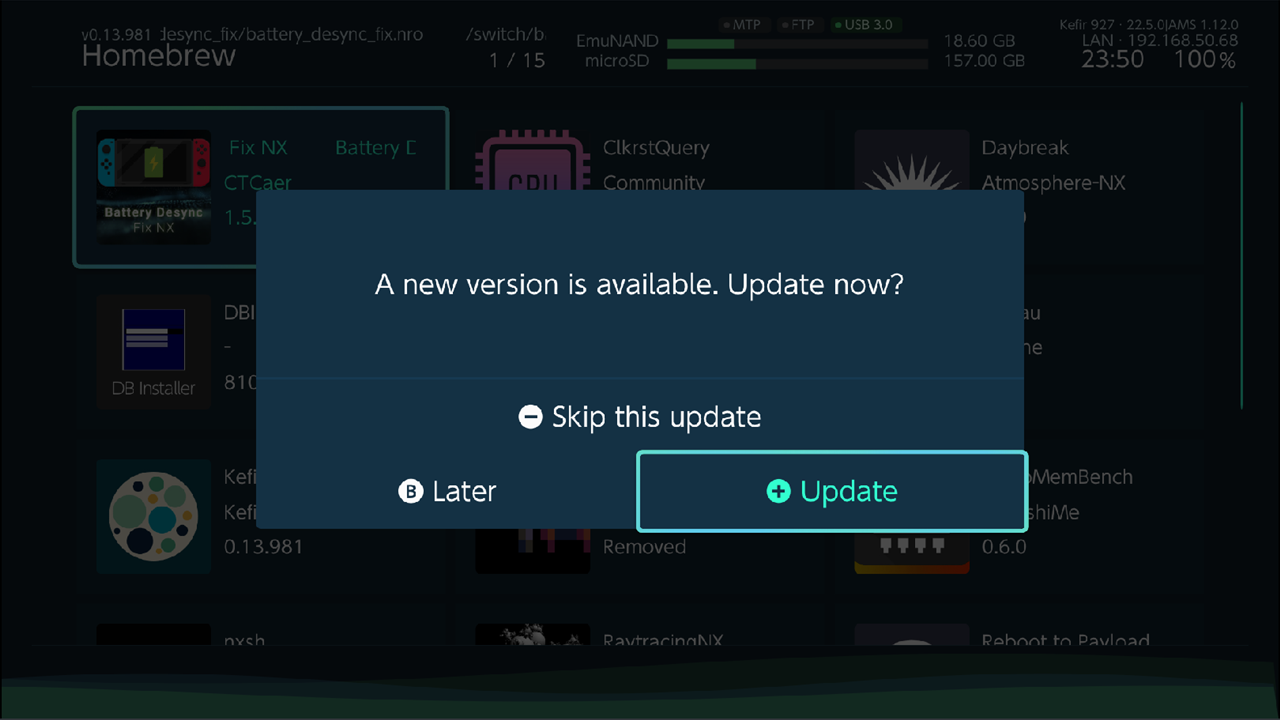
The update replaces the Kefir Hub file you started. If Replace hbmenu on exit is on, /hbmenu.nro is replaced too.
Options
Press + in the Updater.
| Option | What it does | Default |
|---|---|---|
| Layout | List or Grid view of the entries. | List |
| Downgrade fix | What to do about the system save when installing a lower firmware. See Downgrade the firmware. | Automatic |
| Apply downgrade fix | Runs the downgrade fix now (reboots into TegraExplorer). | — |
Problems
"Failed to load updater lists." The list could not be downloaded. Check the internet connection and press X.
The firmware is tagged Unsupported. The installed Kefir is too old for it. Choose Update Kefir when asked, or update Kefir first.
"Firmware validation failed". The files in the folder or archive are not a complete firmware, or they do not suit this console. Download the firmware again.
A downgrade stops with "Firmware update failed" before installing. With the downgrade fix on, the install stops if a file /startup.te already exists in the root of the memory card (another TegraExplorer job is pending, for example from 8GB DRAM status). Let that job finish or remove the file, then try again. Or set Downgrade fix to Off.
A message warns that themes and translations could not be removed. This should not normally happen. Incompatible themes or translations can cause Atmosphère error 2162-0002 on the next boot, so remove them before you boot the new firmware:
- Start TegraExplorer (hekate → Payloads →
TegraExplorer.bin) and run Kefir Helper. It removes them at a lower level. - After Kefir Helper, reinstall Kefir. Kefir Helper turns off many Kefir parts to prevent errors.
- If Kefir Helper fails too, check the memory card for errors.
The console does not boot after a downgrade. Follow If the console does not boot after a downgrade.