Install from a PC over USB
Send games from a PC to the console over a USB cable. Kefir Hub works with the PC apps DBI Backend (including DBI Backend Qt), ns-usbloader (Awoo/Tinfoil or GoldLeaf mode) and Fluffy. It finds out which app is on the other end by itself.
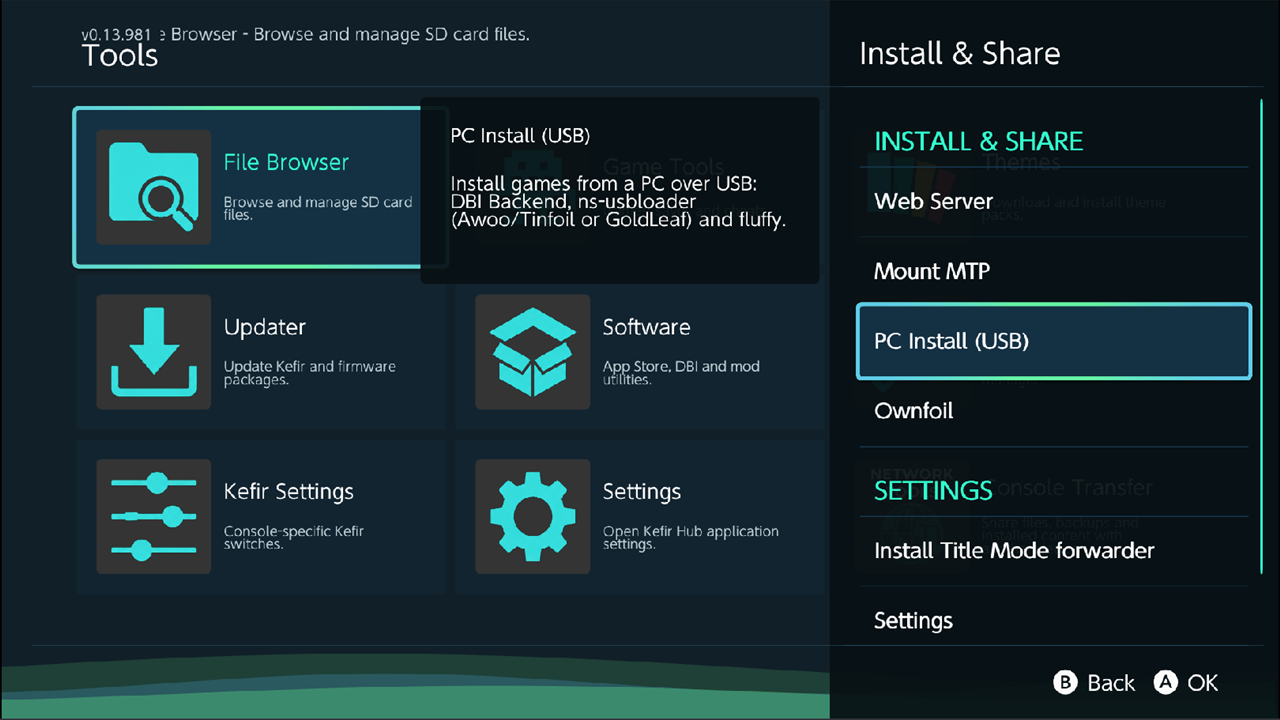
Where: Tools → press + (Install & Share) → PC Install (USB)
The same item is in the + menu of the Homebrew tab.
Turn installing on first (see Turn installing on).
What you need
- A USB cable between the console and the PC.
- One of the PC apps above. Its stream mode must be off: the console checks every package before installing, and a stream-mode app cannot send them that way.
- On Windows, a USB driver for the console. Windows has none of its own, so a PC app cannot open the console until one is installed.
- DBI Backend Qt 2.9.0 or newer installs the WinUSB driver itself. The first time it finds the console without a driver, it asks to install it and Windows asks for administrator permission once. You can also start it from Help → Install USB Driver in DBI Backend Qt.
- For ns-usbloader and Fluffy, install the driver as their instructions say (libusbK with Zadig).
- A driver you already installed with Zadig keeps working; DBI Backend Qt leaves it as it is.
- On Linux, DBI Backend Qt offers to add a udev rule (it asks for your password) if your user cannot open the console. macOS needs nothing.
Install games
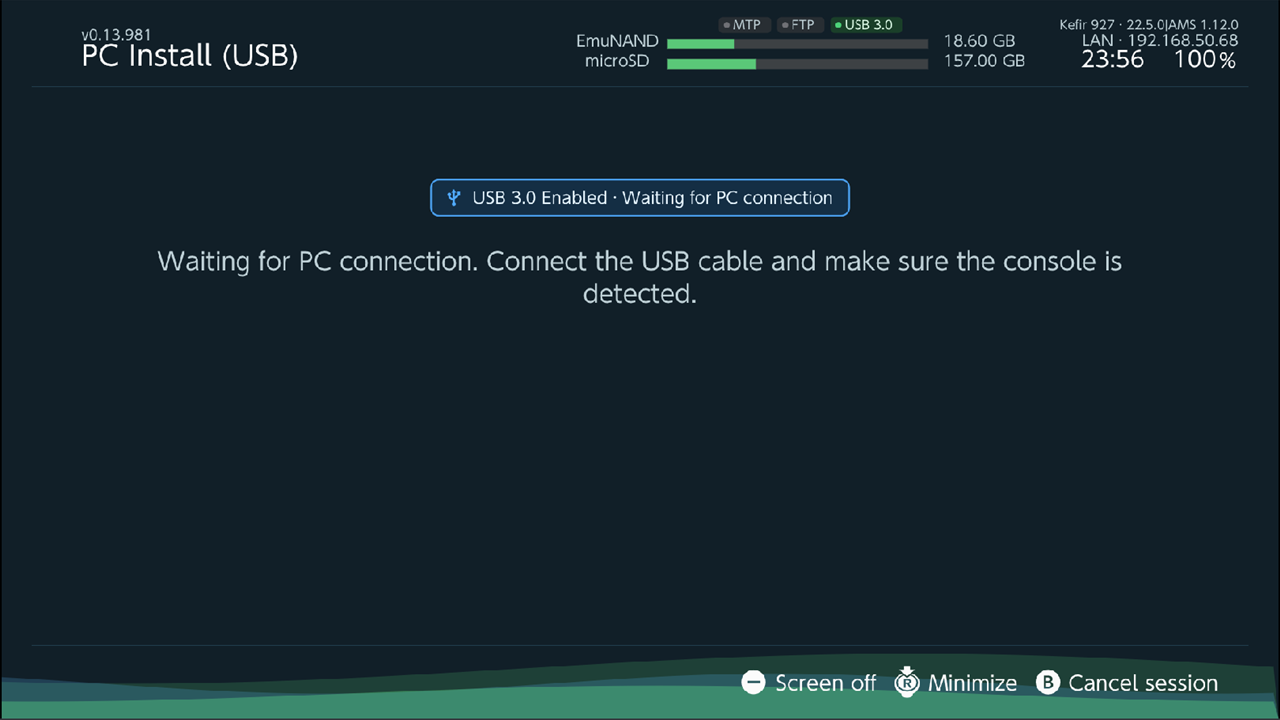
- Open PC Install (USB). The console shows Waiting for PC and a badge with the USB speed.
- Connect the cable and start the PC app.
- In the PC app, add the files and start the transfer.
- The console reads the list and checks every package. Nothing is installed yet.
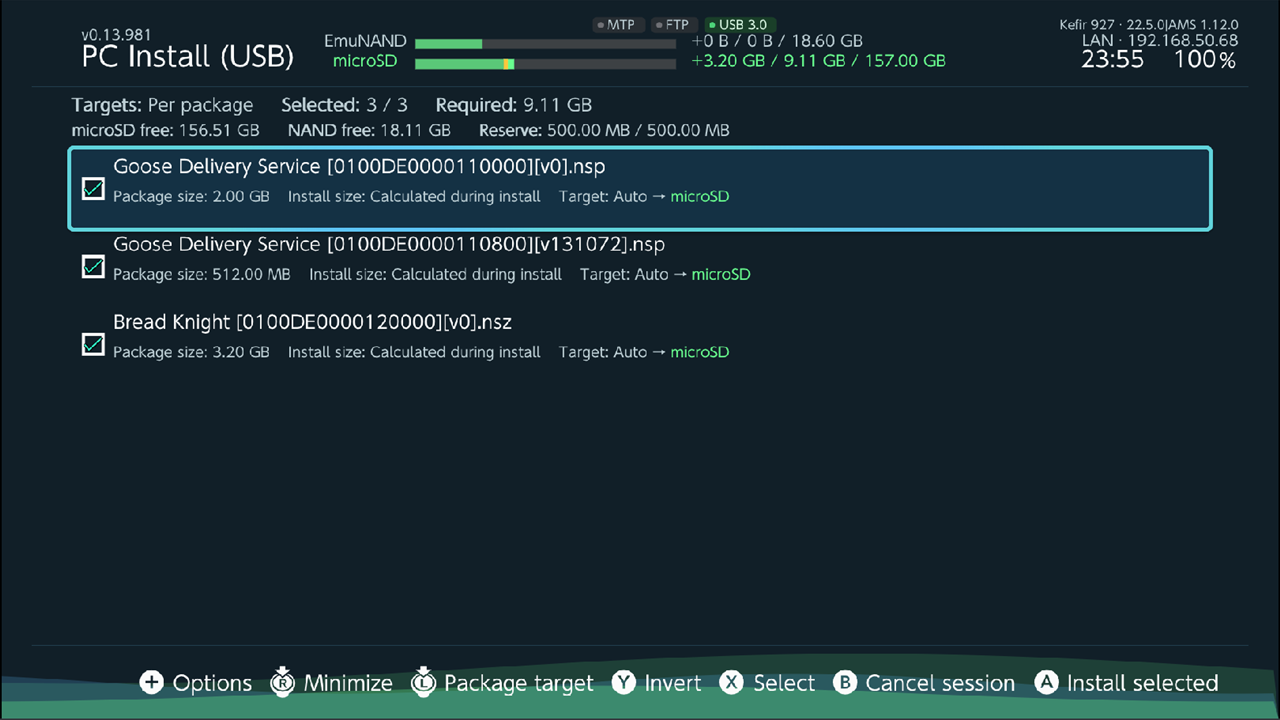
- The queue opens. Check the targets and sizes, select what you want, and press A (Install selected).
- Wait for the Session summary.
The queue, the progress screen, minimizing, screen off and the summary work the same as for files on the microSD card. See Review the queue and the sections after it.
Change the queue from the PC
With DBI Backend Qt the queue stays in sync with the PC app:
- Selecting or unselecting a package, changing the order, and choosing Auto, microSD or System memory for a package on the PC is shown on the console.
- This also works while the queue is installing, for packages that have not started yet.
- The console sends its free space to the PC app.
The USB speed badge
The waiting screen shows the USB mode:
- USB 3.0, when USB 3.0 is turned on in Atmosphère (
usb30_force_enabledin/atmosphere/config/system_settings.ini) or the link runs at USB 3.0 speed. - USB 2.0 otherwise.
With USB 3.0 turned on, the badge also shows if the cable or port only gives a USB 2.0 link.
What changes while it runs
- MTP is turned off during a USB install; you see Disable MTP for usb install. It is turned on again when you close the screen (Re-enabled MTP).
- USB drives connected to the console are unmounted during the session and mounted again afterwards.
Problems
The console stays on the waiting screen. Check the cable, then start the transfer in the PC app. The console keeps looking for the PC until you press B (Cancel session).
The PC app does not find the console on Windows. The USB driver is missing. In DBI Backend Qt, choose Help → Install USB Driver and allow the administrator prompt. If you declined the prompt or have no administrator rights, ask the PC's administrator to run it.
The PC app is in stream mode. The console shows USB session failed and asks you to turn stream mode off. Turn it off in the PC app and open PC Install (USB) again.
The cable comes loose during an install. The log shows that the connection was lost and the console tries to reconnect and retry the package. If it cannot, the session ends and the remaining packages are skipped. Check the cable and the port, then start again.
A warning about Applet Mode on the waiting screen. In Applet Mode memory is limited and NSZ packages are unlikely to install. Start Kefir Hub in Title Mode (see Supported files).